Articles & BlogBy Trapper W. Brown7 min read
"You need permission to perform this action" means Windows looked up who is allowed to change a file or folder, and the account you are using is not allowed to do what you asked. It is not a sign of a broken PC. It is a protection doing its job, and it calls for some care, because the quick fixes passed around online remove the protection along with the message.
 Every car at this gate gets the same check: who are you, and are you on the list for what you want to do? Photo by Roland Balik, U.S. Air Force, public domain, via Wikimedia Commons.
What does this message mean?
Windows decides who may touch what with a system Microsoft calls access control. Three ideas from Microsoft's overview explain the message.
- Permissions. Every file and folder carries a list of accounts and what each may do. Microsoft's examples are Read, Write, Modify and Full control.
- An owner. Every item has one. By default it is whoever created the item. The owner can always change the permissions, whatever the list says.
- Inheritance. A file takes on the permissions of the folder it sits in, so one rule on a folder covers everything inside.
When you move, rename, delete or save something, Windows compares your account with that list. If the action is not allowed, you get this message. "Linux Files, Users and Permissions" teaches the same three ideas on a system where they are easier to see.
One more piece matters: the kind of account you have. An administrator account may change the whole PC. A standard account may not. Microsoft adds a twist. Even an administrator's programs run with standard rights until that person approves a prompt. The feature behind the prompt is called User Account Control. So the message can appear on a PC with one user who owns everything on it.
What usually causes it?
| Cause | The sign |
|---|---|
| The item belongs to another account on the PC | It sits in another person's user folder |
| You are on a standard account | Windows asks for an administrator's user name and password |
| The item is part of Windows | It is inside the Windows folder on the system drive |
| A security feature blocked the app | A notice says an app is blocked, and the save was to Documents, Pictures, Videos, Music or Desktop |
| The folder is on another computer | It is a shared folder or a network drive |
The first cause is by design. Microsoft's page on user accounts says separate accounts keep each family member's files private from the others.
The fourth is a feature named Controlled folder access. Microsoft's support page for Windows 11 and Windows 10 says it blocks apps it does not trust from changing files in protected folders, as a defense against ransomware (software that locks your files and demands payment). Microsoft's documentation says the feature is off by default, so this applies only if someone turned it on.
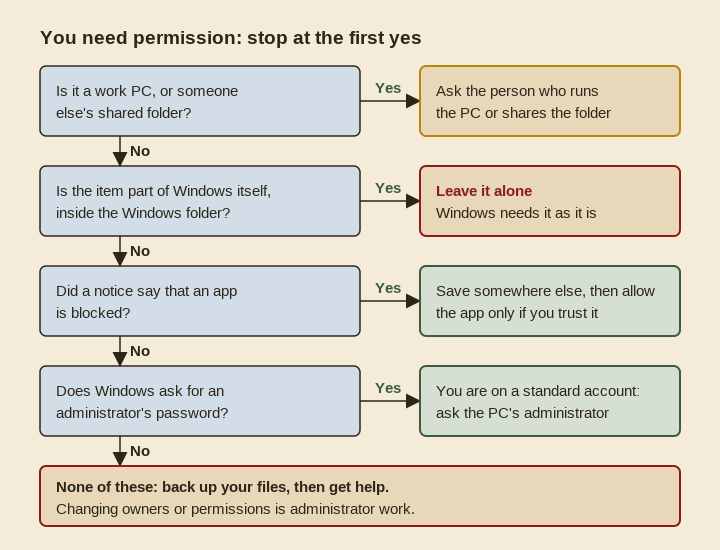 Work down the questions, and stop at the first yes.
What to try, in order
- Read the message and ask whose item it is. Note the file or folder it names and what you were doing. If the item belongs to another person, the answer is to ask that person. Nothing is wrong with the PC.
- Approve the prompt, if you started the action. Microsoft marks tasks that need administrator rights with a shield icon. On an administrator account, Windows shows a prompt asking for consent. Say yes only to something you began yourself. Microsoft's documentation says the prompt is there so that software cannot take administrator rights silently.
- If Windows asks for an administrator's password, find the administrator. That prompt means you are on a standard account. Microsoft's guidance is that a standard account for daily use is the safer way to run Windows, so this is the system working as intended. Ask the person who holds the administrator account to enter their details or to do the task.
- If you are the administrator and another account needs more rights, change its type. Microsoft's path for Windows 11 and Windows 10 is Settings, then Accounts, then Other user. Select the account, select Change account type next to Account options, pick the type and select OK. Microsoft's page carries a caution: keep the number of administrators small, because an administrator can change settings, install software and reach all files.
- If a notice said an app is blocked, save somewhere else first. That is Microsoft's own advice for Controlled folder access: save the file to another location, then decide about the app. To allow an app you trust, Microsoft's steps are to note the path of the blocked app, select the message, select Add an allowed app and browse for the program. The same setting is in the Windows Security app under Virus & threat protection, then Manage ransomware protection, then Allow an app through Controlled folder access. Microsoft's caution is to be thoughtful: an allowed app can reach everything in the protected folders. Do not turn the feature off to get past the message.
- For a shared folder or network drive, ask whoever shares it. Microsoft's page on file sharing says that if you cannot connect, you might not have the correct permissions, and to contact your network administrator. The list that decides this is kept on the other computer.
- Look at the list, and leave it as it is. Microsoft's overview says the permissions for a file are on the Security tab of its Properties window, which opens from a right-click on the file. Reading that tab changes nothing, and it shows whether your account appears.
Watch out
Most advice online for this message says to take ownership of the folder or give yourself Full control. Windows does let an administrator do both. Microsoft's pages on the subject are written for IT administrators, and one of them warns that taking ownership gives control of an item whatever its permissions were, and that the changes could expose or corrupt data. This article prints no steps for it. Never do it to the Windows folder: changed permissions there are a listed cause of Windows Update failing with error 0x80070005.
That update failure has its own page here: "Access is denied and Error 0x80070005: What It Means and What to Try".
When to stop and get help
Stop at the first yes in the diagram above. If the PC belongs to an employer or a school, its permissions were set on purpose by the people who run it, and the fix is theirs.
Stop also when the only idea left is to change owners or permissions on a folder you did not create. Before anyone does that, copy the files you care about to another drive. "Backups That Work: The 3-2-1 Rule" explains how. If the PC holds work or irreplaceable files and the steps have not helped, stop and take it to a repair professional.
What to remember
- The message means a permission check failed. It does not mean the PC is damaged.
- Every file and folder has an owner and a list of who may do what, and files inherit that list from their folder.
- A prompt that asks for an administrator's password means you are on a standard account. Ask the administrator.
- If an app was blocked from saving, save elsewhere first, and allow only an app you trust.
- For shared folders, the person who shares them sets the rules.
- Taking ownership is administrator work with real risk. Never do it to Windows' own folders.
I think the best habit here is to read the message as a question: whose file is this, and should this account be changing it? "Locking Down a Windows or Mac Computer" explains why one administrator account and standard accounts for daily use keep a home PC safer, and why you will see this message a little more often once you set things up that way.
Sources (9)
- Microsoft Learn, "Access control overview", updated 27 May 2026
- Microsoft Learn, "How User Account Control works", updated 23 April 2026
- Microsoft Support, "User Account Control settings"
- Microsoft Support, "Manage User Accounts in Windows"
- Microsoft Support, "Virus and Threat Protection in the Windows Security App"
- Microsoft Learn, "Controlled folder access (CFA) overview"
- Microsoft Support, "File sharing over a network in Windows"
- Microsoft Learn, "Take ownership of files or other objects", 19 April 2017
- Microsoft Learn, "Troubleshoot Windows Update error 0x80070005", updated 6 May 2026