Articles & BlogBy Trapper W. Brown12 min read
For anyone whose computer still has the settings it came with. Every menu path below was read on Microsoft's or Apple's own support pages on 15 November 2026.
A new computer is set up to be easy to use. The first account can change anything, the screen stays open while you get coffee, and nobody has checked whether the disk could be read if the laptop were stolen. Most of the protection you need is already built in. It is waiting behind seven settings.
None of them costs money, and none needs extra software. This article goes through the seven in order, says what each one protects against in plain terms, and gives the path to it on Windows and on a Mac. Set aside an hour. The backup is the only part that needs something you may not own yet, which is an external drive.
 The phone gets locked down because it leaves the house, and the laptop next to it holds just as much. Photo by Alejandro Escamilla, CC0, via Wikimedia Commons.
Which versions is this written for?
On the Windows side, Microsoft's pages are marked as applying to Windows 11 and Windows 10, and the paths here are the Windows 11 ones. Microsoft's pages also carry a notice that support for Windows 10 ended on October 14, 2025, and that after that date it no longer provides free software updates or security fixes from Windows Update for it. If your PC runs Windows 10, that notice is the first thing to deal with, because the first setting on this list is updates.
On the Mac side, the paths come from Apple's Mac User Guide for macOS 27 Golden Gate. Each guide page has a menu at the top for older versions, so pick yours if a name does not match.
Menus move between versions. Where your screen differs, search for the setting by name: on Windows, press the Windows key and type it, and on a Mac, type it into Spotlight.
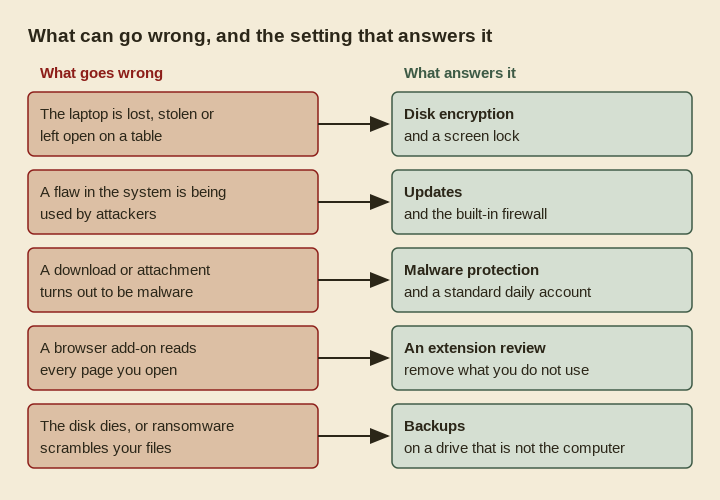 Each of the seven settings answers a different way of losing your data.
1. Are updates turned on?
An update is the maker closing a hole that someone has found. Until you install it, the hole is open on your machine and documented for everyone else.
Windows. Select Start, then Settings, then Windows Update, and check for updates. If any are offered, select Download & install and restart when asked.
Mac. Choose Apple menu, then System Settings, click General in the sidebar, then Software Update. Next to Automatic Updates, Apple's guide lists three switches worth turning on: "Download new updates when available", "Install macOS updates" and "Install Security Responses and system files". Apple notes that a laptop must be plugged in to download updates automatically.
Apps need updates too. The browser matters most, because it is the program that touches the most strangers.
2. Why not use an administrator account every day?
An administrator account can install software and change any setting. A standard account is for using the computer: its own files and its own settings. If you run as a standard user, anything that gets in through a bad download or a hostile web page starts with those limits, and not with complete control of the machine.
Microsoft's own page says it is safer to have fewer administrators and to use standard user accounts for day-to-day activities. Apple describes the same split: an administrator can add and manage users, install apps and change settings, and a standard user can install apps and change their own settings and cannot add or change other users.
The usual way to get there is to keep two accounts: one administrator that you sign in to only when something needs installing, and one standard account that you live in.
Windows. In Settings, select Accounts, then Other user. Add account creates the second account. To change what an account can do, select it under Other users, select Change account type, and pick the type from the list.
Mac. Choose Apple menu, then System Settings, then Users & Groups. Click Add User and choose Administrator or Standard. In a user's details, the switch "Allow user to administer this computer" is what makes a standard user an administrator.
Make the new administrator account first, sign in to it once to prove the password works, and only then make your daily account standard. A computer with no working administrator is a bad afternoon.
Watch out
Apple's guide warns against automatic login for an administrator: someone could restart the Mac and be in with full privileges. The same page notes that turning on FileVault disables automatic login.
3. What does disk encryption protect?
Encryption scrambles everything on the disk so that it can be read only after you sign in. It protects one case, and it protects it well: the computer is lost or stolen while it is off or locked. It does nothing against malware that runs while you are signed in, because by then the disk is unlocked for you.
Windows. There are two versions of the same feature. Device Encryption is the automatic one, and Microsoft says it is available on a wide range of devices, including those running Windows Home. It turns on when you first sign in with a Microsoft account, and the recovery key is attached to that account. With a local account it does not turn on by itself. Microsoft's page puts the switch in Settings, in the privacy and security section, under Device encryption, and says that if the entry is missing, the feature is unavailable on that device or you are signed in as a standard user. BitLocker Drive Encryption is the manual one, for the Pro, Enterprise and Education editions: from Start, type BitLocker and select Manage BitLocker.
Mac. Apple says a Mac with Apple silicon or the T2 security chip encrypts its data automatically, and that turning on FileVault adds a layer by keeping anyone from getting at the data without your login password. Choose Apple menu, then System Settings, click Privacy & Security, then FileVault.
Both systems give you a recovery key, and both makers are blunt about it. Microsoft describes its key as a 48-digit number and says Microsoft Support cannot retrieve, provide or recreate a lost one. Apple warns that if you forget both your login password and your recovery key, your files are lost. So write the key down or print it, and keep it somewhere that is not the computer and not the laptop bag. A key saved to a Microsoft account can be looked up from another device at aka.ms/myrecoverykey.
4. Are the firewall and malware protection on?
A firewall decides which connections from the network are allowed to reach your computer. Malware protection checks files and programs against what is known to be harmful. Both come with the system. The job is to confirm they are on.
Windows. Open the Windows Security app from the Start menu.
- Firewall & network protection shows the network you are on, labeled domain, private or public. Select it and make sure Microsoft Defender Firewall is On. Public is the stricter choice for a coffee shop.
- Virus & threat protection is the home of Microsoft Defender Antivirus. Under Manage settings, check that Real-time protection is on. Microsoft notes that if you install another antivirus program, Defender turns itself off, and that it turns back on if you remove the other one.
Mac. Choose Apple menu, then System Settings, click Network, then Firewall, and turn it on.
A Mac's malware protection has no switch to look for. Apple describes three built-in layers: the App Store and a check called Gatekeeper that keep known-bad software from launching, a scanning service for developers called Notarization, and an antivirus technology called XProtect that blocks and removes known malware, with signatures that update on their own. The setting you can check is in System Settings, Privacy & Security, under Security: "Allow applications from" offers App Store, which Apple calls the most secure setting, or App Store and Known Developers.
5. Does the screen lock when you walk away?
Encryption protects a computer that is off. A screen lock protects one that is on and unattended, in an office, a dorm or a kitchen full of guests.
Windows. Press the Windows logo key + L to lock at once. In Settings, select Accounts, then Sign-in options, and find the setting that asks when Windows should require you to sign in again if you have been away. The same page offers Dynamic lock, which pairs with your phone over Bluetooth and locks the PC within a minute after the phone moves out of range. Microsoft suggests 10 or 15 minutes of idle time as a usual interval before the device goes to sleep.
Mac. Choose Apple menu, then System Settings, then Lock Screen. Set "Require password after screen saver begins or display is turned off" to a short time.
As a rule of thumb, I would set the lock to five minutes or less on a laptop that leaves the house. A fingerprint or face sign-in, where the machine has one, takes the sting out of a short timer.
6. Which browser extensions do you still need?
An extension is a small add-on that changes what the browser does. Many of them ask for access to the websites you visit, and a page you visit may be the one where you type a password. An extension you installed three years ago and forgot still has whatever access you gave it.
Microsoft Edge. Select Extensions to the right of the address bar, then Manage extensions. Turn one off with its toggle, or choose Remove from Microsoft Edge. When you add one, Edge shows the permissions it wants, and Microsoft's advice is to review them carefully.
Safari. From the Safari menu choose Settings, then click Extensions. Clear a checkbox to turn one off, or select it and click Uninstall. Apple's advice is short: if you cannot work out what an extension does, or do not expect to use it again, uninstall it.
Other browsers have an extensions page of their own. The test is the same everywhere: for each one, ask who makes it and whether you used it this month.
7. Is there a backup that is not on the computer?
Every setting above keeps other people out. A backup is for the day the disk fails, the laptop is gone, or ransomware (malware that scrambles your files and demands payment) gets through anyway.
| What | Windows | Mac |
|---|---|---|
| Built-in tool for an external drive | File History | Time Machine |
| Where to turn it on | Control Panel, System and Security, "Save backup copies of your files with File History", then Turn on | System Settings, General, Time Machine, then Add Backup Disk |
| What the maker says it keeps | Copies of the folders in your libraries, with earlier versions you can restore | Hourly backups for the past 24 hours, daily for the past month, weekly before that |
Apple suggests a backup drive with at least twice the storage of the Mac, so a Mac with 1 TB wants a 2 TB drive. Time Machine also offers Encrypt Backup, which protects the drive with a password of its own.
Windows also has an app called Windows Backup, which copies chosen folders and settings to OneDrive, Microsoft's online storage. Microsoft says a free account includes 5 GB. It works by syncing, and "Backups That Work: The 3-2-1 Rule" explains why a synced folder and a backup are not the same thing, along with how many copies to keep and how to test one.
What to remember
- Turn on automatic updates first. On Windows 10, Microsoft's free security fixes ended on October 14, 2025.
- Use a standard account for daily work and keep a separate administrator account for installing things.
- Check that the disk is encrypted, and store the recovery key away from the computer. Neither maker can recover a lost one for you.
- Confirm the firewall and the built-in malware protection are on.
- Lock the screen on a short timer, and with the keyboard when you get up.
- Remove browser extensions you do not use, and back up to a drive that is not the computer.
A computer is only one of the devices that hold your accounts. "Locking Down Your Phone in 20 Minutes" does the same job for the one in your pocket, and "Home Wi-Fi: The Six Router Settings That Matter" covers the box that both of them connect through.
Sources (25)
- Microsoft Support, "Install Windows Updates", applies to Windows 11 and Windows 10, read 15 November 2026
- Microsoft Support, "Manage User Accounts in Windows", read 15 November 2026
- Microsoft Support, "Device Encryption in Windows", read 15 November 2026
- Microsoft Support, "BitLocker Drive Encryption", read 15 November 2026
- Microsoft Support, "Find your BitLocker recovery key", read 15 November 2026
- Microsoft Support, "Windows Security App Overview", read 15 November 2026
- Microsoft Support, "Firewall and Network Protection in the Windows Security App", read 15 November 2026
- Microsoft Support, "Virus and Threat Protection in the Windows Security App", read 15 November 2026
- Microsoft Support, "Sign-In Options in Windows", read 15 November 2026
- Microsoft Support, "Use a screen reader to navigate sign in options in Windows", read 15 November 2026
- Microsoft Support, "Securing your device", read 15 November 2026
- Microsoft Support, "Add, turn off, or remove extensions in Microsoft Edge", read 15 November 2026
- Microsoft Support, "Backup and Restore with File History", read 15 November 2026
- Microsoft Support, "Back up and restore with Windows Backup", read 15 November 2026
- Apple Support, "Update macOS on Mac", published 14 September 2026
- Apple Support, Mac User Guide for macOS 27 Golden Gate, "Keep your Mac up to date", read 15 November 2026
- Apple Support, Mac User Guide for macOS 27 Golden Gate, "Add a user or group on Mac", read 15 November 2026
- Apple Support, Mac User Guide for macOS 27 Golden Gate, "Change Users & Groups settings on Mac", read 15 November 2026
- Apple Support, Mac User Guide for macOS 27 Golden Gate, "Protect data on your Mac with FileVault", read 15 November 2026
- Apple Support, Mac User Guide for macOS 27 Golden Gate, "Block connections to your Mac with a firewall", read 15 November 2026
- Apple Support, Mac User Guide for macOS 27 Golden Gate, "Protect your Mac from malware", read 15 November 2026
- Apple Support, Apple Platform Security, "Protecting against malware in macOS", read 15 November 2026
- Apple Support, Mac User Guide for macOS 27 Golden Gate, "Require a password after waking your Mac", read 15 November 2026
- Apple Support, "Use Safari extensions on your Mac", read 15 November 2026
- Apple Support, "Back up your Mac with Time Machine", published 16 October 2026