Articles & BlogBy Trapper W. Brown8 min read
For anyone with files they would miss: photos, schoolwork, game saves, the books for a small business. By the end you will have a backup plan you can set up this weekend and a way to prove it works.
What would you lose if your computer did not turn on tomorrow? For most people the honest answer is years of photos and documents, and nobody finds out how much until the day it happens.
Drives fail, laptops get stolen, coffee gets spilled, and ransomware scrambles files and demands payment. One habit answers all of those, and it is old enough to have a name: the 3-2-1 rule.
 An airman inspects backup hard drives. Backups only count if someone checks them. Photo by Airman 1st Class Jennifer Zima, U.S. Air Force, public domain, via Wikimedia Commons.
What is the 3-2-1 rule?
Keep 3 copies of anything you would miss, on 2 different kinds of storage, with 1 copy somewhere else.
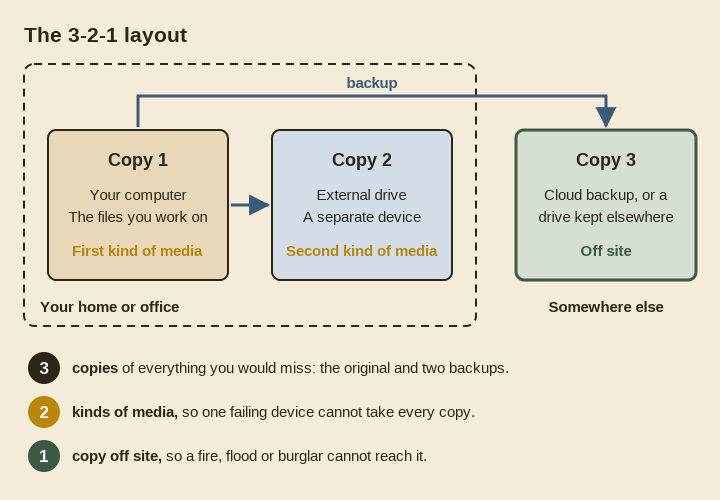 Three copies, two kinds of media, one of them off site.
Each number guards against a different failure.
- 3 copies means the original plus two backups. With only one backup, the day your computer dies you are down to a single copy, and that is the day you will be handling it the most.
- 2 kinds of media means the copies do not share one weakness. A second folder on the same disk is not a second kind of media. An external drive or a cloud service is.
- 1 off site means a fire, a flood or a burglar cannot take every copy at once. Off site can be a cloud backup service or a drive kept at a relative's house or the office.
Why is sync not a backup?
Services such as Dropbox, OneDrive, iCloud and Google Drive sync: they keep the same files on all your devices. That feels like a backup, and it does protect you from one thing, a lost or dead device.
Sync copies your mistakes as faithfully as your work. Delete a folder on your laptop and it disappears from the cloud and your other devices. If ransomware encrypts your files, the encrypted versions sync everywhere.
| Sync | Backup | |
|---|---|---|
| Purpose | Same files on every device | Get files back after something goes wrong |
| A deleted file | Is deleted everywhere | Stays in the backup |
| A file ruined by ransomware | The ruined version replaces the good one | Older, good versions are kept |
| Goes back in time | Sometimes, for a limited period | Yes, as far as you choose to keep |
The feature that separates them is versioning: keeping older states of a file, so you can restore last Tuesday's copy and not only the latest one. Many sync services keep some version history or a recycle bin for a limited time, which helps, but it has an expiry date you do not control. A real backup keeps versions for as long as you set.
Full against incremental
A full backup copies everything, every time. It is simple to restore from, since one backup holds it all, but it is slow and takes a lot of space. An incremental backup copies only what changed since the last backup. It is fast and small, but a restore needs the last full backup plus every incremental after it.
| Type | What it copies | Trade-off |
|---|---|---|
| Full | Everything | Slow and large, simplest to restore |
| Incremental | Only changes since the last backup of any kind | Fast and small, restore needs the whole chain |
Nearly all backup software mixes the two: a full backup once, then incrementals. Take an office with 1,500 GB of files where about 1 percent changes on a working day. A full backup every Sunday and an incremental on the other nights looks like this.
| Sunday (full) | 1,500 GB |
|---|---|
| Monday | 15 GB |
| Tuesday | 15 GB |
| Wednesday | 15 GB |
| Thursday | 15 GB |
| Friday | 15 GB |
| Saturday | 15 GB |
Source: Worked example in this article
Good software hides the chain from you. You pick a date, and it assembles the files as they stood that day.
Ransomware and the copy it cannot reach
Ransomware encrypts every file it can reach, and it reaches whatever your computer can: the internal disk, a plugged-in external drive, a shared folder on the network. Attackers know backups are the way out, so they go after them first.
Backups still decide how these stories end. In Sophos's The State of Ransomware 2026, a survey of organizations with 100 to 5,000 employees, 66% of those whose data was encrypted recovered it from backups, up from 54% the year before, and 48% paid the ransom.
The defense is one copy the attacker cannot change.
- An offline copy is not connected to anything. An external drive that is unplugged and sitting in a drawer cannot be encrypted from across the internet.
- An immutable copy is stored so that it cannot be altered or deleted for a set period, even by someone logged in as the administrator. Many cloud backup and storage services offer this as a setting.
Watch out
The mistake that hurts most is leaving the backup drive plugged in all the time. It is convenient, and it means ransomware, a power surge or a thief takes the original and the backup together. Plug it in, let the backup finish, unplug it. Or keep two drives and swap them.
Does your backup restore?
A backup you have never restored from is an assumption. Drives fail quietly, backup jobs stop after a password change, and the folder you care about turns out to have been left off the list. The only test is to get a file back.
Pick a file, restore it from the backup to a different folder, and compare it with the original. On Linux:
sha256sum Documents/taxes-2025.pdf Restore-test/taxes-2025.pdf
This prints a fingerprint, called a hash, for each file. If the two long strings match, the files are identical.
3b1f5c0e9a7d42c68e0b4f19d6a2c75e8f3091b7c4de5a60f1829b3c7d4e6a05  Documents/taxes-2025.pdf
3b1f5c0e9a7d42c68e0b4f19d6a2c75e8f3091b7c4de5a60f1829b3c7d4e6a05  Restore-test/taxes-2025.pdf
On a Mac the command is shasum -a 256 with the same two file names. On Windows, open PowerShell:
Get-FileHash Documents\taxes-2025.pdf, Restore-test\taxes-2025.pdf
This prints a SHA-256 hash for each file, to compare the same way.
Businesses put two numbers on all this. The recovery point objective (RPO) is how much recent work you can afford to lose, measured in time: an RPO of one day means last night's backup is good enough, and it tells you how often to back up. The recovery time objective (RTO) is how long you can afford to be down while you restore, and it tells you how fast the restore has to be. A home user might accept losing a week of files and waiting two days. A clinic might accept losing an hour of records and being down for four hours. Decide your two numbers first and the rest of the plan follows.
Tip
Encrypt any copy that leaves the house. Most backup programs and cloud backup services offer it as a checkbox. Store the password or recovery key somewhere other than the computer being backed up, or the backup will be locked to you as well.
Two worked examples
A home. One laptop with 400 GB in use, about half of it photos and video.
- Copy 1: the laptop.
- Copy 2: a 2 TB external USB drive, using the backup tool built into the system (File History on Windows, Time Machine on a Mac). The extra room holds older versions. Plug it in on Sunday night, unplug it Monday.
- Copy 3: a cloud backup service with versioning turned on. The first upload is the slow part. At an upload speed of 20 megabits per second, 400 GB takes about 44 hours, so leave it running for a few days. After that only changes go up.
A small office. Six people sharing 1,500 GB of files on a network storage box.
- Copy 1: the storage box.
- Copy 2: a second storage device in the building, with a full backup on Sunday and incrementals on the other nights. Keeping four weeks means 4 fulls of 1,500 GB plus 24 incrementals of 15 GB, which comes to 6,360 GB, so an 8 TB device leaves room to grow.
- Copy 3: a cloud backup with immutability set to 30 days, so even a stolen admin password cannot erase last month.
- A restore test on the first Monday of each month, with a name next to it.
Here is the list for this weekend.
- Write down the folders you would miss, and add up their size
- Buy an external drive at least twice that size
- Turn on your system's built-in backup and run the first one
- Unplug the drive when the backup finishes
- Set up an off-site copy: a cloud backup service, or a second drive kept elsewhere
- Turn on encryption for the off-site copy and store the key safely
- Restore one file and compare it with the original
- Put a monthly restore test on your calendar
What to remember
- 3 copies, 2 kinds of media, 1 off site.
- Sync is not backup. It spreads deletions and ransomware as quickly as it spreads your work.
- Versioning is what lets you go back to before the damage.
- Full backups are simple and large. Incrementals are small and depend on the chain.
- Keep one copy offline or immutable, where ransomware cannot reach it.
- A backup is proven only by a restore. Test one file every month.
- RPO is how much work you can lose. RTO is how long you can be down.
Start with the external drive and one restored file. That alone puts you ahead of where you were on Friday. If you want to understand the encryption and the hashes used in the restore test, "Encryption and Hashing in Plain Terms" is the next article to read.