Articles & BlogBy Trapper W. Brown7 min read
A Windows Update stuck at one percentage has stopped showing progress while it downloads or installs. It is not serious while you can still use Windows, and Microsoft's first fixes are a restart and a few checks. It needs more care when the PC is stuck on a restart screen that tells you not to turn it off.
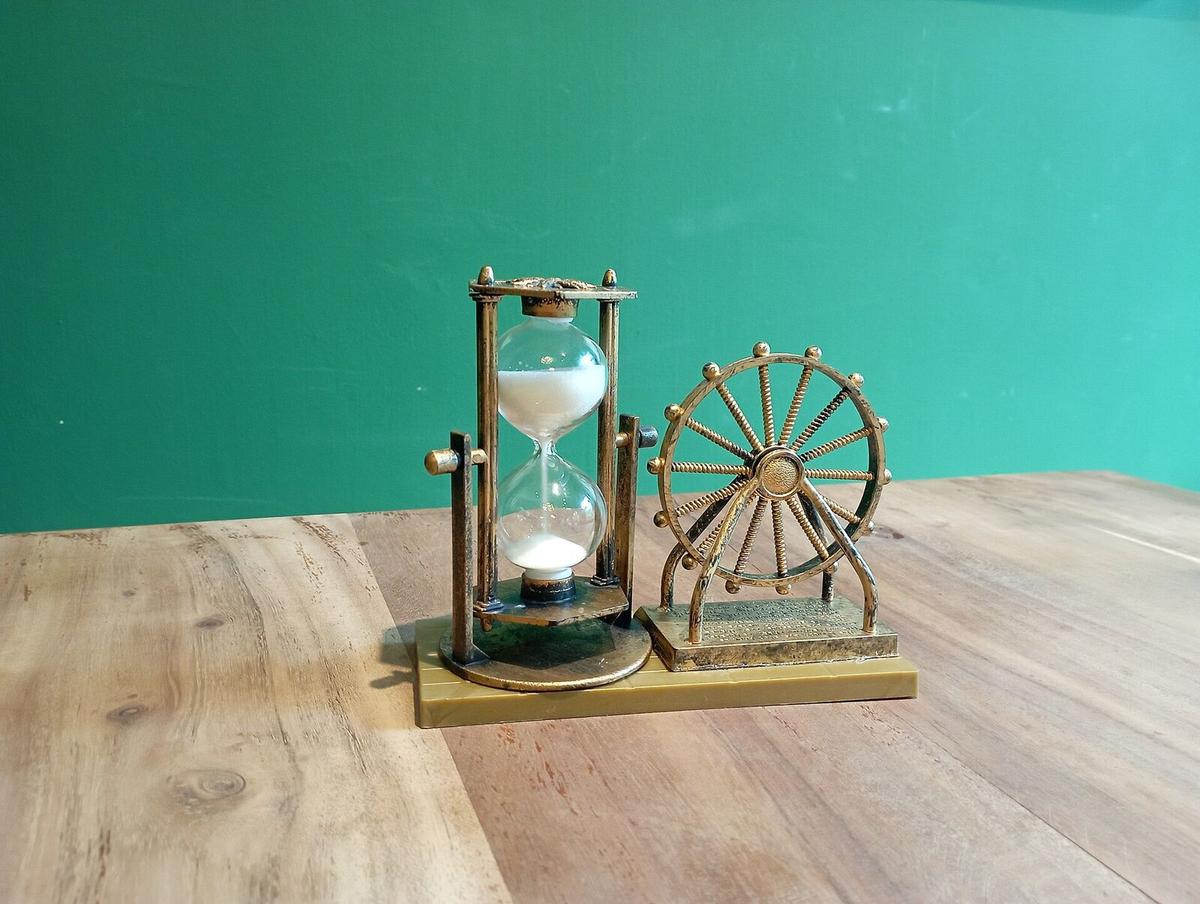 Most of the work with a stuck update is deciding how long to let it run. Photo by Suohros, CC0, via Wikimedia Commons.
What does this message mean?
There is no single error message here, and Microsoft has no page that quotes one. What you see is a number that does not move: in Settings while the update downloads or installs, or on a full screen during the restart that finishes it.
Microsoft's page "Troubleshoot problems updating Windows", for Windows 11 and Windows 10, treats the problem under two headings. One is an update stuck at 0% or 100%. The other is an update that reached somewhere from 51% to 99% and will not complete. Under the second, Microsoft says the time needed to download and install updates depends on connection speed, network settings and the size of the update. So a number that sits still for a while is not proof that anything has failed.
Size matters because Windows has two kinds of update. Microsoft describes quality updates as frequent and mostly small, and feature updates as roughly yearly and much larger.
What usually causes it?
Microsoft's pages point to a short list.
- The connection. Its table of update errors describes one code as the update process being stuck because of an incomplete update or a connection issue.
- Too little free space. Microsoft says feature updates typically need 6 GB to 11 GB or more of free space, and quality updates 2 GB to 3 GB or more. It also says that a PC with limited free space takes longer over the part of the install where you cannot use it.
- Another program in the way. Microsoft's reason for restarting is to make sure no other applications are blocking the update process.
- Damaged update files. Microsoft says corrupt files in the update cache, the folder where downloads are kept, can cause errors.
- A stopped service. A service is a program Windows runs in the background. Microsoft's page for IT staff, written for Windows 10, says the Settings screen can freeze while scanning if the update services stop unexpectedly.
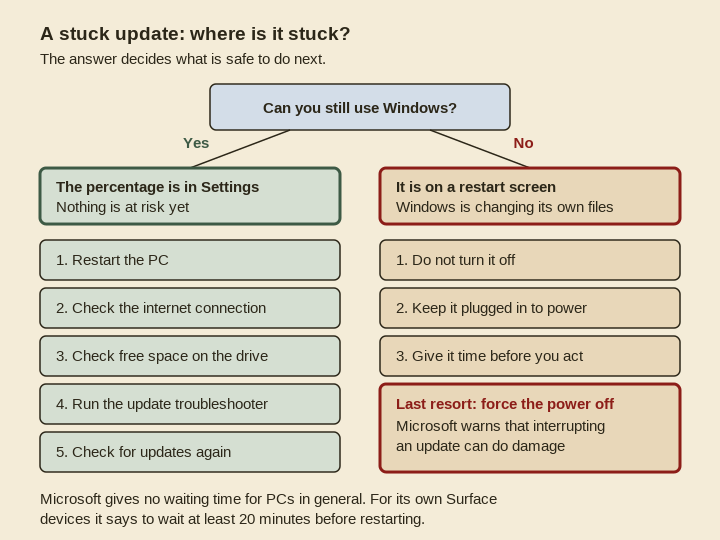 Two different situations share one name. Work out which one you are in first.
What to try, in order
Watch out
Microsoft's troubleshooting page opens with this advice: back up your personal files before trying any of its fixes. If you can still use Windows, do that now. "Backups That Work: The 3-2-1 Rule" covers how.
These steps are for a PC where Windows still works and the percentage is stuck in Settings.
- Plug it in and give it time. Microsoft says to make sure the device is plugged into power and connected to the internet.
- Restart the PC. This is Microsoft's first step for an update stuck at 0% or 100%. Save your work, then select Start > Power > Restart.
- Check the connection. Select Start > Settings > Network & Internet > Wi-Fi and confirm you are connected. If you are not, "No internet, secured: What the Wi-Fi Message Means and What to Try" may help.
- Check free space. For an upgrade to a new version, Microsoft says the device needs at least 16 GB free on a 32-bit system or 20 GB on a 64-bit one. On Windows 11, Start > Settings > System > Storage > Cleanup recommendations shows files you can remove.
- Run the Windows Update troubleshooter. This is Microsoft's advice for an update stuck from 51% to 99%. On Windows 11: Start > Settings > System > Troubleshoot > Other troubleshooters, then Run beside Windows Update. On Windows 10: Start > Settings > Update & Security > Troubleshoot > Additional troubleshooters, then Windows Update and Run the troubleshooter.
- Unplug extra hardware. Remove external drives, docks and other devices the PC does not need to run.
- Check for updates again. On Windows 11: Start > Settings > Windows Update > Check for updates. On Windows 10: Start > Settings > Update & Security > Windows Update > Check for updates.
Microsoft's page goes on to advanced steps, which it recommends only if you are comfortable with the command line: repairing Windows system files, and clearing the update cache by stopping the update service and emptying a folder inside the Windows folder. I have left those out. They are on the first page linked below.
What if it is stuck on the restart screen?
This is the harder case, because Windows is partway through changing its own files and you cannot run any of the steps above.
Microsoft does not publish a waiting time for Windows PCs in general. The one figure I could find on its pages is for its own Surface devices. That page warns that interrupting updates while they are in progress could damage the device, and says that if an update seems stalled and the device does not restart on its own, you should wait at least 20 minutes before trying to restart it yourself. A related warning sits on Microsoft's "Reset your PC" page: the screen may go black for a long time, occasionally upwards of 15 minutes, and restarting the device yourself during the process could cause it to fail.
I read the 20 minutes as a floor and not as a promise: Microsoft itself says a PC short on free space takes longer over this part of an install. If you do hold the power button down to force the PC off, you are accepting the risk Microsoft names, and the PC may not start normally afterward.
If that happens, Windows should open its recovery tools by itself after several failed starts. "Preparing Automatic Repair Loop: What It Means and What to Try" covers what to do from there. If the screen says Windows could not complete the updates and is undoing changes, let it finish. Microsoft calls that a generic failure message and says to look up the error code afterward in Start > Settings > Windows Update > Update history.
When to stop and get help
Stop when the same update fails at the same point after these steps and the update history shows a code. The code is a better lead than the percentage. "0xC1900101: What the Windows Upgrade Error Means and What to Try" covers one of the common ones.
A work computer goes to your IT department. On Windows 10, remember Microsoft's notice that support ended on October 14, 2025, and that it no longer provides free software updates through Windows Update.
What to remember
- A stuck percentage is not an error by itself. Update time depends on the connection and the size of the update.
- If you can still use Windows, restart, check the connection and free space, then run the troubleshooter.
- On a restart screen, wait. Microsoft's only published figure is at least 20 minutes, for Surface devices.
- Forcing the power off interrupts the update, which Microsoft warns can do damage. Treat it as the last resort.
- Back up while the PC still works.
Most stuck updates end with a restart and a second try. If the PC holds work or irreplaceable files and the steps have not helped, stop and take it to a repair professional.
Sources (8)
- Microsoft Support, "Troubleshoot problems updating Windows", read 15 November 2026
- Microsoft Support, "Windows Update: FAQ", read 15 November 2026
- Microsoft Support, "Free up space for Windows updates", read 15 November 2026
- Microsoft Support, "Trouble installing Surface updates?", read 15 November 2026
- Microsoft Support, "Reset your PC", read 15 November 2026
- Microsoft Support, "Get help with Windows upgrade and installation errors", read 15 November 2026
- Microsoft Learn, "Windows Update issues troubleshooting", updated 12 February 2026
- Microsoft Support, "Windows recovery environment", read 15 November 2026