Articles & BlogBy Trapper W. Brown8 min read
For anyone who can type a few commands and has been stopped by "Permission denied". By the end you will be able to read a permission string, work out its number, and fix access the right way.
Sooner or later a Linux system tells you no. You try to open a file or run a script, and it answers "Permission denied".
The quick fix you will find online is to type chmod 777 and move on. It works, in the way that leaving your front door open fixes a lost key. To do better you need three things: where files live, who owns them, and how to read the ten characters that decide who may do what.
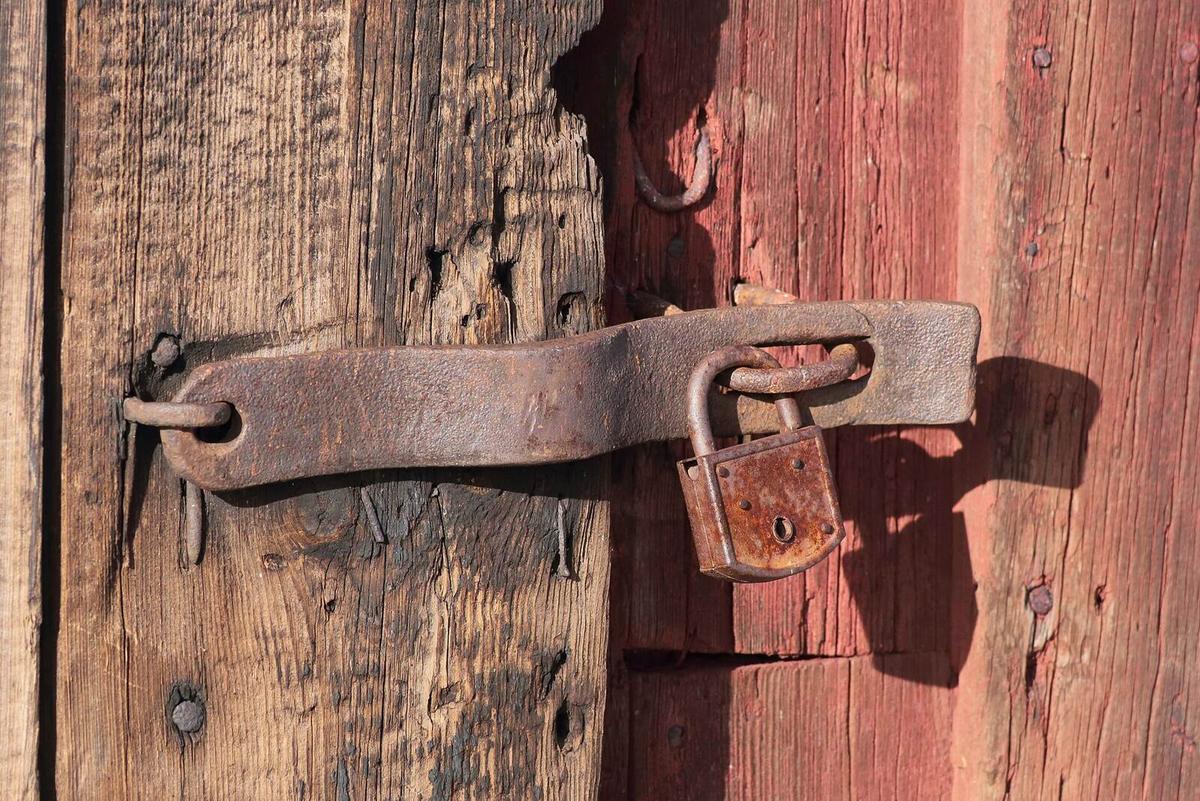 A lock is only useful if the right people hold the key, and permissions work the same way. Photo by Estormiz, CC0, via Wikimedia Commons.
Where do things live?
Windows has drive letters. Linux has one tree. It starts at a single folder named /, called the root, and everything else hangs below it: your files, the system's files, even a USB stick you plug in.
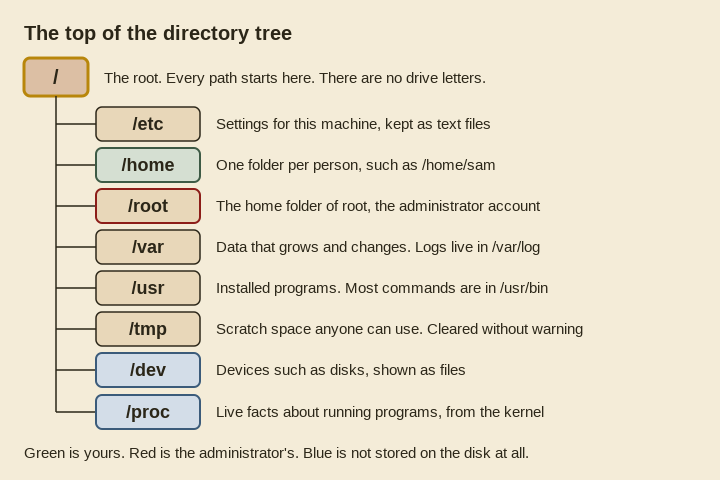 The folders at the top of every Linux system, and what belongs in each.
| Folder | What lives there | You will go there to |
|---|---|---|
/etc | Settings, as plain text files | Change how a program behaves |
/home | A folder for each person | Keep your own files |
/var | Data that changes, such as logs in /var/log | Find out what went wrong |
/usr | Installed programs, mostly in /usr/bin | Rarely. The package manager looks after it. |
/tmp | Temporary files, deleted without notice | Park something for an hour |
You will hear that on Linux everything is a file. It means the system shows you nearly everything through the same tree, even things that are not stored on a disk. Your disk appears as a file under /dev. Facts about memory appear as a file under /proc:
head -n 3 /proc/meminfo
This prints the first three lines of a "file" the kernel writes fresh each time you read it.
MemTotal:       16303428 kB
MemFree:         9211840 kB
MemAvailable:   13877232 kB
The payoff is that the same few commands, and the same permission rules, apply to all of it.
Who are users, groups and root?
Every file has an owner, and every running program runs as some user. That is the whole basis of Linux security.
A user is an account. It may belong to a person, or to a program: a web server usually runs as its own user so that it can reach its own files and little else. A group is a named set of users, which lets you give several accounts the same access at once. Root is the administrator account. The permission rules do not apply to root, which is why you should almost never be root.
id
This shows who you are and which groups you belong to.
uid=1000(sam) gid=1000(sam) groups=1000(sam),27(sudo)
Here sam is in two groups: one of his own, and sudo. On Debian and Ubuntu, the default setup lets members of the sudo group run commands as root by putting sudo in front of them.
How do you read ls -l?
Run ls -l in any folder and each line starts with ten characters.
ls -l backup.sh
This lists one file with its details.
-rwxr-xr-- 1 sam staff 2048 Nov 11 19:02 backup.sh
From the left: the permission string, a link count you can ignore for now, the owner (sam), the group (staff), the size in bytes, when it last changed, and the name.
The permission string is one character for the type, then three sets of three.
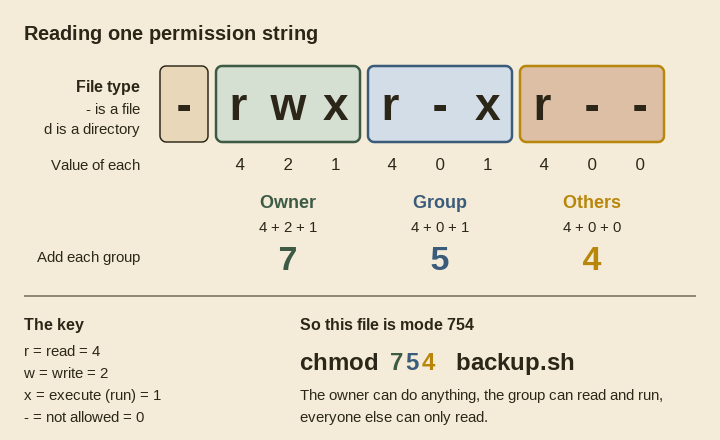 Ten characters: one for the type, then owner, group and others, each worth one digit.
The first set is for the owner. The second is for members of the file's group. The third is for others, meaning everyone else on the system. Linux checks them in that order and stops at the first one that fits you.
The letters mean slightly different things on a folder.
| Letter | On a file | On a folder |
|---|---|---|
r read | Read the contents | List the names inside |
w write | Change the contents | Create, rename and delete files inside |
x execute | Run it as a program | Enter the folder and reach what is inside |
That middle row surprises people. Whether you can delete a file depends on the folder it sits in, not on the file.
What do 644 and 755 mean?
Typing nine letters is slow, so each set of three is squeezed into one digit. Read is worth 4, write is worth 2, execute is worth 1. Add up the ones that are switched on.
Take rw-r--r--:
- Owner
rw-is 4 + 2 + 0 = 6 - Group
r--is 4 + 0 + 0 = 4 - Others
r--is 4 + 0 + 0 = 4
That is 644: the owner can read and change the file, everyone else can only read it. Now rwxr-xr-x:
- Owner
rwxis 4 + 2 + 1 = 7 - Group
r-xis 4 + 0 + 1 = 5 - Others
r-xis 4 + 0 + 1 = 5
That is 755: the owner can do anything, everyone else can read and run it but not change it.
| Mode | String | Typical use |
|---|---|---|
| 644 | rw-r--r-- | An ordinary file others may read |
| 600 | rw------- | A private file, such as a key or a password file |
| 755 | rwxr-xr-x | A program, a script, or a folder others may enter |
| 700 | rwx------ | A private folder |
| 777 | rwxrwxrwx | Anyone can do anything. Almost never right. |
These numbers are called octal because each digit runs from 0 to 7.
Tip
To see the number without doing the sum, run stat -c '%a %n' backup.sh. It prints the mode in octal next to the name, such as 754 backup.sh. Check your arithmetic against it until the digits come without thinking.
How do you change them?
Three commands do the work.
chmod 644 notes.txt
Sets the mode with a number.
chmod u+x backup.sh
Adds execute for the owner and leaves the rest alone. The letters are u for the owner (user), g for group and o for others, with + to add and - to take away.
sudo chown sam:staff report.txt
Changes the owner to sam and the group to staff. Giving a file away is an administrator's job, so it needs sudo.
Both chmod and chown take -R to work through a folder and everything below it. Be careful with it. A recursive change is easy to make and miserable to undo, because you no longer know what each file was set to before.
Why is 777 the wrong fix?
Say a web page will not load because the web server cannot read index.html. You run chmod -R 777 on the site folder and the page appears. What did you do?
You gave every account on the machine, and every program running as any of them, the right to rewrite your website. If one small flaw lets an attacker run a command as the lowest user on the system, they can now replace your pages or drop in a script of their own.
The right fix takes two minutes longer. Ask who needs access, and how much:
- Run
ls -lto see the owner, group and mode. - Find out which user the program runs as (
ps auxshows it in the first column). - Give that one user or group what it needs. Often that is
chownto the right owner, with 644 on files and 755 on folders.
This is least privilege: every person and every program gets the access the job requires and no more. Think of it as damage control: when one account is taken over, the harm stops at what that account could touch.
Watch out
Never run chmod -R 777 to make an error go away, and be wary of any guide that tells you to. It trades a problem you can see for one you cannot. If you have already done it on a real system, work out the correct owner and mode and set them back.
What to remember
- Linux has one tree starting at
/. Settings are in/etc, your files in/home, logs in/var/log. - Every file has an owner and a group. Every program runs as a user. Root is exempt from the rules.
- A permission string is the type, then owner, group and others.
- Read is 4, write is 2, execute is 1. Add them per set: 644 for files, 755 for programs and folders.
chmodchanges the mode,chownchanges the owner,sudoborrows root for one command.- When access is denied, find out who needs it and grant that. Do not grant everyone.
Make a practice folder, create a few files, and set them to 600, 644 and 755 in turn, reading ls -l after each. Once permissions make sense on your own machine, SSH: Logging In to Another Machine Safely is a good next read, because SSH ignores a private key file that other users can read.