Articles & BlogBy Trapper W. Brown7 min read
"Access is denied" and error 0x80070005 say the same thing: Windows refused to let an account or a program open, change or install something. On its own the message is rarely a sign of damage. It is a locked gate, and the useful question is which gate you were standing at when you saw it.
 The message is a locked gate: something on the other side is being kept from an account that is not on the list. Photo by cogdogblog, CC0, via Wikimedia Commons.
What does this message mean?
Windows keeps a list of numbered errors. Microsoft's reference for them gives number 5 the name ERROR_ACCESS_DENIED and the text "Access is denied." A second Microsoft reference lists 0x80070005 under the name E_ACCESSDENIED and describes it as a general access denied error. The long code is the same refusal in the format that Windows Update and Office report.
Every file, folder and setting in Windows has rules about which accounts may read it or change it. Those rules are called permissions. The message means that a check against those rules failed. It does not say which file or setting was involved, or which account was turned away. That is why the place where you saw the code matters more than the code.
"Linux Files, Users and Permissions" explains the same idea from the ground up.
What usually causes it?
Microsoft documents this code in several separate places, and each page gives its own cause. They should not be blended: a fix for one does nothing for another.
| Where you saw it | What Microsoft's page for that case says |
|---|---|
| Windows Update | The support page for Windows 11 and Windows 10 lists the code as an access denied error or not enough permissions to install updates |
| Activating Office | The Office support page says Office sometimes has trouble finishing activation, and that running Office as an administrator helps with permission problems |
| Activating Windows on a work computer | The page for administrators ties it to a missing permission on a built-in system account, on a computer joined to a company network |
| Opening, saving or deleting a file | The plain "Access is denied" text: the account you are using is not allowed that action on that item |
For Windows Update, Microsoft's page for administrators adds detail. The update process could not reach files, folders or settings it needs. The causes it lists include permissions on Windows' own folders that were changed, a security tool from another company holding update files locked, and limits set by an organization on a managed PC.
The code can appear in other places too. This article covers only the cases Microsoft documents on the pages listed under Sources.
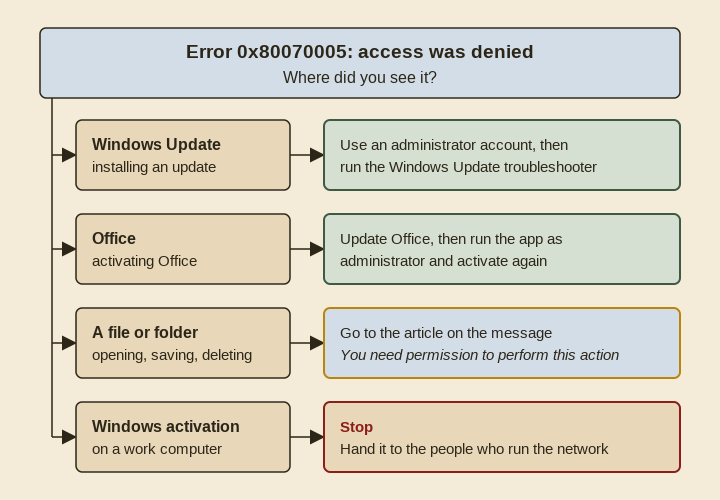 The same code has a different first move depending on where it appeared.
What to try, in order
First write down where the message appeared and its exact wording. Then use the steps for that case. Steps 1 to 4 are for Windows Update, and step 5 is for Office. For a file or folder, go to "You need permission to perform this action: What It Means and What to Try", which owns those steps.
Watch out
Microsoft's Windows Update page says to back up your personal files before trying its fixes. Copy what matters to another drive first. "Backups That Work: The 3-2-1 Rule" explains how.
- Check that an administrator is doing the update. Microsoft's page for Windows 11 and Windows 10 says some updates need administrator access. An administrator account is one allowed to change the whole PC. A standard account is not. If someone else at home has the administrator account on this PC, Microsoft's advice is to ask them to install the updates. One sign you are on a standard account: Windows asks for an administrator's name and password when you try to change something.
- Run the Windows Update troubleshooter. A troubleshooter is a built-in tool that tests for known faults and repairs what it can. On Windows 11, Microsoft's path is Start, then Settings, then System, then Troubleshoot, then Other troubleshooters. Find Windows Update and select Run. On Windows 10 the path is Start, then Settings, then Update & Security, then Troubleshoot, then Additional troubleshooters, then Windows Update, then Run the troubleshooter. Follow the instructions on the screen.
- Update your antivirus software. Microsoft lists this under the 0x80070005 heading, because a security tool can hold update files locked. The same section also describes pausing security software for a short time. This article leaves that step out: keep your protection on.
- Check for updates again. On Windows 11, select Start, then Settings, then Windows Update, then Check for updates. On Windows 10, Windows Update sits inside Update & Security. Many updates finish only after a restart, so save your work and restart when Windows asks.
- For Office, update it and then activate as an administrator. In any Office app, Microsoft's path is File, then Account, then Update Options, then Update Now. If activation still fails, the Office support page gives these steps for Windows 10: close all Office programs, select Start, type the name of an app such as Word, right-click its icon and select Run as administrator, select Yes, then activate again from File, then Account. The page lists Windows 10 and older versions, and it does not list Windows 11. It also offers a Microsoft 365 activation troubleshooter, which needs Windows 10 or later.
Microsoft documents deeper fixes, and I think they belong to someone who does this kind of work often:
- For Office, when the error began after a Windows update, the Office support page gives a change to the registry (the database of Windows settings). It carries Microsoft's own warning that mistakes there can force a reinstall of Windows, and it says to back up the registry first. The fix exists. This article does not print it.
- For Windows Update, Microsoft's page for administrators starts with an instruction to back up the system disk. It then resets permissions on Windows' own folders, resets the update service and runs repair commands. Those are for a person at ease in an administrator command window, and the page is linked under Sources.
- For Windows activation, the fix is made in an administrative tool on a computer that belongs to a company network. That one goes to the people who run the network.
When to stop and get help
Stop when the safe steps above have not worked and the next step would change permissions on Windows' own folders or edit the registry. A wrong change there can leave Windows unable to update at all, which is the very cause Microsoft's page describes.
Stop also if the PC belongs to an employer or a school. Its rules are set by someone else on purpose, and the fix is theirs to make.
Microsoft's page for administrators ends its Windows Update steps by saying to contact Microsoft Support, and the Office page ends with a link to contact support if Office still will not activate. If the PC holds work or irreplaceable files and the steps have not helped, stop and take it to a repair professional.
What to remember
- "Access is denied" and 0x80070005 are one refusal in two formats. Windows blocked an account or a program from something.
- The code does not say what was blocked. Where you saw it tells you which fix applies.
- For Windows Update: back up, use an administrator account, run the troubleshooter, update your antivirus software, then check for updates again.
- For Office: update Office, then run it as an administrator and activate again.
- Leave your security software on. No step here needs it turned off.
- Fixes that change system folder permissions or the registry are for someone who can undo them.
Most of the time this message clears once the right account does the job. "Locking Down a Windows or Mac Computer" explains why a PC should have one administrator account and a standard account for daily use, which is also why this message sometimes appears on a healthy machine.
Sources (8)
- Microsoft Learn, "System Error Codes (0-499)"
- Microsoft Learn, "Common HRESULT values", updated 10 July 2025
- Microsoft Support, "Troubleshoot problems updating Windows"
- Microsoft Learn, "Troubleshoot Windows Update error 0x80070005", updated 6 May 2026
- Microsoft Learn, "Common Windows Update errors"
- Microsoft Support, "Office error code 0x80070005 when activating Office"
- Microsoft Learn, "Error 0x80070005 'Access denied' when you activate Windows", updated 12 February 2026
- Microsoft Learn, "How User Account Control works", updated 23 April 2026