Articles & BlogBy Trapper W. Brown11 min readCurrent to 15 November 2026
For anyone with an old phone in a drawer, a laptop headed for a relative, or a box of drives they are afraid to throw out. By the end you will know what to do with each one and why it works.
An old device is a copy of your life: saved passwords, tax returns, photos, messages, the Wi-Fi key for your house. Selling it, donating it or recycling it hands that copy to a stranger unless you remove it first. The Federal Trade Commission (FTC) warns that a computer's contents can "end up in the hands of an identity thief."
The trouble is that the obvious way to remove things, dragging them to the trash, does not remove them. This guide explains what actually happens when you delete, what a factory reset does, why encryption is the piece that makes a reset trustworthy, and where the hardware should go afterward.
 Workers collect computers and printers at an electronics recycling event at Naval Air Station North Island, San Diego, in May 2010. U.S. Navy photo by Mass Communication Specialist Seaman Stephen Votaw, public domain, via Wikimedia Commons.
Why is deleting not erasing?
A drive keeps two things: your data, and a list that says where each file's data sits. Think of a library and its card catalog. Deleting a file throws away the card. The book stays on the shelf until the library needs that space for something else, which may be tomorrow or may be never.
The Cybersecurity and Infrastructure Security Agency (CISA) put it this way in a tip that now sits in its archive: "data remains on the media even after a delete or format command is executed." Emptying the trash does not change that. The same tip says that even then, "the deleted files are still on device and can be retrieved."
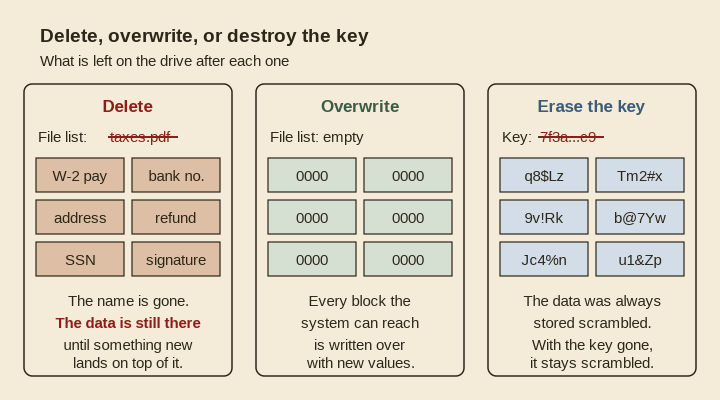 Deleting removes only the name. Overwriting replaces the data. Erasing the key leaves data that nobody can unscramble.
There are two honest ways to get rid of the data itself. One is to write over every block with something else. The other is stranger and, on modern devices, better.
How does encryption turn a reset into an erase?
Encryption scrambles data with a key, a long secret number. Without the key the data is noise. The article "Encryption and Hashing in Plain Terms" explains the mechanics.
Now picture a drive where everything was scrambled from the first day, and the key is kept in one small protected spot. To erase the whole drive you do not need to touch the data at all. You destroy the key. What remains is noise with nothing to unlock it.
The National Institute of Standards and Technology (NIST) calls this cryptographic erase. Its media sanitization guide, Special Publication 800-88 Revision 2, published in September 2025, says the method "is based on the sanitization of keys used to encrypt data" and that it can be done "with high assurance much faster than with other sanitization techniques." NIST attaches conditions. The encryption has to be strong. And, citing the international storage security standard, it says the method applies only where "no sensitive data has previously been stored" on the drive unencrypted, because destroying a key does nothing for data that was never scrambled.
That second condition is the practical lesson. Encrypt first, then reset. Most current devices already do the first half for you:
- Phones. Google's help pages say "All Pixel phones are encrypted by default," and Android's documentation says new devices use file-based encryption. Apple says its devices "have encryption features to safeguard user data."
- Macs. Apple: "If you have a Mac with Apple silicon or an Apple T2 Security Chip, your data is encrypted automatically." Older Macs need FileVault turned on by hand, under System Settings, Privacy & Security, FileVault.
- Windows. Microsoft says Device Encryption is turned on automatically when you set up a device with a Microsoft account. With a local account it "isn't turned on automatically," so look for Device encryption in Settings.
If a device was never encrypted, turning encryption on and letting it finish before the reset still helps. By NIST's condition it is not the same guarantee as having had it on from the start, which is one more reason to turn it on the day you unbox the next one.
How do you wipe a phone?
The FTC's checklist has three steps: back up the phone, remove the SIM card and any SD memory card, then erase. The makers' pages fill in the rest. Menu names below are from their support pages as of 15 November 2026 and can change with software updates.
iPhone or iPad. Apple's steps before a sale: unpair an Apple Watch if you have one, then sign out. On current software that is Settings, your name, Sign Out. Then go to Settings, General, Transfer or Reset, and tap Erase All Content and Settings. Apple says this means "your device is completely erased," and that it turns off Find My and Activation Lock, which tie the phone to your account. If the phone uses an eSIM, the built-in digital SIM, choose to erase it too.
Android. Google's general page says a factory reset "erases all your data from your phone" and is done through the Settings app on most phones, but it sends you to your manufacturer's site for the exact steps because they vary by brand. On a Pixel the path is Settings, System, Reset options, Erase all data (factory reset). Google also says to charge the phone to at least 70 percent, to know the Google Account and password on the phone, and to allow up to an hour.
Afterward, Apple says to remove the old device from your account's list of trusted devices. If your number is changing as well, the FTC says to update it with every account that uses it to identify you. "SIM Swapping and How to Lock Your Phone Number" explains why the number matters so much.
How do you wipe a laptop or desktop?
Back up first. "Backups That Work: The 3-2-1 Rule" covers how. Then use the reset the operating system provides.
Windows. Microsoft's path is Settings, System, Recovery, then Reset PC. Choose Remove everything, which Microsoft describes as "ideal for a fresh start or when you are giving away or selling your PC." Then turn on the Clean data setting. Microsoft's description: "If you're planning to donate, recycle, or sell your PC, use this option. This might take some time, but it makes it harder for other people to recover files you've removed." Microsoft is frank about the limit: this erasure "is targeted at consumers and does not meet government and industry data erasure standards."
Mac. On a Mac with Apple silicon or the T2 chip, running macOS Monterey 12 or later: Apple menu, System Settings, General, Transfer or Reset, Erase All Content and Settings. Apple calls this a way to "quickly and securely erase all of your data, settings, and apps." On an older Mac, Apple's steps are longer: sign out of iCloud and iMessage, start up from macOS Recovery, erase the disk with Disk Utility, and reinstall macOS.
Chromebook. Google's steps: sign out, press and hold Ctrl + Alt + Shift + R, select Restart, then choose Powerwash. A Chromebook managed by a school or employer cannot be reset this way. Google says to contact the administrator.
When the fresh setup screen appears, stop. Apple's advice for a Mac you are passing on is to hold the power button and turn it off, so the new owner starts from the welcome screen.
Why do solid-state drives need different handling?
A hard disk stores data as magnetism on spinning platters. Tell it to write to a spot and it writes to that spot. Overwriting the whole disk once really does replace everything. NIST says overwriting "typically hinders the recovery of data even if state-of-the-art laboratory techniques are applied," and it describes erasing a drive with many passes as something done "in the past."
A solid-state drive (SSD), and the flash storage in every phone and USB stick, works differently. Flash cells wear out, so the drive quietly spreads writes around and keeps spare cells the computer cannot see. Ask it to overwrite a file and it may put the new data somewhere else and leave the old cells alone. NIST's words: such devices "make it infeasible for a user to sanitize all previous data" by overwriting, "because the device cannot support directly addressing all areas in which sensitive data has been stored." On multi-pass overwriting of SSDs, NIST says "such practices should be avoided as very little confidentiality protection is achieved."
Apple's Disk Utility guide makes the same point from the user's side: "With a solid-state drive (SSD), secure erase options are not available in Disk Utility. For more security, consider turning on FileVault encryption when you start using your SSD drive."
So the rule for flash is the encryption rule again. If the drive was encrypted from the start, a reset that destroys the key takes care of it. If it was not, and what it held matters, overwriting is not a guarantee.
One more NIST note saves people from a common mistake: degaussing, wiping with a strong magnet, "should not be used for non-magnetic" storage such as SSDs.
What do clear, purge and destroy mean?
NIST sorts every method into three levels, by how hard an attacker it is meant to stop.
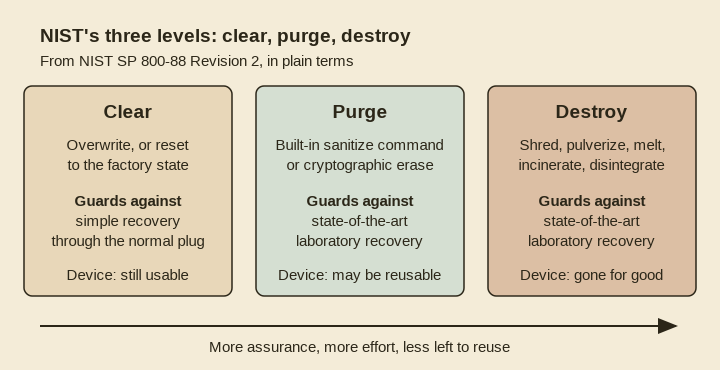 NIST's three levels of sanitization, from the lightest to the most final.
| Level | What NIST says it protects against | Is the device usable after? |
|---|---|---|
| Clear | "simple, non-invasive data recovery techniques" through the device's ordinary connection | Yes |
| Purge | Recovery "using state-of-the-art laboratory techniques" | Potentially |
| Destroy | The same laboratory techniques | No |
A factory reset on a simple device is a clear. Cryptographic erase done properly is a purge. Destroy means the industrial methods: NIST lists disintegrating, incinerating, melting, pulverizing and shredding.
Destroy does not mean a hammer in the garage. NIST says that "bending, cutting, or some emergency procedures (e.g., shooting or drilling a hole through a storage device) may only partly damage" it, "leaving portions of it accessible." A drilled drive is not what the standard means by destroyed.
Which level do you need? NIST's answer is that it depends on how sensitive the data is. Take two cases. A family passing a laptop to a cousin has an encrypted drive and ordinary personal files: the operating system's reset with the clean option is a proportionate choice. A small clinic retiring a computer that held patient records is in a different position. It may have legal duties, which are a question for whoever handles its compliance. It has reason to want a purge or destroy method and a record that it was done. NIST's guide includes a sample certificate of sanitization for that purpose.
Where should the hardware go?
Not in the trash. The Environmental Protection Agency (EPA) says lithium-ion batteries and the devices that contain them "should NOT go in household garbage or recycling bins," and the FTC adds that most computers "contain hazardous materials that don't belong in a landfill." The battery side of this is covered in "The Speaker Battery Recall and How to Dispose of a Recalled Lithium Battery".
EPA recommends certified electronics recyclers and names the two accredited standards in the United States, R2 and e-Stewards. Both, EPA says, "require destruction of all data on used electronics." That is a second layer, not a substitute. Wipe the device yourself before it leaves the house, and treat the recycler's process as the backup.
Do not forget the small things: the SD card in the camera, the USB sticks in the desk, the old external backup drive. Each is a drive like any other.
What to remember
- Deleting a file removes its entry from the list. The data stays until something writes over it.
- Encrypt first, then reset. On an encrypted device a reset destroys the key, and the data left behind cannot be read.
- Use the maker's own reset: Erase All Content and Settings on Apple devices, Erase all data (factory reset) on Android, Reset PC with Remove everything and Clean data on Windows, Powerwash on a Chromebook.
- Before a phone reset: back up, sign out, unpair watches, pull the SIM and SD card. After: remove the device from your account.
- Overwriting works on spinning hard disks. On SSDs and other flash storage it can miss data, so encryption is the dependable route.
- NIST's levels are clear, purge and destroy. A drill is not destroy. Send the hardware to a certified electronics recycler.
Pick the oldest device in the drawer and do it this week: charge it, check that encryption is on, reset it, and look up a certified recycler near you on EPA's page. Then read "Locking Down Your Phone in 20 Minutes" for the phone you are keeping.
Sources (20)
- NIST, Special Publication 800-88 Revision 2, "Guidelines for Media Sanitization", September 2025
- FTC, "How To Remove Your Personal Information Before You Get Rid of Your Phone", July 2022
- FTC, "How To Remove Your Personal Information Before You Get Rid of Your Computer", July 2022
- CISA, "Proper Disposal of Electronic Devices", archived tip, 1 February 2021
- Apple Support, "What to do before you sell, give away, or trade in your iPhone or iPad", 29 May 2026
- Apple Support, "How to factory reset your iPhone, iPad, or iPod touch", 5 October 2026
- Apple Support, "Erase your Mac and reset it to factory settings", 14 September 2026
- Apple Support, "What to do before you sell, give away, trade in, or recycle your Mac", 14 September 2026
- Apple Support, "Protect data on your Mac with FileVault"
- Apple Support, "Erase and reformat a storage device in Disk Utility on Mac"
- Apple Support, "Apple Platform Security"
- Google, Android Help, "Reset your Android device to factory settings"
- Google, Pixel Phone Help, "How to factory reset your Google Pixel phone"
- Google, Pixel Phone Help, "Encrypt your data"
- Android Open Source Project, "Encryption", last updated 30 September 2026
- Google, Chromebook Help, "Reset your Chromebook to factory settings"
- Microsoft Support, "Reset your PC"
- Microsoft Support, "Device Encryption in Windows"
- EPA, "Electronics Donation and Recycling", last updated 19 December 2025
- EPA, "Certified Electronics Recyclers", last updated 31 July 2026