Articles & BlogBy Trapper W. Brown7 min read
"Windows protected your PC" is a warning from Microsoft Defender SmartScreen, a safety check built into Windows 11 and Windows 10. It appears when you try to run a downloaded app that Windows does not recognize. It is not proof that the app is harmful, but Microsoft treats an app with no track record as a higher risk, so it is worth a few minutes before you go any further.
Nothing has run yet. Microsoft's documentation says the app cannot start until you choose to let it. That gives you time to check where the file came from, and the rest of this article is that check.
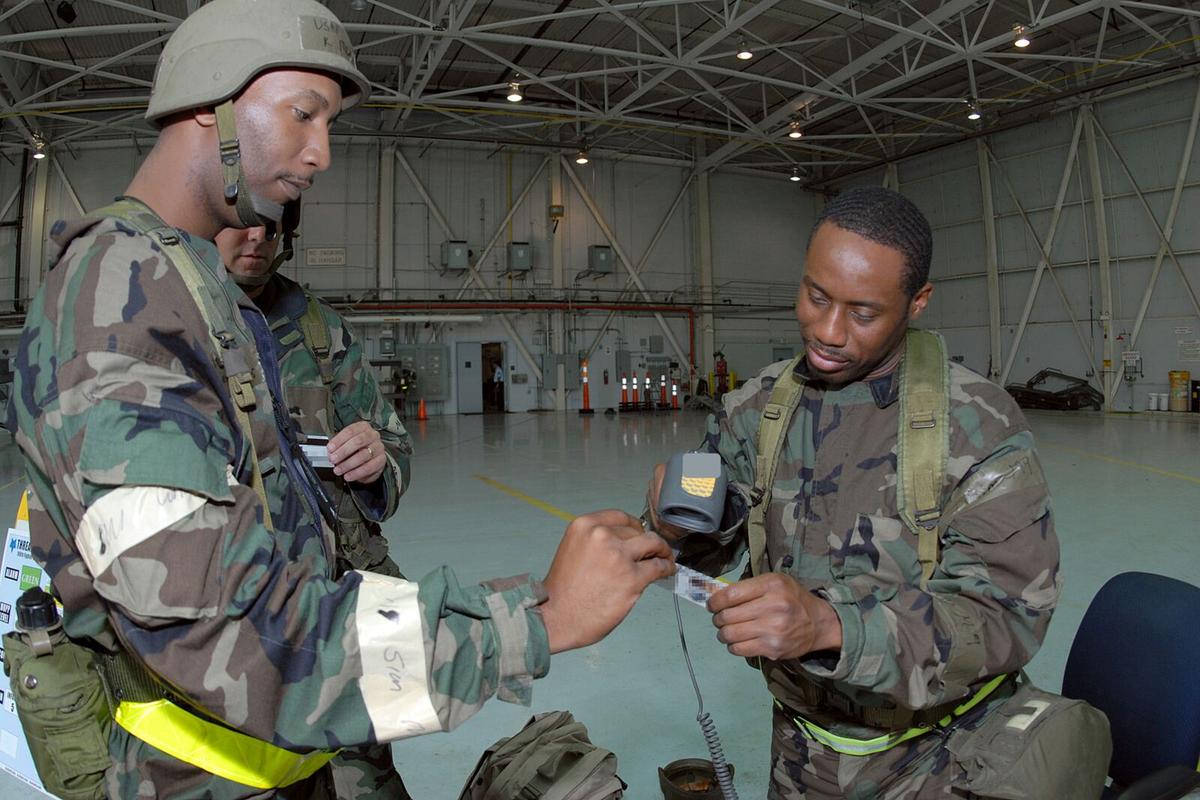 SmartScreen does the same job as this checkpoint: it asks who an app is before it lets the app in. Photo by Staff Sgt. Caycee R. Cook, U.S. Air Force, public domain, via Wikimedia Commons.
What does this message mean?
SmartScreen looks at a downloaded app in two ways, according to Microsoft's overview of the feature:
- It checks the file against a list of reported malicious software sites and programs known to be unsafe.
- It checks the file against a list of files that are well known and downloaded frequently. If the file is not on that list, SmartScreen shows a warning that advises caution.
Microsoft calls the second check reputation. A file, an app or a publisher that many people have used without trouble has an established reputation, and you see no warning. Where there is no reputation, Microsoft says the item is marked as a higher risk and a warning is shown.
So the message covers two different cases: an app that is new or rare, and an app that is dangerous. Microsoft's SmartScreen questions page is direct about this. It says the reputation warning is not an indication that the download is malicious, and in the next sentence that such a warning is usually associated with a download that may have a higher risk of being malicious.
What usually causes it?
- The app is new or rarely downloaded. Microsoft tells developers that every new app will trigger a SmartScreen warning on first download until it builds up enough download history, however well it is signed.
- The app is not signed. A digital signature is a publisher's seal on a file. Microsoft describes it as a certificate that verifies the developer's identity, shows the app is really published by them, and shows nobody has tampered with it since. Microsoft's developer documentation says unsigned apps get the more severe "Windows protected your PC" block, and signed apps from a publisher that is still unknown get a softer "unrecognized app" warning that shows the verified publisher name.
- The file is not what you think it is. A fake copy of a popular program has no reputation either.
- The PC is managed by an employer or school. Microsoft notes that an organization can set policy so that the warning cannot be passed at all.
SmartScreen also screens downloads inside the Microsoft Edge browser, where Microsoft says it warns you if a download is not on its list of well-known and popular downloads.
What to try, in order
- Stop and leave the app closed. You do not have to decide now. Nothing runs while you check.
- Ask Microsoft's three questions. Microsoft lists three things to consider before you run a flagged program. They are in the table below.
- Get the app from its official source. Microsoft's advice is to download software only from official vendor websites or the Microsoft Store, because copies on third-party sites may have been modified to carry malware (software built to do harm). Microsoft also says apps installed from the Store never show a SmartScreen download warning. If the Store has the app, use that copy.
- Scan the file. On Windows 11 and Windows 10, Microsoft says you can right-click a file in File Explorer and select Scan with Microsoft Defender. On Windows 11 you may have to select Show more options first. A scan looks for known threats. I think a clean result is a good sign and not a guarantee, so keep step 2 in mind.
- If you are sure the warning is wrong, tell Microsoft. Microsoft's overview says that if you believe a warning was shown incorrectly for a file, you can submit the file to Microsoft for review, choosing Microsoft Defender SmartScreen from the product menu on the submission form. This is mainly for people who made the software.
- Decide. Microsoft tells developers to let their users know that they should proceed only after verifying the publisher and confirming they trust the download source. If you have done both, Microsoft's developer documentation describes the path on the warning as More info, then Run anyway. If any answer in step 2 worries you, do not run the app. Delete the download.
| Microsoft's question | What Microsoft says about it |
|---|---|
| Is the file digitally signed by a software publisher? | The warning tells you when a file is not signed. Most malicious programs are not signed, so be careful if you choose to ignore the warning. |
| How were you directed to this download? | If the link was unsolicited, such as from an email, an instant message or a social media post, it is more likely to be malicious, even if it looks like it came from someone you trust. |
| Would you expect this program to be an uncommon download? | If you thought you were downloading a popular game or program, be suspicious that few other people have downloaded it. |
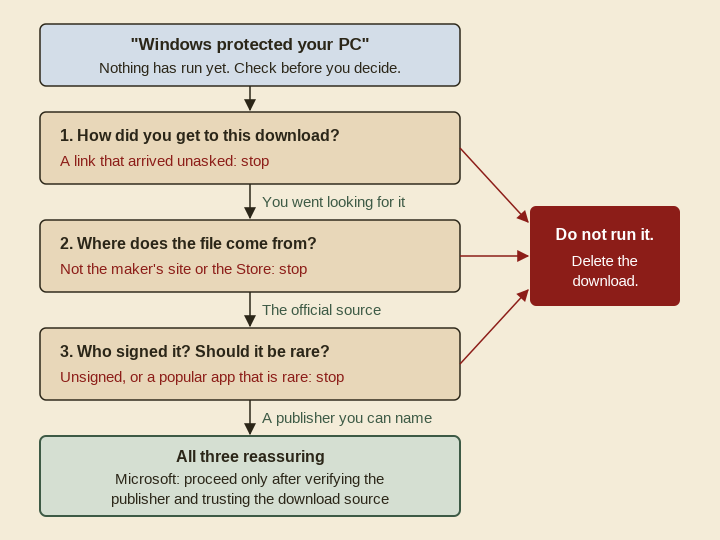 One worrying answer is enough to stop.
Leave SmartScreen on. A warning you did not expect is the feature doing its job, and the next unknown file may be the one that matters.
Two limits are worth knowing. Microsoft says SmartScreen protects against malicious files from the internet and does not protect against malicious files on internal locations or network shares. And on some Windows 11 PCs a separate feature, Smart App Control, may take over from this reputation check. Microsoft says Smart App Control blocks unsigned apps it cannot vouch for, and that there is currently no way to let one specific app through.
When to stop and get help
Stop here, without running the app, in any of these cases:
- You did not mean to download anything. A file that arrived by itself, or from a pop-up, should be deleted.
- The link came in a message you were not expecting. "Phishing: How to Read an Email Before You Click" explains how to read such a message.
- The PC belongs to an employer or a school. Ask the IT team. They may have blocked the app on purpose.
- You already ran something and now doubt it. Open the Windows Security app, select Virus & threat protection, and run a Quick scan. Microsoft says to do this immediately if you suspect malware.
If the PC holds work or irreplaceable files and the steps have not helped, stop and take it to a repair professional.
What to remember
- "Windows protected your PC" means Windows does not recognize the app. That is not proof the app is bad, and it is not a sign the app is safe.
- Nothing runs until you choose to let it.
- Ask where the file came from, who signed it, and whether it should be rare.
- Prefer the maker's own site or the Microsoft Store.
- One worrying answer is enough to delete the download.
- Leave SmartScreen on.
SmartScreen is one layer of protection among several, and "Locking Down a Windows or Mac Computer" covers the other settings that protect a PC. For the fake warning that tells you to phone a number, see "Windows Defender Security Warning With a Phone Number: It Is a Scam".
Sources (9)
- Microsoft Learn, "Microsoft Defender SmartScreen", updated 23 April 2026
- Microsoft, "Microsoft Defender SmartScreen Frequently Asked Questions", read 15 November 2026
- Microsoft Learn, "SmartScreen reputation for Windows app developers", updated 6 May 2026
- Microsoft Learn, "Publish your first Windows app", updated 29 August 2026
- Microsoft Support, "How can SmartScreen help protect me in Microsoft Edge?", read 15 November 2026
- Microsoft Support, "App & browser control in the Windows Security App", read 15 November 2026
- Microsoft Support, "Smart App Control Frequently Asked Questions", read 15 November 2026
- Microsoft Support, "Stay protected with the Windows Security app", read 15 November 2026
- Microsoft Learn, "Tech support scams", updated 24 April 2024