Articles & BlogBy Trapper W. Brown7 min read
A "Windows Defender Security Warning" that fills your screen and tells you to call a phone number is a scam. It did not come from Microsoft or from Windows, and the harm that Microsoft and the Federal Trade Commission describe begins only when someone calls the number, pays, or lets a stranger connect to the computer.
Microsoft puts it in one line: "Genuine Microsoft error messages never include a phone number to call." The Federal Trade Commission (FTC), the U.S. consumer protection agency, says the same about every company's warnings: "Real security pop-up warnings and messages will never ask you to call a phone number."
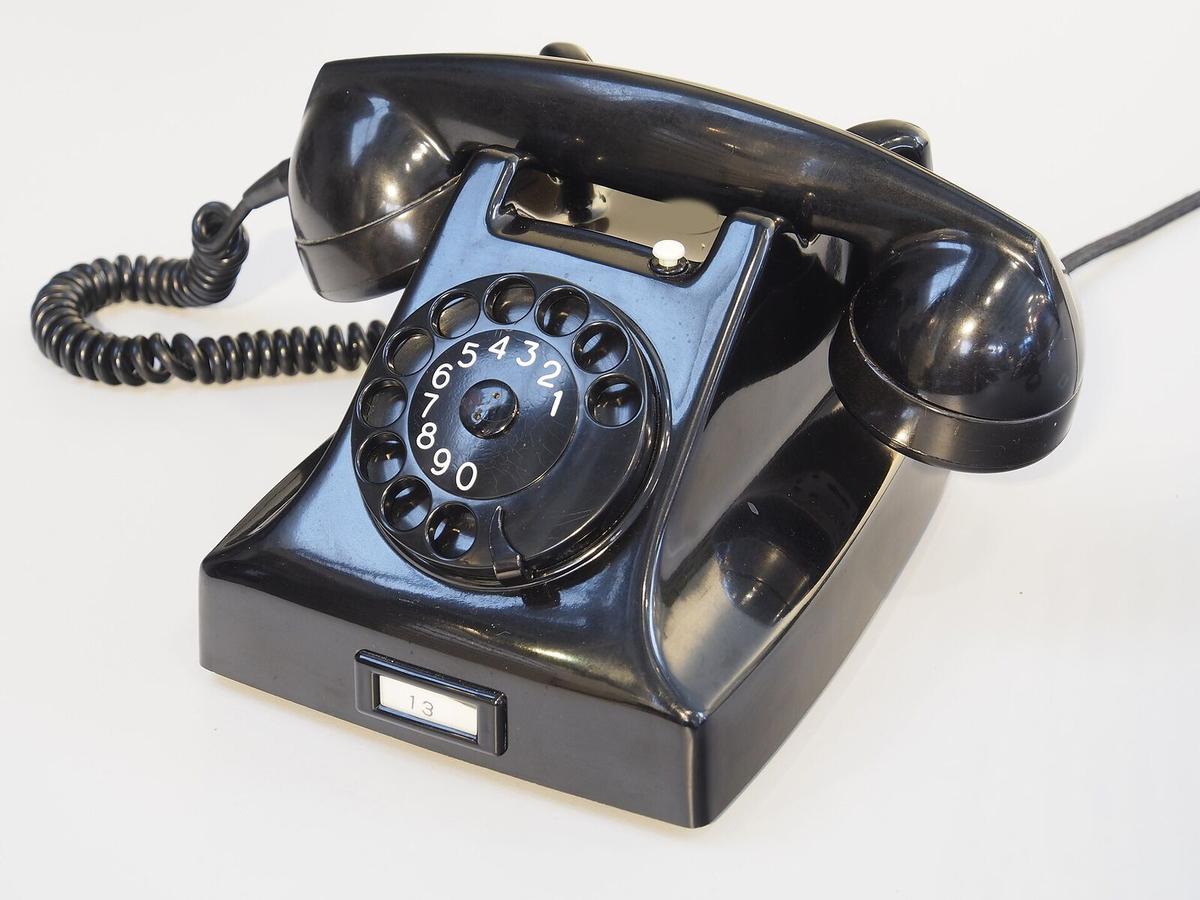 The scam works only if you pick up a phone and call, so leave the handset where it is. Photo by Alf van Beem, CC0, via Wikimedia Commons.
What does this message mean?
It means a web page is trying to frighten you into phoning a scammer. Microsoft calls this a technical support scam, or tech support scam: someone tries to convince you that something is wrong with your computer and that you should let them "fix" it.
Microsoft describes what you see this way. You are using your web browser, perhaps you click a link in a web search or on social media, and suddenly the screen fills with scary messages saying the machine has a problem or a virus and that you must call the number shown right away. The messages may seem to block the computer so that you cannot close them, and they may use alarming sounds or recorded voices.
All of that is a web page. Microsoft's guidance does not ask you to judge whether the warning looks real. It gives you one test: a phone number means it is fake.
Microsoft and the FTC also describe what happens to people who call. The person who answers typically wants three things:
- Remote access. They ask you to let them connect to your computer so they can "fix" it. Microsoft says that while they pretend to fix it, they are stealing your information or installing malware, which is software built to do harm.
- Personal information. Your name, address, passwords, Social Security number and anything else they can get you to say.
- Money. A fee for the repair, or a subscription to a support service. The FTC says scammers usually want payment by gift card, wire or bank transfer, cryptocurrency or a payment app, because those payments are hard to reverse.
What usually causes it?
Microsoft says the fake error messages are usually generated by a malicious or compromised website. A compromised website is an ordinary site that someone has broken into. You did not have to do anything unusual to land there. One click on a search result or a social media link is enough.
Seeing the page does not mean your computer has a virus. The page says so because fear is how the scam works.
What to try, in order
- Do not call the number. Microsoft's advice is to be safe and not click any links or provide any personal information.
- Close the browser. Microsoft says to close your browser immediately, and to try pressing Alt+F4 if you cannot do it with the mouse. Hold the Alt key and press F4.
- If the browser will not close, restart the computer. This is Microsoft's next step when Alt+F4 does not work.
- If you still worry that something is wrong, check with the real tool. The FTC says to update your computer's security software and run a scan. On Windows 11 and Windows 10, Microsoft's steps are: open the Windows Security app by searching for it in the Start menu, select Virus & threat protection, then Quick scan.
- Talk to someone you trust. Both Microsoft and the FTC suggest a friend, a family member or a trusted advisor if you are unsure.
- Report it. Microsoft takes reports of tech support scams at microsoft.com/reportascam. The FTC takes them at ReportFraud.ftc.gov.
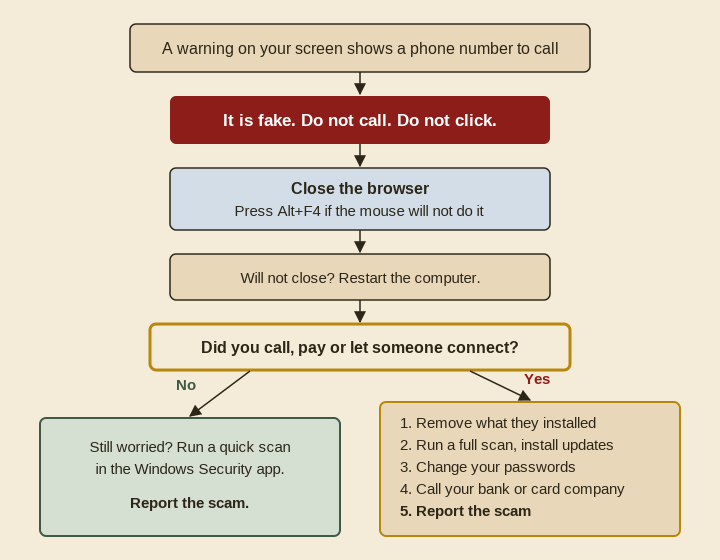 The whole response on one page: do not call, close the browser, and take the longer path only if someone got in or got paid.
What if you already called, paid or let someone in?
Act the same day. Microsoft's and the FTC's guidance for people who were scammed comes to these steps.
- Remove what they had you install. Microsoft says to uninstall applications the scammers asked you to install. On Windows 11: select Start, Settings, Apps, Installed apps, find the app, then select More and Uninstall.
- Run a full scan and install updates. In the Windows Security app, select Virus & threat protection, open Scan options and choose Full scan, which checks every file and program on the device. Microsoft also says to apply all security updates as soon as they are available.
- Change your passwords. The FTC says to change a password you gave a scammer right away, to change it on every other account where you used the same one, and to turn on two-factor authentication, a second check at sign-in such as a code sent to your phone.
- Call your bank or card company if you paid. Microsoft says to contact your bank or other financial institution. The FTC says to report a credit or debit card payment to the card issuer or bank immediately and ask for a refund. If you paid with a gift card, contact the company that issued it, and keep the card and the receipt.
- Consider a reset, after a backup. Microsoft adds that you should consider resetting the device to its factory state. A reset reinstalls Windows and, depending on the option you pick, can remove your apps, settings and personal files. Back up your important files first. "Backups That Work: The 3-2-1 Rule" explains how.
- Report it. Use the two addresses in the list above. The FBI's Internet Crime Complaint Center at ic3.gov also takes reports of cyber-enabled crime.
When to stop and get help
Stop and get help if a stranger had remote access to a computer you use for banking or work, if the scan keeps finding threats, or if you cannot tell what was installed. The FTC says that to fix a problem, you should go to someone you know and trust. Find the contact details yourself, on a bill, a card or a site you typed in. Never use a number from a pop-up.
If the PC holds work or irreplaceable files and the steps have not helped, stop and take it to a repair professional.
What to remember
- A warning with a phone number is fake. Microsoft and the FTC both say real warnings never ask you to call.
- Close the browser. Use Alt+F4, and restart the computer if the browser will not close.
- Do not give remote access, personal details or payment to anyone the pop-up sent you to.
- If you already did, remove what they installed, run a full scan, change your passwords and call your bank today.
- Report it to Microsoft and to the FTC.
The pop-up is one form of a larger family of scams that borrow a trusted name and add a deadline. "Text and Phone Scams: The Fake Bank, the Fake Delivery, the Fake Grandchild" covers the versions that arrive by call and text, and "Phishing: How to Read an Email Before You Click" covers the ones that arrive by email.
Sources (10)
- Microsoft Support, "Avoid and report Microsoft technical support scams", read 15 November 2026
- Microsoft Support, "Protect yourself from online scams and attacks", read 15 November 2026
- Microsoft Learn, "Tech support scams", updated 24 April 2024
- Federal Trade Commission, "How To Spot, Avoid, and Report Tech Support Scams", September 2025
- Federal Trade Commission, "What To Do if You Were Scammed", June 2026
- Microsoft Support, "Virus and Threat Protection in the Windows Security App", read 15 November 2026
- Microsoft Support, "Stay protected with the Windows Security app", read 15 November 2026
- Microsoft Support, "Uninstall or remove apps and programs in Windows", read 15 November 2026
- Microsoft Support, "Reset your PC", read 15 November 2026
- FBI, Internet Crime Complaint Center (IC3), read 15 November 2026