Articles & BlogBy Trapper W. Brown7 min read
WHEA_UNCORRECTABLE_ERROR is a blue screen stop code that means the PC's hardware reported a fault to Windows that could not be corrected. This is one of the serious ones. Microsoft says it is typically related to a physical hardware failure, so treat it as a warning about the machine itself and back up your files before you do anything else.
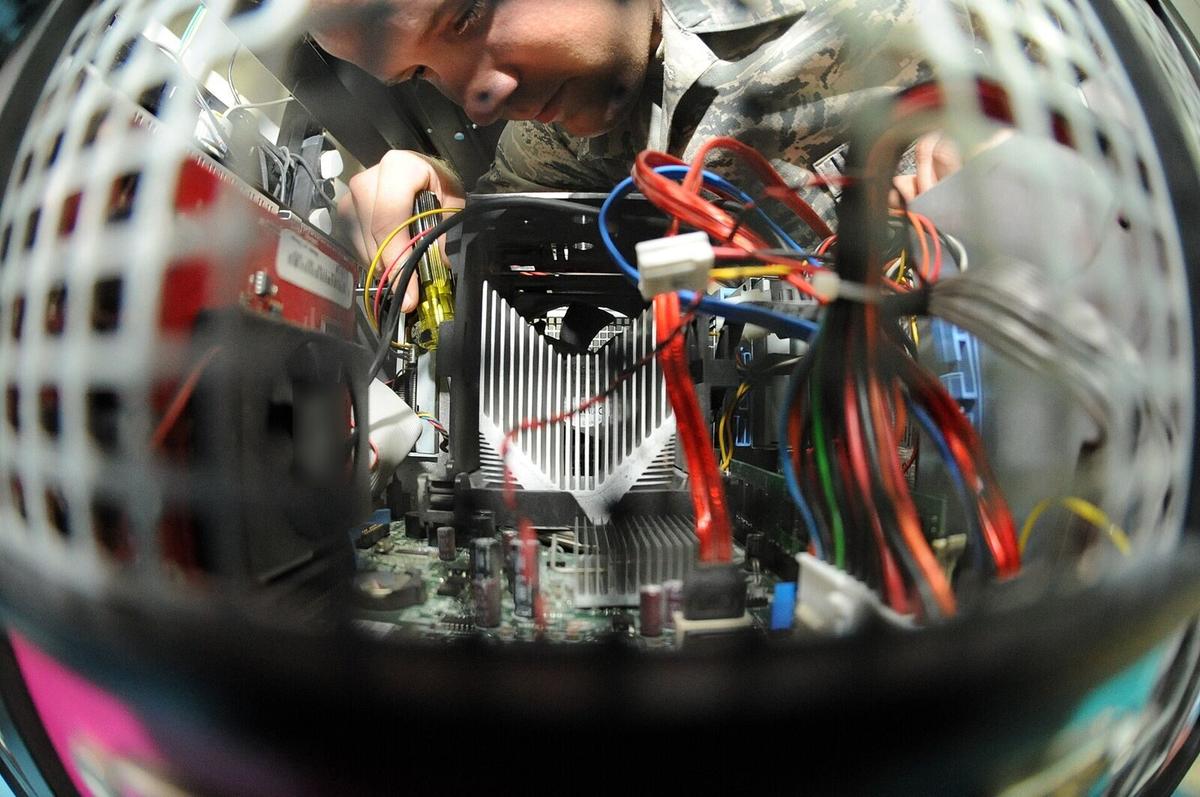 The finned block and fan in the middle carry heat away from the processor, and heat is one of the causes Microsoft names for this code. Photo by Staff Sgt. Joshua Garcia, U.S. Air Force, public domain, via Wikimedia Commons.
What does this message mean?
Microsoft's reference page gives this code the number 0x00000124 and says it "indicates that a fatal hardware error has occurred."
WHEA stands for Windows Hardware Error Architecture. It is the part of Windows that listens for error reports from the hardware itself: the processor, the memory, the main board and the cards plugged into it. Microsoft describes it as a single system that gathers those reports into a standard error record, working closely with the firmware, which is the software built into the main board.
Most of the time that system does quiet work. Microsoft says one of its purposes is to help Windows recover from hardware errors and avoid a stop when an error is not fatal. The reference page's list of error types includes corrected errors, which pass without a blue screen. "Uncorrectable" means this one was beyond that. The hardware told Windows that something went wrong and could not be put right, and Windows stopped because it could no longer trust the machine's results.
Microsoft has no page for home users on this one code. Its reference page says it is written for programmers and sends everyone else to its general blue screen steps.
What usually causes it?
Microsoft's page is short and plain here: "This bug check is typically related to physical hardware failures. It can be heat related or a result of defective hardware, memory, or even a processor that's beginning to fail or has failed." It adds that it is "less likely, but possible, that a driver is causing the hardware to fail." A driver is the software that lets Windows talk to a piece of hardware.
The same paragraph names three things to check, and the table sets them beside the causes.
| Cause Microsoft names | What Microsoft says to do |
|---|---|
| Heat | Confirm that cooling systems such as fans are working |
| Overclocking | If it has been enabled, try disabling it |
| Defective memory | Run system diagnostics on the memory |
| A failing processor or other part | Nothing listed: a part has to be replaced |
| A driver (less likely) | Nothing specific: use the general steps |
Overclocking means setting a processor or memory to run faster than its rated speed. It is done on purpose, in the firmware settings or with a tuning program, mostly on home-built and gaming PCs. If you have never turned it on, that row does not apply to you.
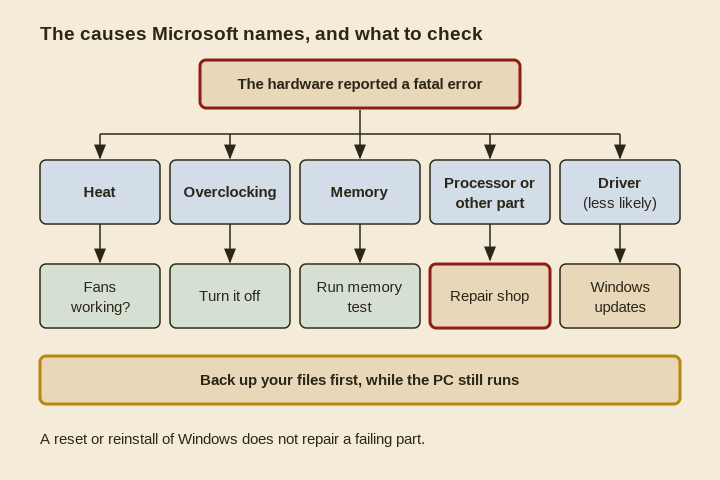 The five causes Microsoft names, and the check that goes with each.
What to try, in order
Watch out
Back up your files first, while the PC still starts. "Backups That Work: The 3-2-1 Rule" covers how. This code usually means a part is failing, and I think it is safer to assume the PC may not start next time.
"How to Read Any Blue Screen and Find the Stop Code" has the general steps for every stop code, including how to find the code after a restart. The steps below are the ones Microsoft's page for this code points to.
- Write down what you saw, and when. Note the code and what the PC was doing: a game, a video export, sitting idle, just switched on. Crashes that come only under heavy load fit the heat cause Microsoft names. That reading is mine.
- Check the cooling. Microsoft says to confirm that any cooling systems such as fans are functional. With the PC running, listen and look for each fan turning. I think it is also sensible to make sure the air vents are not blocked and the PC is not shut inside a cabinet. Shut down and unplug before you touch anything inside the case.
- Turn off overclocking if it was ever turned on. Microsoft's instruction is to try disabling it. Put the settings back to the maker's defaults in the same place they were changed. If you did not set it up, leave the firmware settings alone.
- Remove recently added hardware. This is the first of Microsoft's basic steps for any stop code. If the crashes began after you fitted a part or plugged in a device, shut down, remove it and try again.
- Test the memory. Microsoft says to run system diagnostics to confirm that the system memory is not defective. Its reference pages describe the built-in Windows Memory Diagnostic tool: open Control Panel, type Memory in the search box, and select Diagnose your computer's memory problems. The result is recorded in the System log in the built-in Event Viewer tool, in an entry named MemoryDiagnostics-Results. Those instructions are on a page written for programmers that names no Windows version. Many PC makers also supply their own hardware diagnostics, and Microsoft's pages suggest running those too.
- Install Windows updates. This covers the less likely driver cause. On Windows 11: Start > Settings > Windows Update, then Check for updates. On Windows 10: Start > Settings > Update & Security > Windows Update, then Check for Windows updates. Microsoft's pages note that support for Windows 10 ended on October 14, 2025.
I have left System Restore and Reset this PC off this list on purpose. Microsoft's page for this code does not name either as a remedy, and I think a reset is wasted effort for a hardware fault: it removes your apps and settings and leaves the failing part where it was.
When to stop and get help
For this code, sooner than for most. Stop and take the PC to a repair shop or the maker's support if any of these is true:
- The memory test or the maker's diagnostics report an error.
- A fan is not turning.
- The code returns after the steps above.
- The PC is under warranty. A hardware fault is what a warranty is for, so read its terms before you open the case.
Tell the shop the exact code. Microsoft says that when a hardware error occurs, Windows saves an error record describing it in the system event log, and that the record identifies the kind of error source that reported it. Reading that record is a technician's job, and it can point to the part at fault.
No software step fixes a failing part. A work PC goes to your IT department.
Two other stop codes that can point to failing memory have their own pages: "MEMORY_MANAGEMENT: What the Blue Screen Means and What to Try" and "PAGE_FAULT_IN_NONPAGED_AREA: What the Blue Screen Means and What to Try".
What to remember
- This code is the hardware itself reporting a fatal error to Windows.
- Microsoft says it is typically a physical failure: heat, defective memory or a failing processor.
- Back up first, while the PC still starts.
- Check the fans, undo any overclocking, and test the memory.
- A driver is possible but less likely, so install updates and move on.
- If the code comes back, a part needs replacing.
I think the most useful thing this code does is give you warning. A PC that shows it and then starts again has handed you time to copy your files off. If the PC holds work or irreplaceable files and the steps here have not helped, stop and take it to a repair professional.
Sources (6)
- Microsoft Learn, "Bug Check 0x124: WHEA_UNCORRECTABLE_ERROR", read 15 November 2026
- Microsoft Learn, "Introduction to the Windows Hardware Error Architecture", read 15 November 2026
- Microsoft Support, "Troubleshooting Windows unexpected restarts and stop code errors", read 15 November 2026
- Microsoft Learn, "Bug Check 0x50: PAGE_FAULT_IN_NONPAGED_AREA", read 15 November 2026
- Microsoft Learn, "Bug check 0x7B: INACCESSIBLE_BOOT_DEVICE", read 15 November 2026
- Microsoft Support, "Recovery options in Windows", read 15 November 2026