Articles & BlogBy Trapper W. Brown9 min read
A blue screen means Windows hit a problem it could not safely continue past, so it stopped on purpose and restarted. One blue screen is usually nothing: Microsoft says that in most cases the restart resolves it and no further action is needed. The same one coming back again and again is a fault to track down, and the stop code on the screen is where you start.
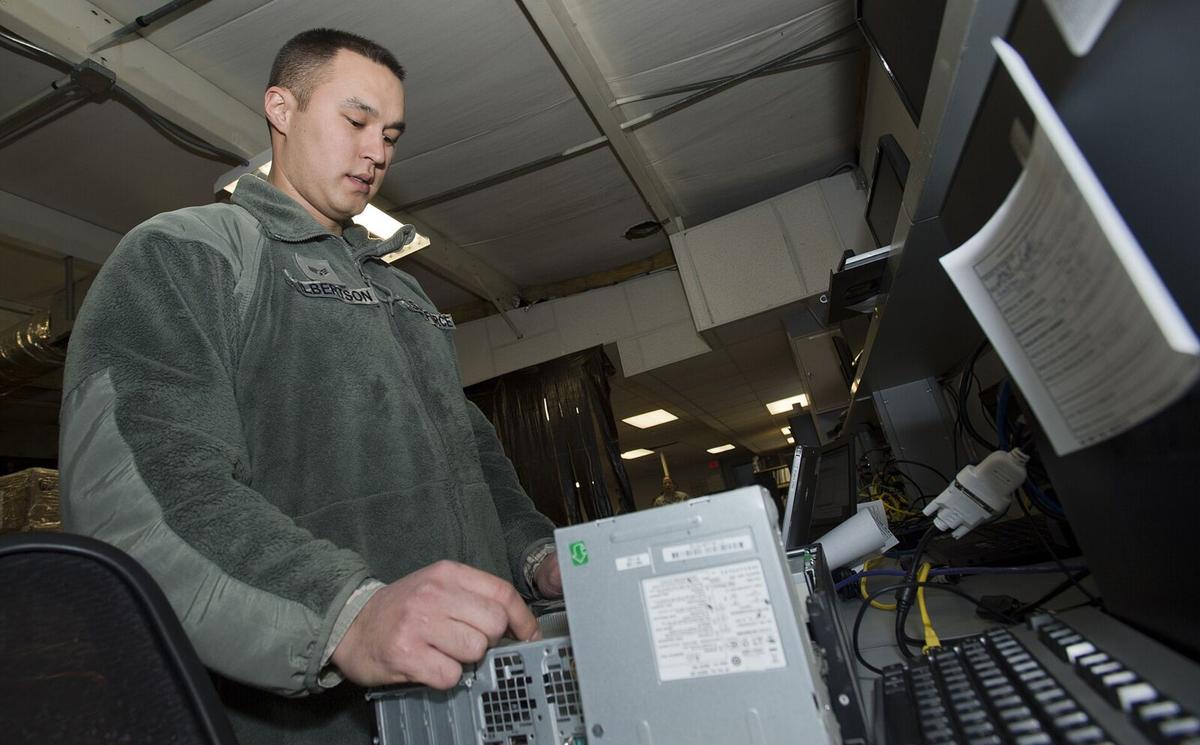 Finding the cause of a crash is a process of elimination, one part and one change at a time. Photo by Airman 1st Class Colby Hardin, U.S. Air Force, public domain, via Wikimedia Commons.
What does this message mean?
Microsoft's name for the event is a bug check. Its documentation says that when Windows meets a condition that compromises safe operation, the system halts, because carrying on could corrupt data or weaken security. The same thing is called a stop code error, a stop error, a kernel error, a system crash and, informally, a BSOD.
The usual message is "Your device ran into a problem and needs to restart." The screen is not always blue. Microsoft notes that the color and wording vary by version, and that Windows 11, version 24H2 and later, looks different from version 23H2 and older. Its own page speaks of "a Blue Screen error, or a Black Screen error." A black screen with no stop code at all is a different problem with a different Microsoft page.
How do you read the screen?
Three things on it are worth your attention.
- The stop code. Microsoft says it appears at the bottom of the screen. It is a name in capital letters joined by underscores, such as PAGE_FAULT_IN_NONPAGED_AREA. This is the part to copy exactly.
- The module name, if there is one. When Windows knows which piece of code was running at the moment of failure, it shows the file name. In Microsoft's examples it is a file ending in
.sys, which is a driver, the software that lets Windows talk to a piece of hardware. Treat it as a lead and keep looking. - A percentage. If the system can save a record of the crash, called a dump file, you see a percent complete while it writes. Let it finish.
Every stop code also has a number in hexadecimal, such as 0x00000050. The name and the number mean the same thing, and Microsoft's bug check code reference lists both.
The screen often vanishes before you can read it. Take a photo with your phone if you can. If you missed it, Windows keeps a record: Microsoft says the stop code can be found in the event logs, in the System log shown by the built-in Event Viewer tool.
Here are eight well-known stop codes and how Microsoft's reference describes each one.
| Stop code | Number | What Microsoft says it indicates |
|---|---|---|
| CRITICAL_PROCESS_DIED | 0x000000EF | A critical system process terminated |
| IRQL_NOT_LESS_OR_EQUAL | 0x0000000A | Windows or a driver accessed memory at an invalid address |
| MEMORY_MANAGEMENT | 0x0000001A | A severe memory management error occurred |
| PAGE_FAULT_IN_NONPAGED_AREA | 0x00000050 | Invalid system memory was referenced |
| KERNEL_SECURITY_CHECK_FAILURE | 0x00000139 | The kernel detected corruption of a critical data structure |
| DPC_WATCHDOG_VIOLATION | 0x00000133 | A deferred procedure call, a short and urgent task run by a driver, ran too long |
| WHEA_UNCORRECTABLE_ERROR | 0x00000124 | A fatal hardware error occurred |
| INACCESSIBLE_BOOT_DEVICE | 0x0000007B | Windows lost access to the system partition during startup |
A partition is a section of a drive, and the system partition is the one Windows starts from. The kernel is the core of Windows.
What usually causes it?
Microsoft's support page puts it in one sentence: an unexpected restart might be caused by a hardware device, its driver, or software. Its troubleshooting guide for IT staff gives numbers from its own analysis of crashes: 70 percent caused by third-party driver code, 10 percent by hardware issues, 5 percent by Microsoft code, and 15 percent unknown because memory was too corrupted to analyze. The same guide says the root cause is rarely an ordinary app. An app may trigger the crash, but it is usually exposing a problem in a driver, the hardware or the operating system.
So the useful question is what changed. A new device, a driver update, a Windows update or a nearly full drive is the usual suspect.
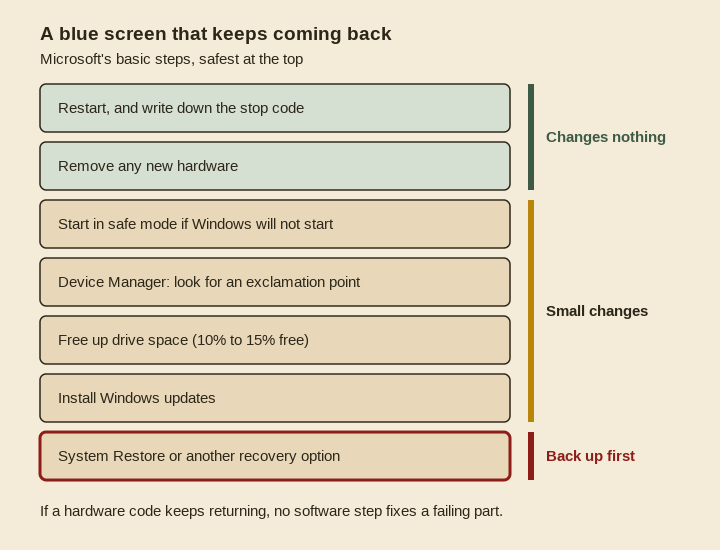 Microsoft's basic steps, from the ones that change nothing to the one that needs a backup first.
What to try, in order
These are Microsoft's basic steps for Windows 11 and Windows 10, for a PC that restarts often with the same stop code. Several of its pages now carry a notice that support for Windows 10 ended on October 14, 2025, though the steps still apply.
- Restart and write down the code. If the PC then runs normally, you are done for now. Keep the note in case it returns.
- Remove any new hardware. If you added a device before the error, shut down the PC, remove it, and try restarting.
- Start in safe mode if Windows will not start normally. Safe mode runs Windows with a limited set of files and drivers. It is reached through the Windows Recovery Environment, which opens by itself after Windows fails to start several times (select Advanced options on the Automatic Repair screen). From there, select Troubleshoot > Advanced options > Startup Settings > Restart, then use the number keys to pick Enable Safe Mode. If Windows still runs, you can get there by holding Shift while you select Power > Restart. On an encrypted PC this route asks for the BitLocker key. If you do not have it, read "Enter the recovery key for this drive: Where to Find Your BitLocker Key" before you begin.
- Check Device Manager. Right-click the Start button and select Device Manager. Look for any device marked with an exclamation point. Right-click it and select Update driver. Microsoft adds that if updating does not help, you can try disabling or uninstalling the device. If the trouble began after a driver update, the device's Properties, Driver tab has Roll Back Driver. Microsoft says the best source of drivers is Windows Update.
- Check free space. Windows needs room to work. Microsoft says the exact amount varies, and that 10% to 15% free is a good idea.
- Install the latest updates. On Windows 11: Start > Settings > Windows Update, then Check for updates. On Windows 10: Start > Settings > Update & Security > Windows Update, then Check for Windows updates.
- Repair system files. If Windows is also misbehaving in other ways, Microsoft's System File Checker page gives two commands to run, in this order, in a Command Prompt opened with Run as administrator. First run
DISM.exe /Online /Cleanup-image /Restorehealth, which fetches the files needed for a repair from Windows Update. Then runsfc /scannow, which scans protected system files and replaces corrupted ones with a stored copy. Both change Windows system files and neither works on your documents. Microsoft warns not to close the window until the scan reaches 100%. - Test the memory if the code points that way. For memory-related codes, Microsoft's reference suggests the built-in Windows Memory Diagnostic tool. That page is written for programmers and names no Windows version. Its instructions are to open Control Panel, type Memory in the search box, and select Diagnose your computer's memory problems. The result is recorded in the System log in Event Viewer, in an entry named MemoryDiagnostics-Results.
Watch out
Back up your files before going further. "Backups That Work: The 3-2-1 Rule" covers how. Microsoft's own advice before any recovery process is to back up important files, and some recovery options remove apps, settings or everything on the drive.
The last step: restore Windows. If nothing above helps, Microsoft's last basic step is a system restore point, or another choice from its "Recovery options in Windows" page. System Restore rolls back system files, settings and installed programs to an earlier date and leaves personal files alone. To open it, press the Windows key and R, type rstrui.exe, and press Enter. Reset this PC and a full reinstall sit further down that page, and they are the most disruptive. "Backing Up Your Computer and Reimaging It: The Deep Guide" explains what a reinstall involves.
When to stop and get help
Some stop codes point at parts and not at software. Microsoft says WHEA_UNCORRECTABLE_ERROR is typically related to physical hardware failures: heat, defective memory, or a processor that is failing. Its pages for MEMORY_MANAGEMENT and PAGE_FAULT_IN_NONPAGED_AREA both name faulty hardware, defective memory above all, as a possible cause, and INACCESSIBLE_BOOT_DEVICE can mean the storage hardware has failed. If one of these keeps returning after the steps above, or the memory test reports errors, stop. No software step fixes a failing part, and each further crash on a failing drive puts your files at more risk.
Stop as well if the PC will not start at all and you have no backup, or if it is a work computer. A work PC goes to your IT department.
What to remember
- A blue screen is Windows stopping itself to prevent damage. One is usually nothing. A repeat is a fault.
- Copy the stop code exactly, and the file name if one is shown.
- If you missed it, the code is in the System log in Event Viewer.
- Ask what changed: new hardware, a driver, an update or a full drive.
- Work from the safest step down, and back up before any restore, reset or reinstall.
- Codes that name hardware or memory often mean a part is failing.
Microsoft's developer pages go much further, into reading dump files with a debugger and stress-testing drivers. Those tools are built for programmers and can cause more crashes while they run, so I think they are a job for someone who does this for a living. If the PC holds work or irreplaceable files and the steps here have not helped, stop and take it to a repair professional.
Sources (13)
- Microsoft Support, "Troubleshooting Windows unexpected restarts and stop code errors", read 15 November 2026
- Microsoft Learn, "Advanced troubleshooting for stop code errors", read 15 November 2026
- Microsoft Learn, "Bug checks (stop code errors)", read 15 November 2026
- Microsoft Learn, "Bug check code reference", read 15 November 2026
- Microsoft Learn, "Analyze bug check (stop code error) data", read 15 November 2026
- Microsoft Learn, "Bug Check 0x124: WHEA_UNCORRECTABLE_ERROR", read 15 November 2026
- Microsoft Learn, "Bug Check 0x50: PAGE_FAULT_IN_NONPAGED_AREA", read 15 November 2026
- Microsoft Support, "Windows startup settings", read 15 November 2026
- Microsoft Support, "Windows recovery environment", read 15 November 2026
- Microsoft Support, "Update drivers through Device Manager in Windows", read 15 November 2026
- Microsoft Support, "Use the System File Checker tool to repair missing or corrupted system files", read 15 November 2026
- Microsoft Support, "System Restore", read 15 November 2026
- Microsoft Support, "Recovery options in Windows", read 15 November 2026