Articles & BlogBy Trapper W. Brown7 min read
PAGE_FAULT_IN_NONPAGED_AREA means that something running deep inside Windows asked for a piece of memory that was not valid, and Windows stopped on purpose so the mistake could not spread. One crash that never returns needs no action. A repeat is worth your attention, because Microsoft's list of causes for this code includes two that put files at risk: a damaged disk and failing memory.
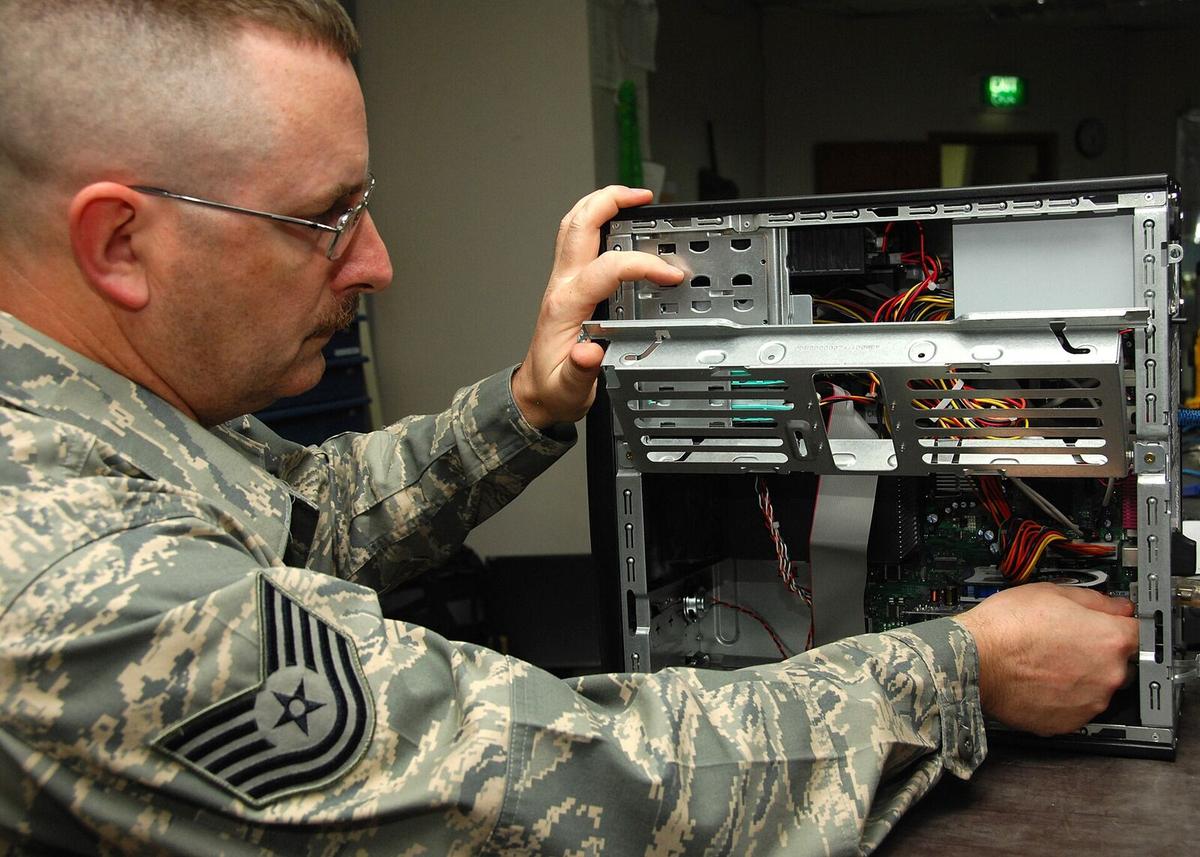 A technician replaces the hard drive in a desktop computer. Photo by Senior Airman Courtney Richardson, U.S. Air Force, public domain, via Wikimedia Commons.
What does this message mean?
Microsoft's reference page for this stop code, number 0x00000050, says it indicates that invalid system memory has been referenced, and that typically the memory address is wrong or is pointing at freed memory. Freed memory is space that a program has already handed back to Windows.
The name describes where the mistake happened. A page is a block of memory, and the nonpaged area is the part Windows reserves for data that must always be on hand. That reading of the name is mine. Microsoft's page gives only the sentence above.
The page adds one useful detail. If Windows can identify the driver responsible, its name is printed on the blue screen. A driver is the software that lets Windows talk to a piece of hardware. Write the name down with the stop code. "How to Read Any Blue Screen and Find the Stop Code" explains where both appear, how to find them again after a restart and how to start in safe mode.
What usually causes it?
Microsoft's page lists the causes in two sentences, and they sort into four kinds.
| Cause Microsoft lists | What to check |
|---|---|
| A faulty system service or faulty driver code | What was installed or updated before the crashes began |
| Antivirus software | Whether the antivirus program has an update |
| A corrupted NTFS volume (a damaged file system on the disk) | The disk, with Windows' disk checking tool |
| Faulty hardware, usually defective RAM | The memory, with Windows Memory Diagnostic |
NTFS is the file system, the method of organizing files, that Windows uses on its own drives. RAM is the PC's working memory.
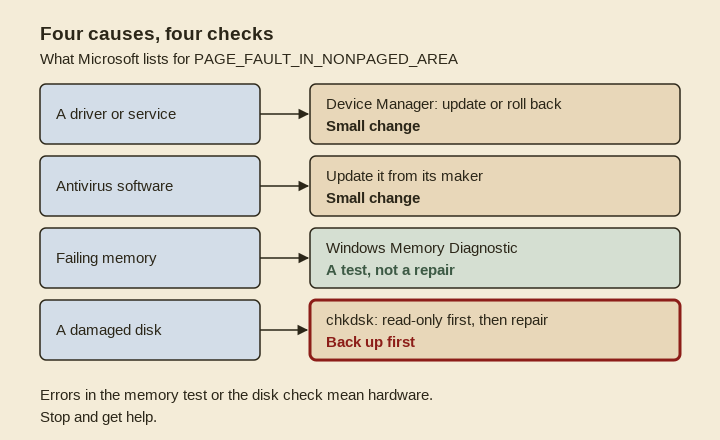 Each of Microsoft's four causes has its own check, and only the disk repair needs a backup first.
What to try, in order
These steps come from Microsoft's page for this code and its general stop code page for Windows 11 and Windows 10. Several of Microsoft's support pages now carry a notice that support for Windows 10 ended on October 14, 2025.
- Restart, and copy your important files somewhere else. Two of the four causes are a disk and memory, so make the copy now, while Windows runs. "Backups That Work: The 3-2-1 Rule" explains how.
- Remove hardware you added recently. Microsoft says to remove it and see whether the error returns.
- Deal with the driver. If a driver was named on the screen, or the crashes began after a driver update, right-click the Start button and select Device Manager. Right-click the device, select Properties, then the Driver tab, then Roll Back Driver. For a device marked with an exclamation point, right-click it and select Update driver. Microsoft's page for this code says to contact the driver's vendor to see whether an updated driver is available. Its guide for IT staff adds one more idea: try reinstalling any application or service that was recently installed or updated.
- Install Windows updates. On Windows 11: Start > Settings > Windows Update, then Check for updates. On Windows 10: Start > Settings > Update & Security > Windows Update, then Check for Windows updates.
- Update your antivirus program. Microsoft names antivirus software as a possible trigger. Its page says to disable the program as a test. That step is left out here, because it leaves the PC unprotected. The same page's other advice is safe: contact the program's maker about an update.
- Test the memory. Microsoft's instructions are to select the Start button, open Control Panel, type Memory in the search box and select Diagnose your computer's memory problems. Afterward, open the built-in Event Viewer tool and look in the System log for an entry named MemoryDiagnostics-Results. The page is written for programmers and names no Windows version.
- Look at the disk without changing it. Type
cmdin the search box, right-click Command Prompt and select Run as administrator, then runchkdskwith nothing after it. Microsoft's command reference says that used this way it displays only the status of the volume and does not fix any errors. The same page cautions that on a drive that is in use this read-only check might report errors that are not real, so treat its result as a hint.
Watch out
Back up your files before the next step. A disk repair changes the file system, and Microsoft's command reference notes that on the older FAT file systems repairs sometimes cause a loss of data. I think the same caution is wise on any drive, above all one that may be failing. Get your files off first.
Next: repair the disk. For a corrupted NTFS volume, Microsoft's page for this code says to run chkdsk /f /r to detect and repair disk errors. According to the command reference, /f fixes errors on the disk, and /r locates bad sectors (damaged spots on the drive) and recovers readable information. On the drive Windows runs from, the scan cannot start right away. Windows asks whether to check the drive the next time you restart, and Microsoft says you must restart before the scan begins. It can take a long time on a large drive, and Microsoft says interrupting it is not recommended.
Last: restore Windows. If the memory and the disk both check out, Microsoft's last basic step is a system restore point, or another choice from its "Recovery options in Windows" page. System Restore returns system files, settings and installed programs to an earlier date and leaves personal files alone. Press the Windows key and R, type rstrui.exe and press Enter. "Backing Up Your Computer and Reimaging It: The Deep Guide" covers the heavier options.
When it is hardware
Stop if the memory test reports errors, or if the disk check keeps finding bad sectors. Both are physical faults. No software step fixes a failing part, and each further crash on a failing drive puts your files at more risk. Microsoft's page says that where existing hardware has failed, the faulty component is removed or replaced, and that the system manufacturer's own diagnostics, and the disk maker's, are the tools to confirm it.
"MEMORY_MANAGEMENT: What the Blue Screen Means and What to Try" covers a related code that carries the same warning.
When to stop and get help
Stop as well if the PC cannot start and you have no backup, or if you are not comfortable running a disk repair. A work computer goes to your IT department.
What to remember
- PAGE_FAULT_IN_NONPAGED_AREA means something inside Windows asked for memory that was not valid.
- Microsoft lists four kinds of cause: a driver or service, antivirus software, a damaged disk, and faulty hardware, usually memory.
- Write down any driver name shown on the blue screen.
chkdskalone only reports.chkdsk /f /rrepairs, so back up before it.- Errors in the memory test, or bad sectors on the disk, mean a part is failing.
Microsoft's page says that finding the specific cause takes programming experience. I think that work belongs with someone who does it for a living. If the PC holds work or irreplaceable files and the steps here have not helped, stop and take it to a repair professional.
Sources (7)
- Microsoft Learn, "Bug Check 0x50: PAGE_FAULT_IN_NONPAGED_AREA", read 15 November 2026
- Microsoft Learn, "chkdsk", read 15 November 2026
- Microsoft Support, "Troubleshooting Windows unexpected restarts and stop code errors", read 15 November 2026
- Microsoft Learn, "Advanced troubleshooting for stop code errors", read 15 November 2026
- Microsoft Support, "Update drivers through Device Manager in Windows", read 15 November 2026
- Microsoft Support, "System Restore", read 15 November 2026
- Microsoft Support, "Recovery options in Windows", read 15 November 2026