Articles & BlogBy Trapper W. Brown7 min read
"The User Profile Service failed the sign-in. User profile cannot be loaded" means Windows could not load your user profile, the set of personal settings and folders it keeps for your account. It is not a wrong-password message, and it does not mean your files are gone. It is serious mostly because it locks you out of your own desktop until the profile loads again or you move to a new one.
 A profile is what makes a shared computer yours: your desktop, your documents and your settings, kept apart from everyone else's. Photo by Bill Branson, National Cancer Institute, public domain, via Wikimedia Commons.
What does this message mean?
Microsoft's developer documentation explains what a profile is. Windows creates one the first time a person signs in to a computer. At every sign-in after that, the system loads the profile, and the rest of Windows sets up your desktop from what it holds. The profile has two parts.
| Part of the profile | What it holds |
|---|---|
| A settings file named NTuser.dat | Your preferences and configuration. Windows loads it at sign-in. |
| A set of profile folders | Your Desktop, Documents, Start menu and the per-user data your apps keep |
As its name says, the User Profile Service is the piece of Windows that handles profiles. When the message appears, the load failed.
Microsoft has no current support page that quotes this message word for word. Its pages for the same family of trouble are "Troubleshoot Problems Signing In to Windows", "Fix a corrupted user profile", and a page for a close relative of this error, "We can't sign in to your account". In that case Windows gives up on your profile and signs you in with a temporary one. The steps below come from those three pages, which apply to Windows 11 and Windows 10.
What usually causes it?
Microsoft's current pages do not list causes for this exact message. What they do say comes to three points.
- A profile can become corrupted. That is Microsoft's word, and its fix replaces the profile. It does not repair it.
- The failure can be temporary. Microsoft's first advice is to restart, and it notes that you might need to restart more than once.
- Software that scans during sign-in can get in the way. Microsoft's page points at antivirus programs and other apps that scan the device as you sign in.
What to try, in order
- Restart, and then restart again. Select Power > Restart on the sign-in screen. Microsoft says restarting can clear temporary errors, and on its temporary profile page it adds that it may take more than one try.
- Sign in from Safe Mode. Safe Mode starts Windows in a basic state with a limited set of files and drivers. Microsoft's steps: on the sign-in screen, hold the Shift key while you select Power > Restart. On the Choose an option screen, select Troubleshoot > Advanced options > Startup Settings > Restart. When the list appears, press 5 or F5 for Safe Mode with Networking. Then sign in. Microsoft notes that this works only with a password, because PIN and fingerprint or face sign-in are unavailable in Safe Mode. If your profile loads there, restart normally and try again. If your drive is encrypted, Microsoft says you will need your BitLocker key to reach Startup Settings.
- Sign in with a different account. If the PC has another account, choose it from the list at the lower left of the sign-in screen, or select Other user. Getting in with any administrator account is what makes the next step possible. An administrator account is one allowed to change settings for the whole PC.
- Copy your files out before you change anything else. From that other account, open File Explorer and go to This PC, the drive Windows is on, Users, then the folder with your account name. Copy what matters to an external drive.
- Make a new profile and move in. This is Microsoft's fix for a corrupted profile. In Settings > Accounts > Other user, select Add account. To make a local account, choose I don't have this person's sign-in information, then Add a user without a Microsoft account. Under Other users, open the new account, select Change account type, and set it to Administrator. Sign in to the new account, copy the files and folders from your old folder under C:\Users into the new one, and restart. Microsoft warns you not to change File Explorer to show hidden files or protected operating system files while you do this. Afterward, it says to switch the new account from a local account to your Microsoft account if you have one.
Watch out
The steps after this one can change or remove what is on the PC. Do them only after step 4, or after someone has copied your files off the drive for you. If the drive is encrypted you will need your BitLocker recovery key to use the recovery tools: see "Enter the recovery key for this drive: Where to Find Your BitLocker Key".
- Roll back with System Restore. If no account on the PC will sign in, the Windows Recovery Environment still opens from the sign-in screen with the same Shift and Restart move. Select Troubleshoot > Advanced options > System Restore and pick a restore point from before the trouble began. Microsoft says System Restore reverts system files, registry settings and installed programs without affecting your personal files.
- Reset this PC, last. Microsoft's reset page says the "Keep my files" option reinstalls Windows and keeps your personal files while removing apps and settings. Back up first anyway.
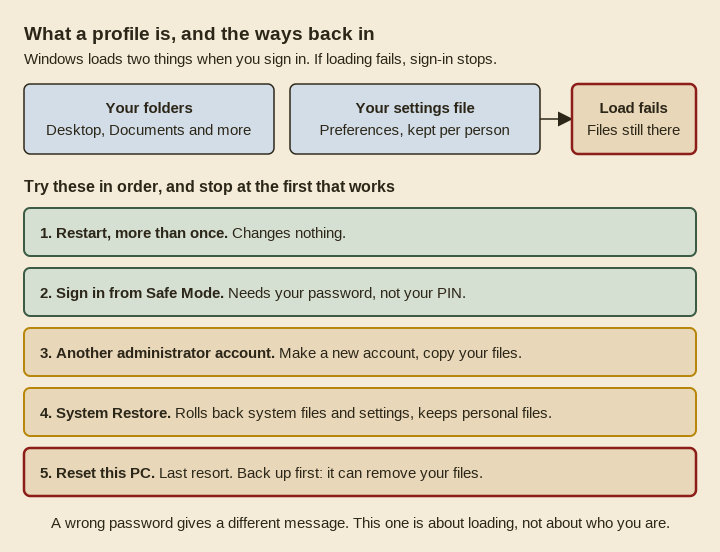 Two things load at sign-in, and five ways to get back to them.
After the move, Microsoft says email kept in an email program has to be imported separately and some apps may need to be set up again.
Two things are left out on purpose. Microsoft's temporary profile page suggests turning off antivirus software, and then Microsoft Defender's services, as a test. That switches off the PC's protection, so it is not a step here. You will also find a registry edit for this error repeated across the web. The registry is the database where Windows keeps its settings. I could not find that edit on any Microsoft page that loads today, so none of it is printed. Nothing here gets past the sign-in screen with a tool from outside Windows either.
When to stop and get help
Stop if the PC belongs to an employer or a school. The IT department has tools you do not.
Stop if no account will sign in, Safe Mode fails too, and your files are not backed up. Before a reset, a repair shop may be able to take the files off the drive directly. Stop as well if the PC has also started crashing to a blue screen. Then the profile may not be the real problem, and "How to Read Any Blue Screen and Find the Stop Code" is the place to start.
What to remember
- The message means your profile did not load. It is not about your password, and your files are normally still under C:\Users.
- Restart more than once before anything else.
- Safe Mode needs a password. A PIN will not work there.
- Microsoft's fix for a corrupted profile is a new account plus a copy of your files.
- Copy your files out before System Restore or a reset.
I think a second administrator account, made while the PC is healthy, turns this error from a lockout into an errand, and "Locking Down a Windows or Mac Computer" explains how to keep one without using it every day. A current backup does the rest: see "Backups That Work: The 3-2-1 Rule". If the PC holds work or irreplaceable files and these steps have not helped, stop and take it to a repair professional.
Sources (9)
- Microsoft Support, "Troubleshoot Problems Signing In to Windows", read 15 November 2026
- Microsoft Support, "Fix a corrupted user profile", read 15 November 2026
- Microsoft Support, "We can't sign in to your account error message", read 15 November 2026
- Microsoft Support, "Manage User Accounts in Windows", read 15 November 2026
- Microsoft Learn, "About User Profiles", read 15 November 2026
- Microsoft Support, "Windows startup settings", read 15 November 2026
- Microsoft Support, "System Restore", read 15 November 2026
- Microsoft Support, "Reset your PC", read 15 November 2026
- Microsoft Support, "Recovery options in Windows", read 15 November 2026