Articles & BlogBy Trapper W. Brown9 min read
For anyone who has typed a Wi-Fi password but never looked at the numbers behind it. By the end you will be able to read your own network settings and say what each one means.
Every device in your house that goes online has an address. Your phone has one, your console has one, and so does the smart plug you forgot about. Most people never look at these numbers, and things work anyway, until the day a game server will not connect or a guide says "find your gateway" and assumes you know how.
This article covers the address, the router that hands it out, the mask that says who your neighbors are, and the port numbers that sort traffic once it arrives. Then you will look up your own.
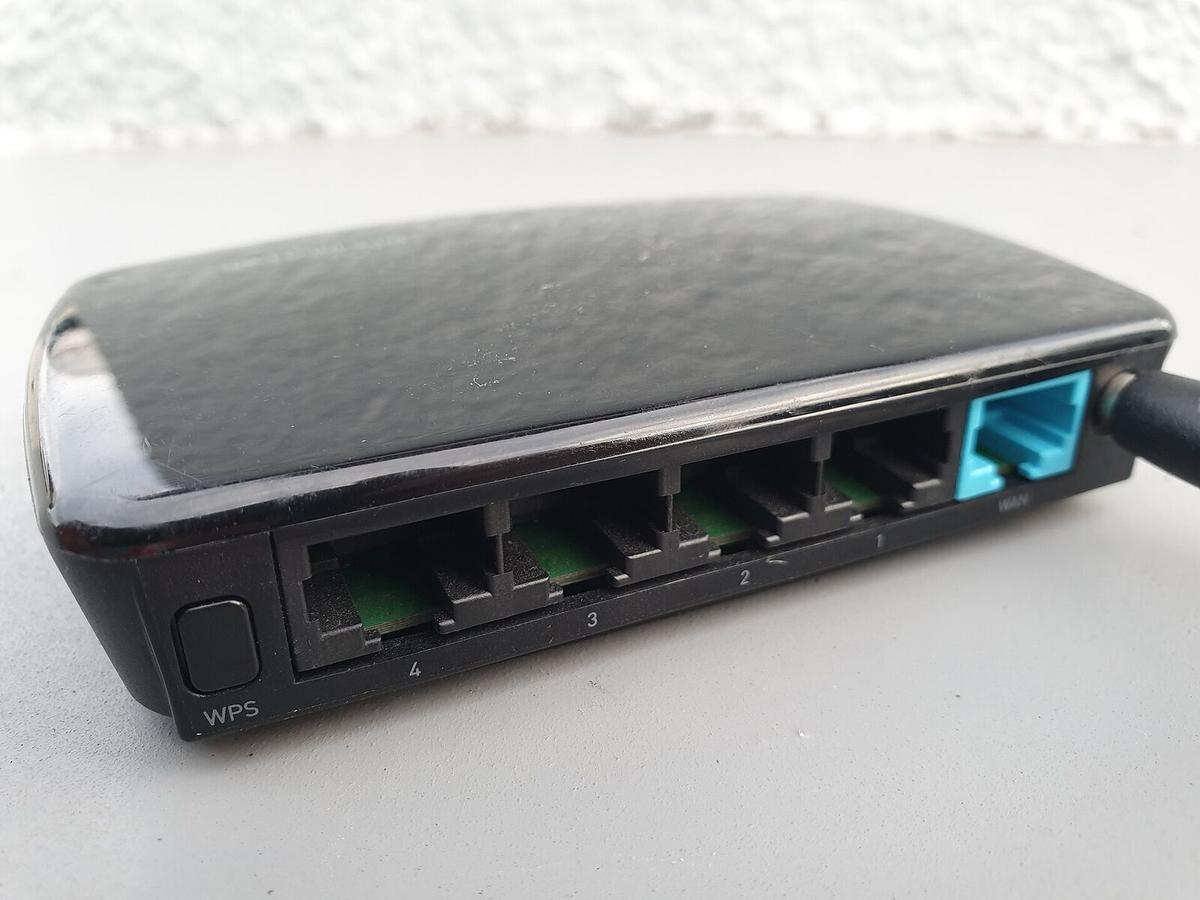 Four ports face your house and the blue one faces the internet: that split is the whole job of a home router. Photo by Syced, CC0, via Wikimedia Commons.
What is an IP address?
An IP address is the number a network uses to deliver data to a device, the way a postal service uses a street address. IP stands for Internet Protocol, the set of rules that moves data between networks.
The kind you will see most is IPv4: four numbers from 0 to 255 with dots between them, such as 192.168.1.23. Behind the dots it is one 32-bit number, which allows about 4.3 billion addresses. That is nowhere near enough now.
IPv6 is the replacement. Its addresses are 128 bits long and written as groups of hexadecimal digits with colons between them, such as 2001:db8::1. Most home networks today run both at once, and nearly everything in this article works the same way in either. The examples here use IPv4.
Private addresses and your one public address
Since there are not enough IPv4 addresses for every device, three blocks were set aside for anyone to use inside their own network. These private ranges are defined in an internet standard, RFC 1918.
| Private range | Written as | Where you see it |
|---|---|---|
| 10.0.0.0 to 10.255.255.255 | 10.0.0.0/8 | Large companies, some home routers |
| 172.16.0.0 to 172.31.255.255 | 172.16.0.0/12 | Less common at home |
| 192.168.0.0 to 192.168.255.255 | 192.168.0.0/16 | Most home routers |
Private addresses work only inside your network. Routers on the internet will not carry traffic addressed to them. That is why your laptop and a laptop in the house next door can both be 192.168.1.23 with no conflict.
To reach the internet, your house needs a public address, one that is unique in the world. Your internet provider gives your router one. Everything in your home shares it.
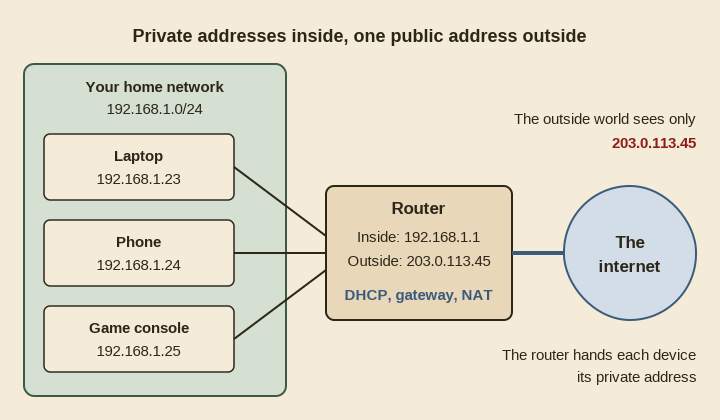 Many private addresses inside, one public address outside, and the router standing between them.
What does the router do all day?
The box your provider gave you does three separate jobs.
It hands out addresses. When a device joins your network, it asks for an address and the router assigns one from a pool. This is DHCP, the Dynamic Host Configuration Protocol. The address is a lease. It expires after a set time, often a day, and the device renews it. This is why your laptop's address can change from one week to the next.
It is the default gateway. Your laptop can talk directly to other devices on the same home network. For anything else, it sends the data to one address and trusts that device to pass it on. That address is the default gateway, and at home it is your router, commonly 192.168.1.1.
It translates addresses. When your laptop sends something to a website, the router swaps the laptop's private address for the house's public one on the way out, remembers that it did, and swaps it back when the reply returns. This is Network Address Translation, or NAT. It is how a dozen devices share one public address. The article "Firewalls, NAT and Port Forwarding" in this set covers how it works and why it sometimes gets in your way.
What does /24 mean?
How does your laptop know whether another address is a neighbor on the same network or something out on the internet? It uses the subnet mask.
An address has two parts. The front part names the network. The back part names one device on it. The mask says where the split falls, and there are two ways to write it. One looks like an address: 255.255.255.0. The other is a slash and a count of bits: /24. They mean the same thing.
Here is the arithmetic. An IPv4 address is 32 bits. A /24 says the first 24 bits are the network, which is the first three numbers. That leaves 8 bits for devices, and 8 bits can count from 0 to 255, so the network holds 256 addresses. Two are reserved: the first (192.168.1.0) names the network itself, and the last (192.168.1.255) is the broadcast address that reaches everyone. That leaves 254 for your devices.
| /24 (most homes) | 254 |
|---|---|
| /25 | 126 |
| /26 | 62 |
| /27 | 30 |
| /28 | 14 |
Source: Worked example in this article
Each bit you add to the mask cuts the network in half. So 192.168.1.23/24 tells you three things at once: this device is number 23, its network is 192.168.1.0, and its neighbors run from .1 to .254.
Tip
Write down three numbers from your own network: your device's address, the subnet mask and the default gateway. Nearly every home networking guide, from hosting a game to setting up a printer, starts by asking for them.
MAC addresses and ports: the other two numbers
Your device has a second address that you did not choose and DHCP did not assign. The MAC address (Media Access Control) belongs to the network hardware itself. It is six pairs of hexadecimal digits, such as 00:00:5e:00:53:1a, and the first half identifies the maker.
The two addresses do different jobs. The IP address gets data across networks to the right house. The MAC address gets it across the last hop, from the router to the right device over Wi-Fi or cable. A MAC address never travels past your router, so websites do not see it.
Then there is the port. An address gets data to the right computer. But that computer may be running a browser, a game and a voice chat at the same moment. Which program gets the data?
The port answers that. It is a number from 0 to 65535 attached to every connection. Think of the computer as one building with many numbered doors. A program that wants to receive traffic opens a door and listens there. If nothing is listening, the door stays shut.
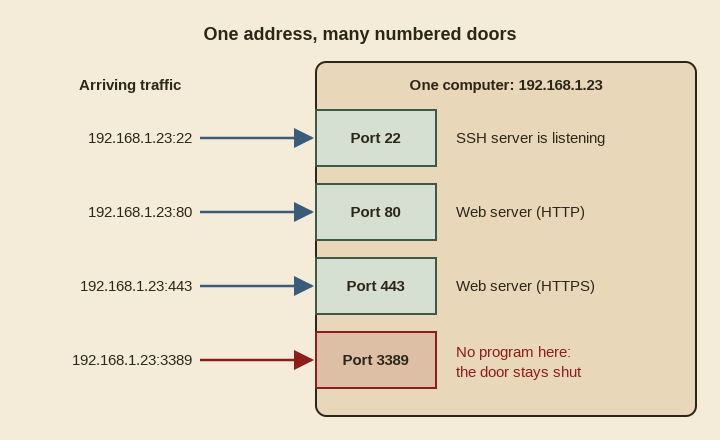 One address, many doors: the port number decides which program receives the traffic.
An address and a port are written together with a colon: 192.168.1.23:443. Ports come in two kinds, TCP and UDP, named for the two main ways of sending data. TCP checks that everything arrived in order. UDP sends and does not wait, which suits games and voice.
Servers listen on agreed numbers so that clients know where to knock.
| Port | Protocol | Used for |
|---|---|---|
| 22 | TCP | SSH, logging in to another machine |
| 25 | TCP | SMTP, mail moving between servers |
| 53 | UDP and TCP | DNS, turning names into addresses |
| 67 and 68 | UDP | DHCP, handing out addresses |
| 80 | TCP | HTTP, web pages without encryption |
| 123 | UDP | NTP, setting the clock |
| 443 | TCP | HTTPS, web pages with encryption |
| 3389 | TCP | Remote Desktop on Windows |
Ports 0 to 1023 are the well-known ones, reserved for standard services. Your own computer picks a high-numbered port for its side of each outgoing connection and gives it back when the connection ends.
Watch out
A private address is not a secret. Posting 192.168.1.23 in a forum gives away nothing, because every network has one. Be careful with your public address, and more careful with any open port on it that leads to a program you forgot was running.
How do you see your own settings?
Open a terminal (Command Prompt or PowerShell on Windows, Terminal on macOS and Linux) and try the command for your system. Nothing here changes anything. It only reads.
On Windows:
ipconfig
This lists the IPv4 address, subnet mask and default gateway for each network adapter. Look for the adapter you are using:
Wireless LAN adapter Wi-Fi:

   IPv4 Address. . . . . . . . . . . : 192.168.1.23
   Subnet Mask . . . . . . . . . . . : 255.255.255.0
   Default Gateway . . . . . . . . . : 192.168.1.1
ipconfig /all
This shows the full configuration, including the MAC address (Windows calls it the Physical Address) and whether DHCP assigned the address.
On Linux:
ip addr
This shows every network interface with its addresses. The line starting inet holds your IPv4 address and mask, and link/ether is the MAC address:
2: wlan0: <BROADCAST,MULTICAST,UP,LOWER_UP> mtu 1500 state UP
    link/ether 00:00:5e:00:53:1a brd ff:ff:ff:ff:ff:ff
    inet 192.168.1.23/24 brd 192.168.1.255 scope global dynamic wlan0
ip route
This prints the routing table. The line that starts with default via names your gateway, for example default via 192.168.1.1 dev wlan0.
On macOS:
ifconfig en0
This shows the configuration of one interface. On most Macs en0 is the built-in Wi-Fi or Ethernet. The inet line is the address and ether is the MAC address.
route -n get default
This looks up the default route. The gateway line is your router's address.
None of these show your public address, because your computer does not have it. The router does. Its status page lists it, usually under "WAN" or "Internet."
What to remember
- An IP address delivers data to a device. IPv4 looks like
192.168.1.23. IPv6 is longer and uses colons. - Addresses starting 10, 172.16 to 172.31, or 192.168 are private. They work only inside a network, and every house can reuse them.
- Your router hands out addresses (DHCP), is the way out (default gateway), and lets the house share one public address (NAT).
- A
/24means the first three numbers name the network and 254 devices fit on it. - A MAC address belongs to the hardware and never leaves your local network.
- A port is a numbered door on one computer. A program has to be listening for the door to open.
Run the command for your system tonight and find your three numbers. The natural next step is "Firewalls, NAT and Port Forwarding," which explains what your router lets in, what it keeps out, and what a guide means when it tells you to open a port.