Articles & BlogBy Trapper W. Brown8 min read
For anyone who has typed a web address and wondered how the computer found it. By the end you will be able to follow one lookup from start to finish, read a DNS record, and run a lookup yourself.
Computers find each other by number. People remember names. Every time you type a name such as example.com, something has to turn it into a number before a single byte of the page can move. That something is the Domain Name System, or DNS.
People call it the internet's phone book, and the comparison holds up: you know the name, you need the number, you look it up. The difference is that this phone book has no single copy. It is spread across a great many servers, and your computer consults it all day without telling you.
 Before DNS, connecting a name to a line was a job done by hand. Photo by Ed Westcott, U.S. Department of Energy, public domain, via Wikimedia Commons.
What does DNS do?
An IP address is the number that identifies a machine on a network. The older kind, IPv4, looks like 192.0.2.10. The newer kind, IPv6, looks like 2001:db8::10. DNS answers one question above all: what is the address for this name?
It answers other questions too, such as which server takes mail for a domain. Each answer is stored as a record, and each kind has a short type name. The common ones are in a table below.
Three kinds of server share the work:
- A resolver takes your question and does the legwork of finding the answer. Your device talks only to this one.
- An authoritative server holds the real records for a domain. Its answer is the original, not a copy.
- Root servers and top-level domain (TLD) servers sit above those and give directions. A TLD is the last part of a name, such as
.comor.org.
The path of one lookup
Say you type example.com into a browser that has never been there.
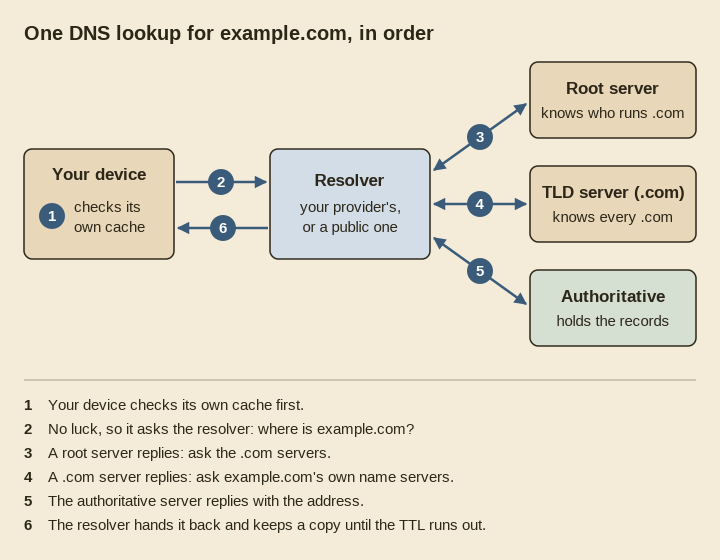 One lookup, six steps. Your device only ever talks to the resolver.
Your device looks in its own cache first, a short memory of recent answers. Finding nothing, it asks its resolver. At home that is usually your router, which passes the question to your internet provider.
The resolver starts at the top. A root server does not know the address, but it knows which servers handle .com. A .com server does not know the address either, but it knows which name servers are authoritative for example.com. One of those holds the record and answers. The resolver passes the answer to you and keeps a copy.
The root sounds like a single point of failure. It is not one machine. IANA, the body that coordinates the root, lists 13 named root authorities, lettered a to m, and describes them as a network of hundreds of servers in many countries.
Records, TTL and caching
| Type | What it holds | Example use |
|---|---|---|
| A | An IPv4 address for the name | Where the website lives |
| AAAA | An IPv6 address for the name | The same, for IPv6 |
| CNAME | Another name that this one is an alias for | www pointing at the main name |
| MX | The mail server for the domain | Where email for the domain is delivered |
| TXT | Free text | Proving you own a domain, listing who may send its mail |
| NS | The authoritative name servers for the domain | Step 4 in the diagram |
Every record carries a time to live (TTL), counted in seconds. It tells whoever receives the record how long they may keep it before asking again. A TTL of 300 is five minutes. A TTL of 86400 is one day.
Caching is why DNS is fast: your browser, your operating system, your router and your resolver all hold on to answers until the TTL runs out, so most lookups never reach steps 3 to 5.
Caching is also why changes are slow. If a site moves to a new address and the old record had a TTL of a day, some visitors keep landing on the old address for up to a day. People call this "propagation", but nothing is being pushed anywhere. Old copies are running out, one cache at a time.
Look it up yourself
nslookup is on Windows, macOS and most Linux systems. Open a terminal and try it on the domain reserved for examples.
nslookup example.com
This asks your default resolver for the addresses of example.com.
Server:  router.home
Address:  192.168.1.1

Non-authoritative answer:
Name:    example.com
Addresses:  2606:4700:10::ac42:93f3
          2606:4700:10::6814:179a
          104.20.23.154
          172.66.147.243
The first two lines name the resolver that answered, here a home router. "Non-authoritative answer" is not an error. It means the reply came from a resolver's copy, not straight from example.com's own servers. The addresses were right when this was written. Big sites change theirs often, so yours may differ.
nslookup -type=MX example.com
This asks for the mail record instead of the address. Swap MX for TXT, NS or AAAA to see the others.
nslookup example.com 9.9.9.9
This sends the same question to a different resolver, the public one at 9.9.9.9, instead of your default.
On macOS and Linux, dig shows more of the reply.
dig example.com
This looks up the A record, the default when you name no type, and prints the full answer. Trimmed, it looks like this:
;; ANSWER SECTION:
example.com.        300     IN      A       104.20.23.154
example.com.        300     IN      A       172.66.147.243

;; SERVER: 192.168.1.1#53(192.168.1.1)
The number after the name is the TTL in seconds. Run the command again and watch it count down: that is a cache at work. The #53 is the port DNS uses.
dig +short example.com
This prints only the addresses.
Tip
When a site will not load, run nslookup on its name before anything else. If an address comes back, DNS is working and the fault is somewhere else. If you get a timeout or a message that the domain does not exist, you have found the problem in ten seconds.
Why is it always DNS?
Network admins have a running joke: whatever broke, it was DNS. The joke lasts because every connection starts with a lookup, so a DNS fault looks like a fault in everything.
Your Wi-Fi shows as connected but no site opens: the resolver is down or unreachable. One site fails for you and works for a friend: one of you has a stale copy in a cache.
Two fixes are worth knowing. The first is to clear your own cache. On Windows:
ipconfig /flushdns
This empties the computer's DNS cache, so the next lookup goes out fresh.
The second is to change your resolver. You do not have to use your provider's. Several organizations run public ones.
| Resolver | Address | Notes from its operator |
|---|---|---|
| Quad9 | 9.9.9.9 | Run by a Swiss not-for-profit, blocks known malicious host names |
| Cloudflare | 1.1.1.1 | A second address, 1.1.1.2, also blocks malware |
| Google Public DNS | 8.8.8.8 | Second address 8.8.4.4 |
Set it in one device's network settings, or in your router so the whole house uses it. Write down the old settings first so you can go back.
Ordinary DNS travels as readable text. Anyone on the path, such as the owner of a coffee shop's Wi-Fi, can see which names you look up and can tamper with the answers. DNS over HTTPS (DoH), defined in RFC 8484, sends each lookup inside the same kind of encrypted connection your browser uses for web pages, on port 443, where it blends in with other traffic. Browsers and operating systems offer it as a setting, often labeled "secure DNS". It hides your lookups from the local network. It does not hide them from the resolver.
Watch out
Never put a DNS server address into your router because a forum post, a pop-up or a helpful stranger told you to. Whoever runs your resolver can answer any name with any address they like, including a fake copy of your bank. Use your provider's or a well-known public one, and read the address from the operator's own website.
The security side
DNS filtering is a resolver that refuses to answer for names known to be dangerous. A phishing link or a piece of malware needs a lookup like everything else, so blocking the lookup blocks the visit. Schools and workplaces filter this way, and the public resolvers above offer it at no cost. A domain registered this morning is on no list yet, and an attack that uses a bare IP address skips DNS altogether.
Look-alike domains are the trick DNS cannot save you from. DNS tells you whether a name exists, not whether it is the name you meant. To DNS, examp1e.com with a digit one is a different domain from example.com, and so is exarnple.com, where an r and an n pose as an m. Anyone can register a name like that. Read a long address from the right: in example.com.login.example.net, the site is example.net, and everything to the left of it is a label its owner made up.
Your resolver sees a lot. It gets every name you look up, with your address and the time. It does not see pages or passwords, but a list of names says plenty: your bank, your clinic, a job site. Changing resolvers or turning on DoH changes who holds that list. Someone always holds it, so pick that someone on purpose and read their privacy policy.
What to remember
- DNS turns names into addresses. Your device asks a resolver, and the resolver asks root, TLD and authoritative servers in turn.
- A, AAAA, CNAME, MX, TXT and NS are the record types you will meet most.
- TTL is how many seconds an answer may be cached. Caching makes DNS fast and makes changes slow.
nslookupanddigshow you what DNS says right now. "Non-authoritative answer" is normal.- Your resolver sees every name you look up, and can lie about the answer. Choose it yourself.
- DNS cannot tell a look-alike domain from the real one. That part is on you.
Tonight, run nslookup on three sites you use every day and look up their MX and NS records too. Then read IP Addresses, Ports and Your Home Router, which covers the numbers those names point to.