Articles & BlogBy Trapper W. Brown7 min read
Error 0xc000000e appears on a recovery screen before Windows loads, and it means the startup process went looking for a device it was told to use, such as the drive Windows lives on, and could not find it. The code says nothing about your files being damaged, but the PC will not start until the cause is dealt with, so it is serious enough to slow down and work in order.
 The code says a device could not be found, and sometimes the answer is a connection inside the case. Photo by Seaman Ryan McFarlane, U.S. Navy, public domain, via Wikimedia Commons.
What does this message mean?
The number is a status code, and Microsoft publishes the list. In its reference of Windows status values, 0xC000000E is named STATUS_NO_SUCH_DEVICE, with the description "A device that does not exist was specified."
To see why that stops a PC, you need one term. Boot Configuration Data, or BCD, is a small startup list kept on the drive. It tells Windows Boot Manager, the program the firmware starts first, where Windows is and how to load it. Firmware is the software built into the main board that runs before Windows.
Microsoft has no home-user support page for this code. The one Microsoft page devoted to it covers virtual machines in its Azure cloud, and its statement of the cause is short: the issue occurs when a device that doesn't exist is specified in the Boot Configuration Data. Put plainly, the startup list points somewhere, and nothing answers there.
That same page shows the three lines the screen can carry, which helps you read your own:
| Line on the screen | What it tells you |
|---|---|
| Status: 0xC000000E | The code. A device that does not exist was specified. |
| File: \Windows\system32\winload.exe | The step that failed. Winload is the Windows loader, the program that loads Windows itself. |
| Info: the application or operating system couldn't be loaded because a required file is missing or contains errors | A general description, shared with other startup codes. |
Your screen may word things differently or name a different file. The code is the part to go by.
What usually causes it?
Microsoft's pages do not list home causes for this code, so I will not invent any. The meaning allows only two possibilities, and the steps below sort one from the other.
- The device really is missing. The drive Windows is on is not answering: it has come loose, it has been moved or unplugged, or it has failed.
- The device is fine and the list is wrong. The Boot Configuration Data is damaged or out of date, so it points to the wrong place. Microsoft's guide for IT staff puts "Boot Configuration Data (BCD) missing or corrupted" among the problems of the boot loader phase, the stage right after the firmware hands over. Its Startup Repair page names corrupted boot configuration data as one of the things that tool tries to fix.
If the screen you see comes from the firmware and not from Windows, with words such as "No bootable device", that is an earlier stop, covered in "No bootable device and Boot device not found: What It Means and What to Try".
What to try, in order
- Restart once. Microsoft's "Recovery options in Windows" page says to try restarting first.
- Unplug what the PC does not need. Turn it off and disconnect USB drives, memory cards and other external devices, then start it again. Disconnecting external peripherals is the first check in Microsoft's startup guide.
- Undo a recent hardware change. If the error began right after a drive was added, removed or moved to a different connector, I think the sensible move is to put things back the way they were and try again. That is my reading of what the code means, not a Microsoft step.
- Check whether the firmware can see the drive. Your PC maker's support page tells you which key opens the firmware's settings screen. Look for your drive in the list and change nothing. If it is not there, skip to "When to stop and get help".
Watch out
The remaining steps use the Windows Recovery Environment, and they can change what is on the drive. If your files are not backed up, decide now whether to have a repair shop copy them off first. If the drive is encrypted, Microsoft says you will need your BitLocker recovery key for most recovery options: see "Enter the recovery key for this drive: Where to Find Your BitLocker Key".
- Open the Windows Recovery Environment. Microsoft's page on it (Windows 11 and Windows 10) says Windows enters it automatically after failing to start several times. If yours does not, the route Microsoft gives for a PC that will not start is installation media: on a working PC, follow "Create installation media for Windows" with a blank USB flash drive of at least 8 GB, start the broken PC from it, choose your language, select Next, then Repair my PC.
- Run Startup Repair. Select Troubleshoot > Advanced options > Startup Repair. Microsoft describes it as a tool that scans for the problem and tries to fix it so the PC can start, and corrupted boot configuration data is on its list. If it cannot fix the problem, it reports what it found.
- Go back to before the trouble. If the error followed a Windows update, Troubleshoot > Advanced options > Uninstall updates removes it, and Microsoft says your files and apps are not affected. System Restore, in the same menu, rolls back system files and settings but not personal files, if a restore point exists. Windows 11, version 24H2 or later, also has Point-in-time restore, which rolls back personal files too.
- Reset or reinstall, last. Troubleshoot > Reset this PC reinstalls Windows. Microsoft's reset page says "Keep my files" keeps personal files but removes apps and settings, and "Remove everything" removes it all. Reinstalling from installation media removes everything from the device.
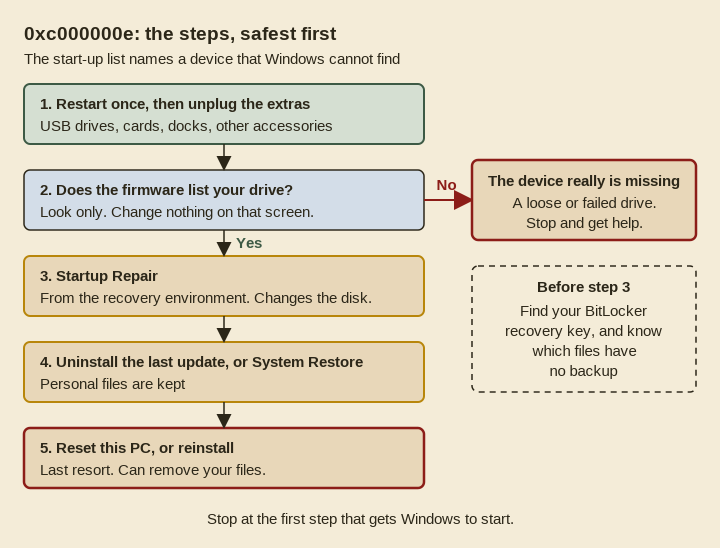 One question about the drive decides whether this is a repair or a hardware fault.
One kind of fix is left out. Microsoft's pages for IT staff, including the Azure page for this code, repair the startup list by hand from a command prompt. Those commands are not printed here: I think a wrong entry can leave a PC that starts nothing at all. If Startup Repair cannot fix it, bring in a professional. The pages are linked below.
When to stop and get help
Stop if the firmware does not list the drive. That is a loose connection or a failed drive, which is hardware, and no software step fixes a failing part.
Stop before step 5 if the drive holds files you cannot replace and you have no copy. Stop if the recovery tools ask for a BitLocker key you cannot find: Microsoft says the only route left without the key is a reset that removes all of your files. Stop and call your IT department if the PC belongs to an employer or a school: Microsoft's recovery page says they might be able to help remotely.
What to remember
- 0xc000000e means a device that does not exist was specified. The startup list points at something Windows cannot find.
- Either the drive is not answering, or the list is wrong. The firmware's drive list tells you which.
- Startup Repair is Microsoft's tool for a damaged startup list, and it needs your BitLocker key if the drive is encrypted.
- Reset and reinstall come last, after your files are safe.
A startup failure is the moment a backup pays for itself, and "Backups That Work: The 3-2-1 Rule" and "Backing Up Your Computer and Reimaging It: The Deep Guide" explain how to have one ready. If Windows gets as far as a blue screen with a stop code, start with "How to Read Any Blue Screen and Find the Stop Code". If the PC holds work or irreplaceable files and these steps have not helped, stop and take it to a repair professional.
Sources (9)
- Microsoft Learn, "[MS-ERREF]: NTSTATUS Values", read 15 November 2026
- Microsoft Learn, "Winload.exe error code 0xc000000e on an Azure VM", read 15 November 2026
- Microsoft Learn, "Advanced troubleshooting for Windows startup issues", updated 12 February 2026, read 15 November 2026
- Microsoft Support, "Startup Repair", read 15 November 2026
- Microsoft Support, "Windows recovery environment", read 15 November 2026
- Microsoft Support, "Recovery options in Windows", read 15 November 2026
- Microsoft Support, "System Restore", read 15 November 2026
- Microsoft Support, "Reset your PC", read 15 November 2026
- Microsoft Support, "Create installation media for Windows", read 15 November 2026