Articles & BlogBy Trapper W. Brown7 min read
A black screen that says "No bootable device" or "Boot device not found" does not come from Windows. It comes from the firmware, the small program built into the PC's main board that runs before Windows does, and it means the firmware looked for a drive to start from and did not find one. The cause can be as small as a USB stick left in a port or as large as a failed drive, so treat it as serious until you know which.
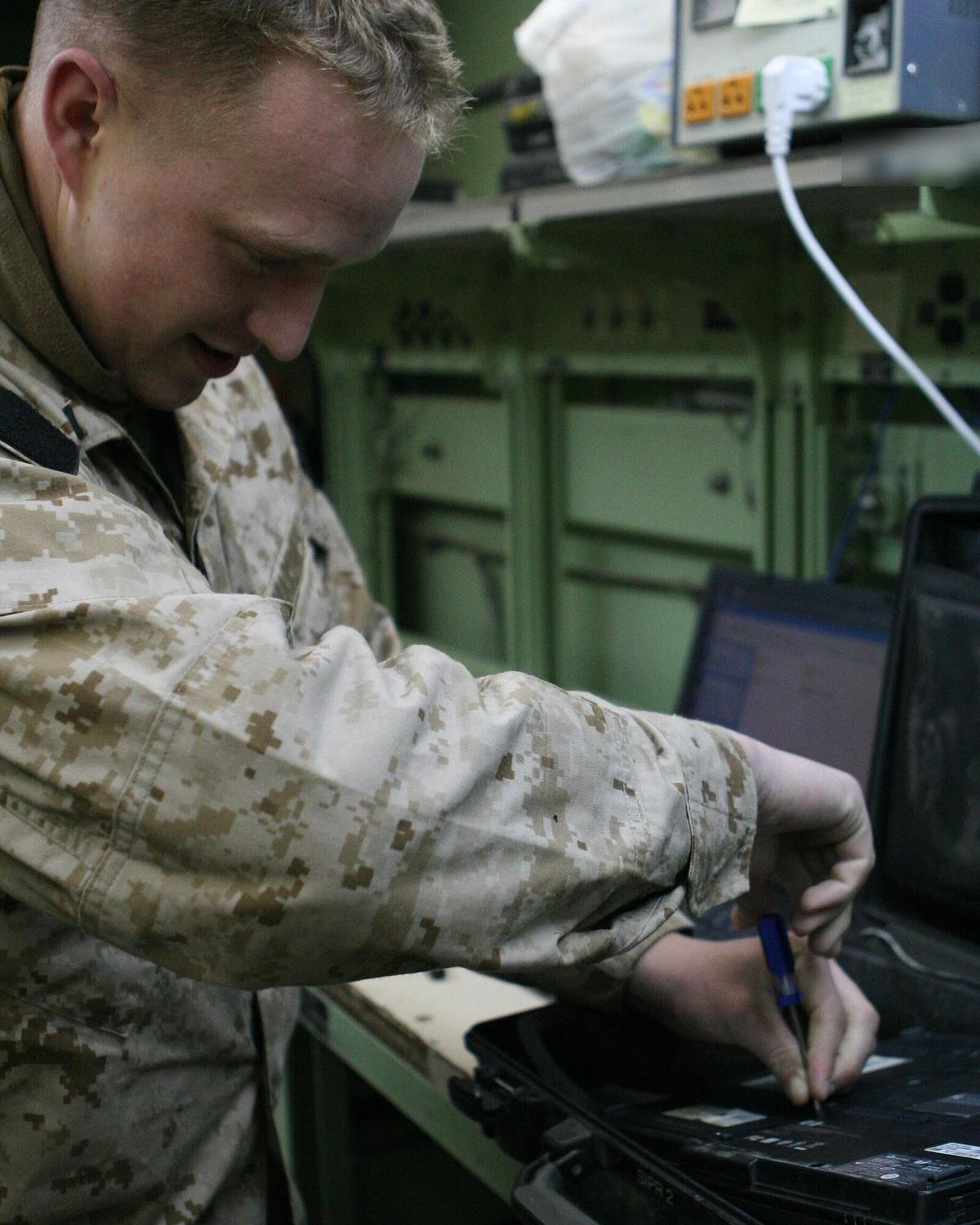 The drive is the part the firmware is looking for, and when the drive itself is at fault the fix is hands-on work, not a setting. Photo by the U.S. Marine Corps, public domain, via Wikimedia Commons.
What does this message mean?
Microsoft's guide to startup problems, written for IT staff, splits starting a PC into phases. In the first one, the firmware runs a self test and loads its settings, and the phase ends when the firmware detects a valid system disk. Only then does it start Windows Boot Manager, the small program that finds and loads Windows. Your message belongs to that first phase. Windows has not started yet, so nothing you set inside Windows put it on the screen.
A drive is "bootable" when it holds the startup files the firmware knows how to hand over to.
Because each PC maker writes its own firmware, the words differ. Microsoft has no general page that quotes either message. Its one page that does is for its own tablets, "Surface Go or Surface Go 2 turns on and shows No Bootable Device". Dell's support guide lists "No Boot Device Found" among the messages a PC shows when it cannot start Windows. HP's page calls it "Hard Disk Error 3F0 boot device not found". They all describe the same stop.
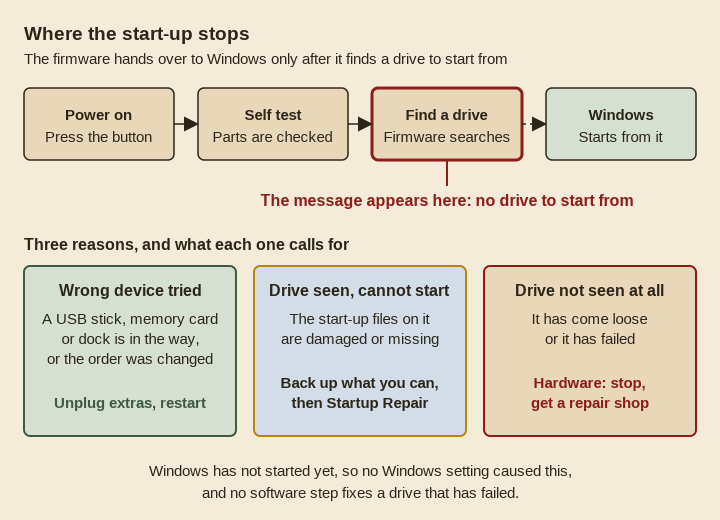 The message appears before Windows starts, and it has three kinds of cause.
What usually causes it?
The primary pages point to three things.
- The firmware tried the wrong device. Microsoft's Surface page begins by having you disconnect USB drives, SD cards, USB accessories, external monitors and docks. A second Surface page says the tablet will try to boot from any connected USB device.
- The drive is there, but the firmware cannot start from it. The boot order may have changed, or the startup files may be damaged. Microsoft's Startup Repair page lists corrupted boot configuration data and a damaged master boot record, both startup records on the drive, among the problems that tool tries to repair.
- The drive is not detected at all. Dell's guide gives loose connections as one reason. A drive that has failed is the other.
| What you find | What it points to |
|---|---|
| A USB stick, memory card or dock was attached | The firmware tried to start from the wrong device |
| The firmware lists your drive, but the PC still will not start | The boot order, or damaged startup files |
| The firmware does not list your drive | A loose or failed drive: hardware |
What to try, in order
- Unplug everything you do not need. Turn the PC off. Remove USB drives, memory cards, accessories, external monitors and any dock, then start it again.
- Power it down fully and try again. On a Surface Go, Microsoft says to hold the power button until the message goes away, then leave the tablet on its original charger for at least 15 minutes. Dell describes unplugging the power and holding the power button for 15 to 20 seconds. Your maker's support page has the version for your model.
- Look at the firmware's settings screen, and change nothing yet. The key that opens it varies by maker. Dell's page says F2 and HP's says F10. On a Surface, Microsoft says to hold the volume-up button while you press and release power. Dell's guide tells you what to look for: whether the drive is detected, and whether it is first in the boot order. Write down what you see and leave without saving.
- Run the maker's built-in drive test if there is one. HP and Dell both describe a hardware test that runs before Windows starts. It only tests. If it fails, or finds no drive, go to the next section.
Watch out
Everything from here on can change what is on the drive. If your files are not backed up, stop now: a repair shop may be able to copy files off a drive that will not start, and that should happen before any repair. If the drive is encrypted, you will also need your BitLocker recovery key, and "Enter the recovery key for this drive: Where to Find Your BitLocker Key" explains where to look. Microsoft lists some firmware changes among the events that can bring up the BitLocker recovery screen.
- Correct the boot order, using your maker's instructions. If step 3 showed your drive listed but not first, your maker's page explains how to move it. Microsoft's own advice for Surface owners is blunt: under normal circumstances there is no need to change these settings, and changing them risks the security and functionality of the device.
- Run Startup Repair from Windows installation media. Since Windows will not start, Microsoft's route into its recovery tools is a USB drive made on another PC. Its "Create installation media for Windows" page (Windows 11 and Windows 10) asks for a blank USB flash drive of at least 8 GB, and everything on that drive is deleted. Start the broken PC from it, choose your language, select Next, then Repair my PC. In the recovery environment, select Troubleshoot > Advanced options > Startup Repair. The tool scans for startup problems and tries to fix them by itself.
- Reinstall Windows, as the last resort. Microsoft's "Recovery options in Windows" page says reinstalling from installation media removes everything from the device. Do it only after your files are safe somewhere else.
Some fixes are left out on purpose. Microsoft's guide for IT staff documents command-line repairs for startup records. They are not printed here: I think a mistyped one can make things worse, and that a failed Startup Repair is the point to hand the PC to a professional. Steps on other pages that turn Secure Boot off, restore every firmware default, or switch the disk or boot mode are left out too, because they remove a protection or can stop a working Windows from starting.
Surface Go and Surface Go 2 owners have one more option: Microsoft publishes a repair file for this message on those two models, linked below.
When to stop and get help
Stop if the firmware does not list your drive, or the maker's test fails. Microsoft's guide says that when a PC is stuck in this first phase there might be a hardware issue. No software step fixes a drive that has failed.
Stop before step 6 if the drive holds anything you cannot replace and you have no backup. Stop and call your IT department if the PC belongs to an employer or a school.
What to remember
- The message comes from the firmware. Windows has not started, so no Windows setting caused it.
- Unplug USB drives, cards and docks first. It costs nothing and is the first step Microsoft and Dell give.
- A drive the firmware cannot see is a hardware problem.
- Startup Repair and reinstalling both change the drive. Protect your files first.
If Windows does begin to load and then stops with a code, you are past this message and into a different problem: see "0xc000000e: What the Windows Startup Error Means and What to Try" or "INACCESSIBLE_BOOT_DEVICE: What the Blue Screen Means and What to Try". Once the PC is running again, "Backups That Work: The 3-2-1 Rule" and "Backing Up Your Computer and Reimaging It: The Deep Guide" cover how to be ready for the next drive failure. If the PC holds work or irreplaceable files and these steps have not helped, stop and take it to a repair professional.
Sources (11)
- Microsoft Learn, "Advanced troubleshooting for Windows startup issues", updated 12 February 2026, read 15 November 2026
- Microsoft Support, "Surface Go or Surface Go 2 turns on and shows No Bootable Device", read 15 November 2026
- Microsoft Support, "Boot Surface from a USB device", read 15 November 2026
- Microsoft Support, "How to use Surface UEFI", read 15 November 2026
- Microsoft Support, "Windows recovery environment", read 15 November 2026
- Microsoft Support, "Startup Repair", read 15 November 2026
- Microsoft Support, "Create installation media for Windows", read 15 November 2026
- Microsoft Support, "Recovery options in Windows", read 15 November 2026
- Microsoft Learn, "BitLocker recovery overview", read 15 November 2026
- Dell Support, "Computer Cannot Boot into Windows", read 15 November 2026
- HP Support, "HP PCs - Hard disk 3F0 boot device not found error", read 15 November 2026