Articles & BlogBy Trapper W. Brown7 min read
"No internet, secured" means your PC has joined the Wi-Fi network, but Windows cannot reach the internet through it. It is a connection problem, not a security problem, and nothing on the PC is damaged.
The useful question is where the path breaks: inside your PC, at the router, or beyond your walls at the internet provider. The first few steps below answer that without changing a single setting.
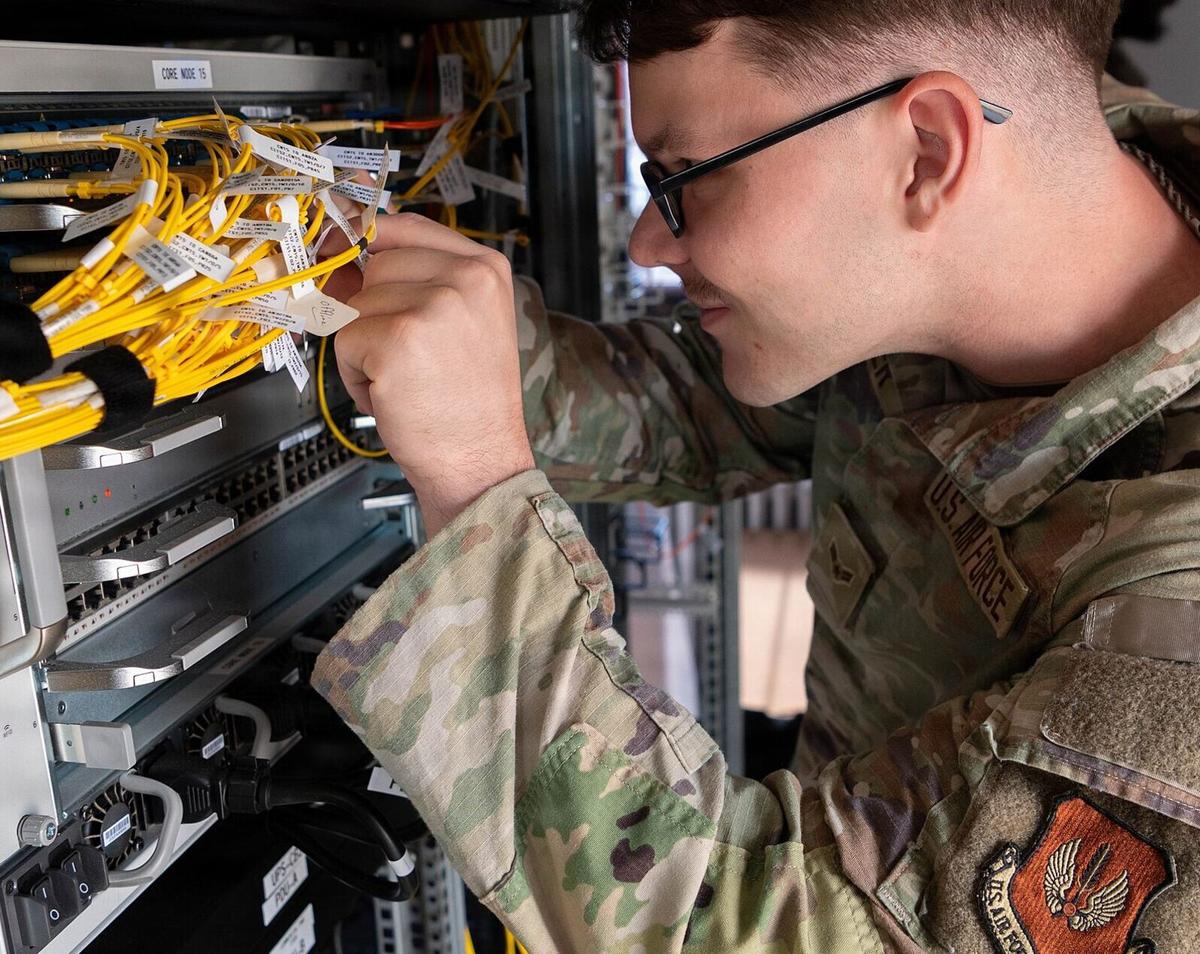 Finding a lost connection is the same job at any size: follow the path one link at a time until you reach the one that is down. Photo by Airman 1st Class Kacie Ramos, U.S. Air Force, public domain, via Wikimedia Commons.
What does this message mean?
Microsoft's Wi-Fi troubleshooting guide for Windows 10 and Windows 11 calls this state "limited connectivity." In its words, your PC "is connected to your local network but isn't connected to the Internet." You may still see other devices in the house, but the web, email and streaming will not work.
How does Windows know? The same guide explains that "Windows sends a small HTTP request to a server on the Internet." If nothing comes back, Windows shows the no internet status.
Microsoft's guide does not define the word "secured." I read it as Windows' label for the Wi-Fi link itself, the part between your PC and the router. That part is fine. The break is somewhere after it.
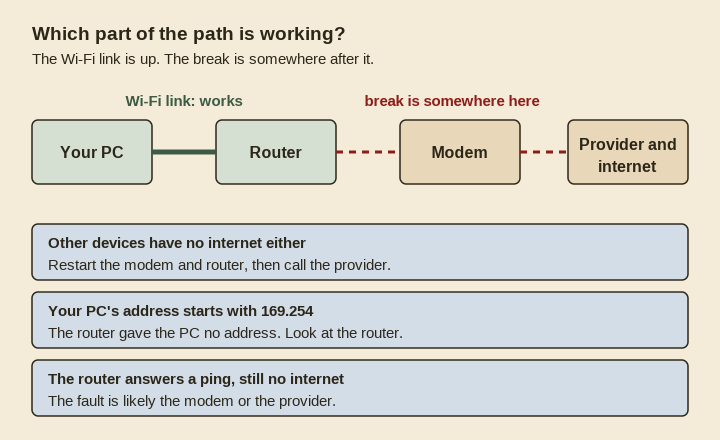 The message tells you the first link is good. Three quick checks narrow down which later link is not.
What usually causes it?
- The modem or the provider has lost its connection. The sign: every device in the house is offline.
- The router did not give the PC an address. The sign: the PC's address starts with 169.254.
- A proxy or DNS setting on the PC is wrong. The sign: other devices work and this PC does not.
- The PC's Wi-Fi driver is at fault. The sign: the trouble began right after an update.
A driver is the software that lets Windows talk to a piece of hardware, here the Wi-Fi adapter. A modem is the box that connects your home to the provider; the router shares that connection around the house. Many homes have both in one box.
What to try, in order
Every step comes from Microsoft's guide, in order from safest to most involved. Steps 1 to 5 change nothing that matters.
- Check another device on the same Wi-Fi. If a phone or second laptop gets online, Microsoft says the problem is likely your PC. If nothing gets online, the problem is the router, the modem or the provider, and step 4 is your main tool.
- Turn Wi-Fi off and on again. Select the network icon at the right end of the taskbar, turn Wi-Fi off, turn it on, and reconnect.
- Restart the PC. Save your work, then select Start, then Power, then Restart.
- Restart the modem and router. Everyone on the network will be cut off for a few minutes. Unplug the router's power cable, then the modem's. If the modem's lights stay on, it has a backup battery: take it out. Wait at least 30 seconds. Put the battery back, plug in the modem, and wait for its lights to stop blinking. Plug in the router, wait a few minutes, and try again. With a single combined box, do the same with that one device.
- Run the network troubleshooter. In Windows 11, Microsoft points you to the Network and Internet troubleshooter in the Get Help app. In Windows 10, select Start, then Settings, then Network and Internet, then Status, then Network troubleshooter.
- Forget the network and join it again. Have the Wi-Fi password in hand first. In Settings, select Network & internet, then Wi-Fi, then Manage known networks. Select your network and choose Forget. Then reconnect and type the password.
- Look at the PC's address. In Settings, select Network & internet, then Wi-Fi, then the network you are connected to, and find the line "IPv4 address." If it looks like 169.254.x.x, Microsoft says "Windows couldn't get an IP address from your router." Its advice is to make sure DHCP, the router's address service, is turned on, using the router's own documentation. "DHCP: How Your Device Gets Its Address" explains what that 169.254 address is.
- Test the link to the router. Select Search on the taskbar, type
command prompt, and choose Run as administrator, then Yes. Typeipconfigand press Enter. It only displays your network details. Find the address next to "Default gateway," which is your router, then typepingfollowed by a space and that address. Ping sends four small test messages and changes nothing. If replies come back, Microsoft's reading is that the router is reachable, so "there might be a problem with your modem or ISP" (your internet service provider). If none come back, Microsoft suggests plugging the PC straight into the modem with a network cable, if you can. If that gets you online, the Wi-Fi router is the problem. - Check the proxy and DNS settings. Those steps, and the
ipconfig /flushdnscommand, are in "DNS server isn't responding and DNS_PROBE_FINISHED_NXDOMAIN: What to Try". - Run Microsoft's network commands. These do change things, so read the table first. In the administrator Command Prompt, run them in this order, pressing Enter after each. Then restart the PC.
| Command | What it does |
|---|---|
netsh winsock reset | Returns the list of programs that plug into Windows networking to a clean state |
netsh int ip reset | Rewrites Windows' TCP/IP settings, which Microsoft says has the same effect as removing and reinstalling TCP/IP. An address or DNS server typed in by hand is cleared |
ipconfig /release | Gives the PC's address back to the router. The connection drops until the next command |
ipconfig /renew | Asks the router for a fresh address |
ipconfig /flushdns | Clears the PC's saved name lookups |
Watch out
Network reset is Microsoft's last step. It removes your network adapters and their settings and reinstalls them with defaults. Have your Wi-Fi password ready, and expect to set up any VPN software again.
- Use Network reset. Microsoft's guide says this "should be the last step you try." In Windows 11, open Settings, then Network & internet, then Advanced network settings, then Network reset. In Windows 10, open Settings, then Network & internet, then Status, then Network reset. Select Reset now, then Yes, and wait for the PC to restart.
Microsoft's guide has one more step between the commands and the reset: uninstalling the Wi-Fi adapter's driver so that Windows installs it again. It tells you to download a backup copy of the driver from your PC maker's own website first, on another computer if you have to. If that sounds like more than you want to take on, it is a fair place to stop.
When to stop and get help
Call your internet provider when every device is offline after a modem and router restart, or when the router answers a ping and there is still no internet. Check for an outage on your phone's mobile data first.
Look at the router, or ask whoever set it up, when the PC keeps getting a 169.254 address. "Home Wi-Fi: The Six Router Settings That Matter" covers the router settings worth knowing.
If only this PC is affected and Network reset did not help, the Wi-Fi adapter or its driver may be the cause. If the PC holds work or irreplaceable files and the steps have not helped, stop and take it to a repair professional.
What to remember
- The message means the Wi-Fi link works and the internet beyond it does not.
- Test another device first. It tells you whether to look at the PC or at the network.
- Restarting the modem and router, in that order of plugging back in, is the safest real fix.
- A 169.254 address means the router gave your PC no address.
ipconfigandpingonly look. The reset commands and Network reset change settings, so save them for last.
Do the looking steps before the changing steps. Once you know which link is down, most of the list no longer applies to you.
Sources (5)
- Microsoft Support, "Fix Wi-Fi connection issues in Windows", applies to Windows 10 and Windows 11, read 15 November 2026
- Microsoft Support, "Essential Network Settings and Tasks in Windows", applies to Windows 10 and Windows 11, read 15 November 2026
- Microsoft Learn, "ipconfig", read 15 November 2026
- Microsoft Learn, "netsh winsock", read 15 November 2026
- Microsoft Learn, "How to reset TCP/IP by using the NetShell utility", read 15 November 2026