Articles & BlogBy Trapper W. Brown7 min read
Error 0xC1900101 means an upgrade to a newer version of Windows failed partway through, and Windows put the old version back. Your files and programs should be where they were, so it is an annoyance more than an emergency. Microsoft says the cause is usually a driver, the software that lets Windows talk to a piece of hardware.
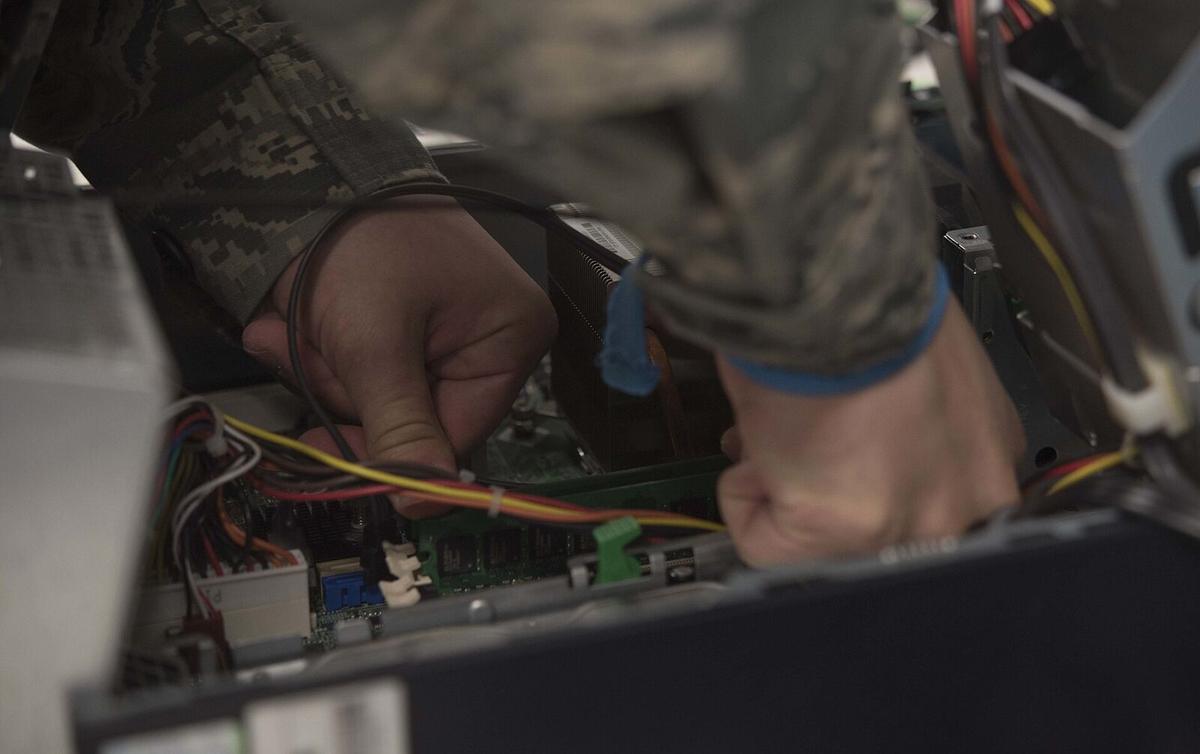 The upgrade usually trips over a part inside or plugged into the PC, or the software that runs it. Photo by Airman 1st Class Jordyn Fetter, U.S. Air Force, public domain, via Wikimedia Commons.
What does this message mean?
Microsoft's documentation for IT staff calls 0xC1900101 a generic rollback code. A rollback is Windows undoing the failed upgrade. The same page says the code usually points to an incompatible driver, and that such a driver can cause blue screens, freezes and unexpected restarts while the upgrade runs.
The code often comes in two parts, such as 0xC1900101 - 0x4000D. Microsoft calls the first part the result code and the second the extend code. The result code says what happened. The extend code says where: its first digit is the phase of the upgrade that was running. Microsoft notes that some upgrade tools report the result code alone.
To find the code on Windows 11, select Start > Settings > Windows Update > Update history and look for the update that failed.
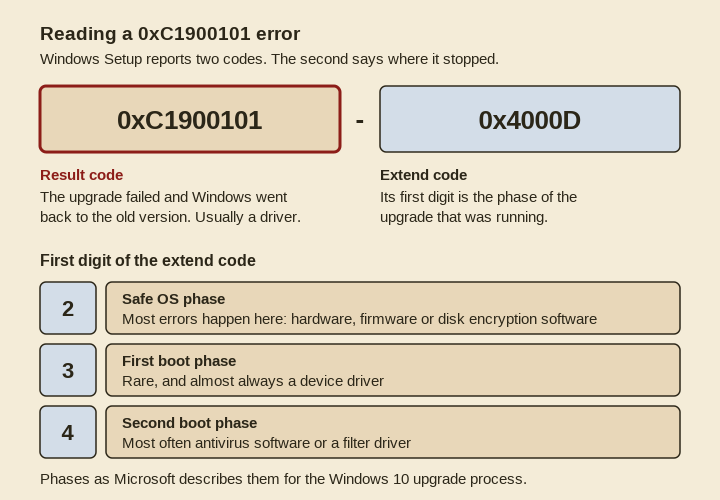 The first code says what happened. The first digit of the second code says when.
What usually causes it?
Microsoft describes the upgrade as a series of phases with a restart between each one. Most errors, it says, happen in the Safe OS phase, from hardware, firmware (the software built into the PC's main board) or disk encryption software that did not come from Microsoft. Failures in the first boot phase are rare and almost always come from device drivers. In the second boot phase, the new version of Windows is running with new drivers, and the usual culprits are antivirus software and filter drivers, which are drivers that sit between Windows and a device or disk.
Microsoft's support page lists six common forms of the error, and its technical page gives a cause for each.
| Code after 0xC1900101 | Phase | Cause Microsoft gives |
|---|---|---|
| 0x2000C | Safe OS | Out-of-date drivers, or disk corruption |
| 0x20017 | Safe OS | A driver that could not be carried over. Typically drivers or non-Microsoft disk encryption. Can also be a hardware failure |
| 0x30018 | First boot | A device driver stopped responding during the upgrade |
| 0x3000D | First boot | Can be a problem with the display driver |
| 0x4000D | Second boot | A driver configuration problem, from incompatible drivers |
| 0x40017 | Second boot | A faulty driver, such as an antivirus filter driver or an encryption driver |
The technical pages are written for Windows 10, and Microsoft warns that extend codes may change between versions. Its support page for home users covers Windows 11 and Windows 10, lists the same six codes, and carries Microsoft's notice that support for Windows 10 ended on October 14, 2025.
If the upgrade to Windows 11 never starts because the PC does not meet the requirements, that is a different error. "This PC can't run Windows 11: TPM 2.0, Secure Boot and Your Options" covers it.
What to try, in order
These steps come from the 0xC1900101 section of Microsoft's page "Get help with Windows upgrade and installation errors", for Windows 11 and Windows 10. Microsoft does not rank them. The order here is mine, from the steps that change nothing to the ones that change the most. Try the upgrade again after each one.
- Unplug extra hardware. Remove external drives, docks and anything else the PC does not need to run. Microsoft's technical page goes further for several of these codes: disconnect everything except the mouse, keyboard and display.
- Check free space. Microsoft says the device needs at least 16 GB free to upgrade a 32-bit system, or 20 GB for a 64-bit one. Open File Explorer, select This PC, and read the free space under the drive that holds Windows.
- Run Windows Update a few times. Install everything it offers, including driver updates. Microsoft also points to the Windows Update troubleshooter. On Windows 11: Start > Settings > System > Troubleshoot > Other troubleshooters, then Run beside Windows Update. On Windows 10: Start > Settings > Update & Security > Troubleshoot > Additional troubleshooters.
- Accept updates during setup. If the upgrade asks whether to download and install updates first, Microsoft's technical page says to accept.
- Update drivers for hardware you added. Microsoft says to get them, with instructions, from the hardware maker's own website.
- Check Device Manager for errors. Type
device managerin the search box on the taskbar and open it. Look for any device with a yellow exclamation mark. Right-click the device and choose Update Driver Software. Microsoft's page also offers Uninstall there. I would try the update first, since uninstalling removes the device's driver. - Repair Windows system files. Open Command Prompt as an administrator and run
DISM.exe /Online /Cleanup-image /Restorehealth. This command fetches good copies of damaged Windows files from Windows Update. It changes Windows system files and does not touch your documents. - Try a clean boot. A clean boot starts Windows with only essential drivers and startup programs, which Microsoft recommends for rollbacks caused by driver conflicts. The steps are long, and you have to undo them afterward, so follow Microsoft's page "How to perform a clean boot in Windows" exactly.
Watch out
Back up your files before the next step. It repairs the disk's file system, which changes what is on the drive, and Microsoft's own update troubleshooting page says to back up personal files before trying its fixes. "Backups That Work: The 3-2-1 Rule" covers how.
The last step: repair hard drive errors. In a Command Prompt opened as an administrator, Microsoft gives the command chkdsk /f C:. It checks the file system on drive C and fixes the errors it finds, so it changes the disk. Because Windows is using that drive, it offers to run the check at the next restart.
Two of Microsoft's steps are left out here. One is to remove non-Microsoft security software for the duration of the upgrade. That takes away a protection, so I have not turned it into a step. If you use such software, check its maker's site for a version made for the Windows release you are moving to. The other is updating the BIOS, which Microsoft itself calls an advanced task that you should not attempt unless you know how to go back.
When to stop and get help
Stop if the same code returns after these steps. Microsoft's next stop is its technical guide, which involves reading setup logs. It also offers a diagnostic tool named SetupDiag that reads those logs and reports the reason for the failure. Microsoft says the tool does not fix anything, and its page is written for IT staff.
Stop as well if the code is 0x20017 and the PC has shown other trouble, because Microsoft lists hardware failure among its causes. No software step fixes a failing part. A work computer goes to your IT department. Microsoft notes that network policy can block the clean boot steps on a managed PC.
If the PC cannot be upgraded and is staying on Windows 10, read "Running End-of-Life Software Is Driving Without Insurance" for what that means.
What to remember
- 0xC1900101 means the upgrade failed and Windows rolled back to the version you had.
- Microsoft says the usual cause is a driver.
- The second code, if you have one, tells you the phase: 2 for Safe OS, 3 for first boot, 4 for second boot.
- Unplug extra hardware, check free space and update drivers before anything else.
- Back up before any disk repair.
A rollback leaves you with a working PC, so there is time to work through the list. If the PC holds work or irreplaceable files and the steps have not helped, stop and take it to a repair professional.
Sources (10)
- Microsoft Support, "Get help with Windows upgrade and installation errors", read 15 November 2026
- Microsoft Learn, "Windows 10 upgrade resolution procedures", updated 12 February 2026
- Microsoft Learn, "Windows 10 upgrade error codes", updated 12 February 2026
- Microsoft Learn, "Windows 10 upgrade issues troubleshooting", updated 12 February 2026
- Microsoft Learn, "Windows 10 upgrade quick fixes", updated 12 February 2026
- Microsoft Support, "Troubleshoot problems updating Windows", read 15 November 2026
- Microsoft Support, "How to perform a clean boot in Windows", read 15 November 2026
- Microsoft Support, "Use the System File Checker tool to repair missing or corrupted system files", read 15 November 2026
- Microsoft Learn, "chkdsk", updated 26 May 2025
- Microsoft Learn, "SetupDiag", updated 23 March 2026