Articles & BlogBy Trapper W. Brown8 min read
"This PC can't run Windows 11" means the computer did not pass Microsoft's check of minimum hardware for Windows 11. Nothing is broken and nothing has been lost. It matters now because Windows 10 reached the end of support on October 14, 2025, so a PC that stays on Windows 10 needs a plan.
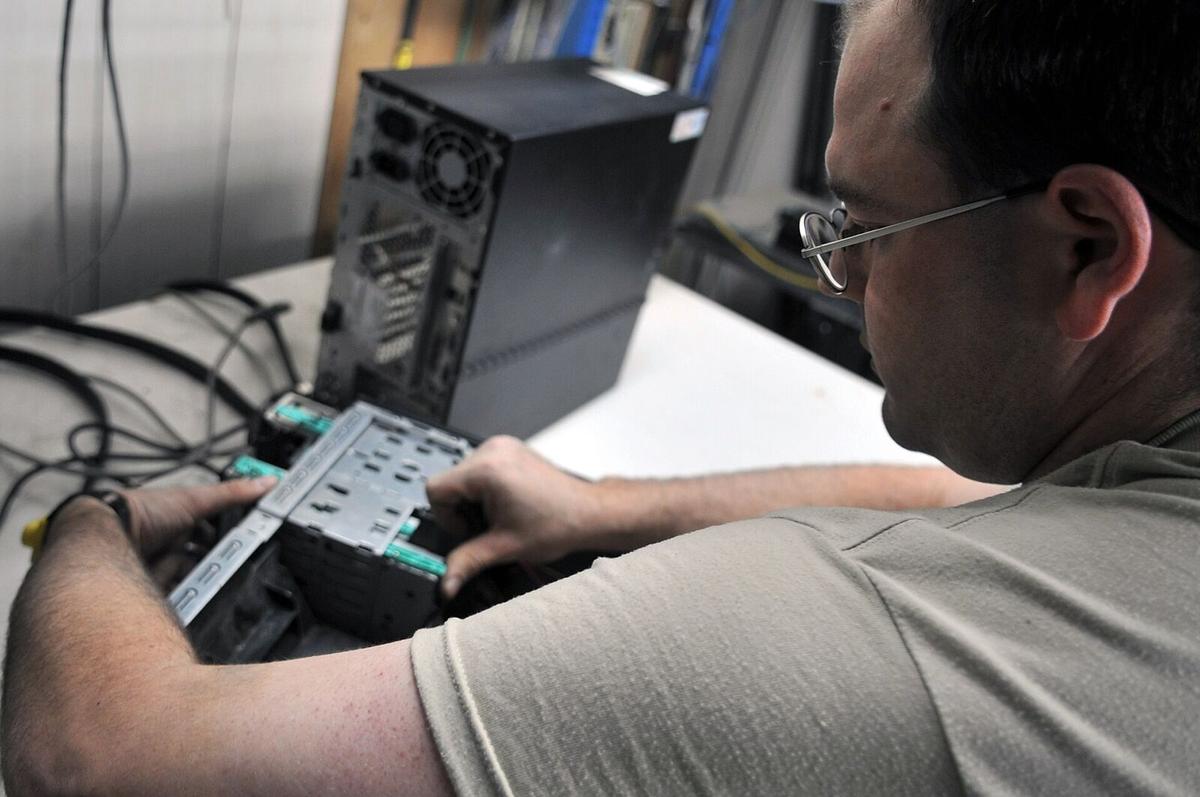 A U.S. airman changes a computer's processor so it can meet the requirements of an earlier Windows upgrade. Photo by Senior Airman Brittany Bateman, U.S. Air Force, public domain, via Wikimedia Commons.
What does this message mean?
The wording depends on where you meet it. Microsoft's own pages give the long form: its Installation Assistant says "This PC doesn't meet the minimum system requirements to install Windows 11." The short form in this article's title says the same thing.
Microsoft says it set the minimums around three principles: reliability, security and compatibility. The check compares your PC against this list.
| Requirement | Microsoft's minimum | Can it be changed? |
|---|---|---|
| Processor | 1 GHz or faster, 2 or more cores, and on Microsoft's list of approved processors | No. Microsoft does not consider these upgradable |
| Memory (RAM) | 4 GB | Sometimes |
| Storage | 64 GB or larger | Sometimes |
| System firmware | UEFI, Secure Boot capable | Often a setting |
| TPM | Trusted Platform Module version 2.0 | Often a setting |
| Graphics | Compatible with DirectX 12 or later, with a WDDM 2.0 driver | Depends on the PC |
| Display | 720p, larger than 9 inches diagonally | Depends on the PC |
Firmware is the software built into the PC that runs before Windows starts. UEFI is the modern kind, and many people still call it the BIOS. A TPM is a security chip, on the main board or built into the processor, that stores encryption keys. Secure Boot is a firmware feature that lets only trusted, digitally signed software run while the PC starts.
What usually causes it?
The two requirements in the headline fail more often than they should, because the hardware is frequently there and switched off.
Microsoft says most PCs shipped in the last five years are capable of running TPM 2.0, and that boards sold to people who build their own PCs usually ship with the TPM turned off. For Secure Boot, it says most modern PCs support it, but certain firmware settings can make a device look as though it does not. The usual one is a PC set to start in the older "Legacy" BIOS mode, also called CSM.
The other common cause has no setting behind it. If the processor is not on Microsoft's approved list, the check fails and stays failed.
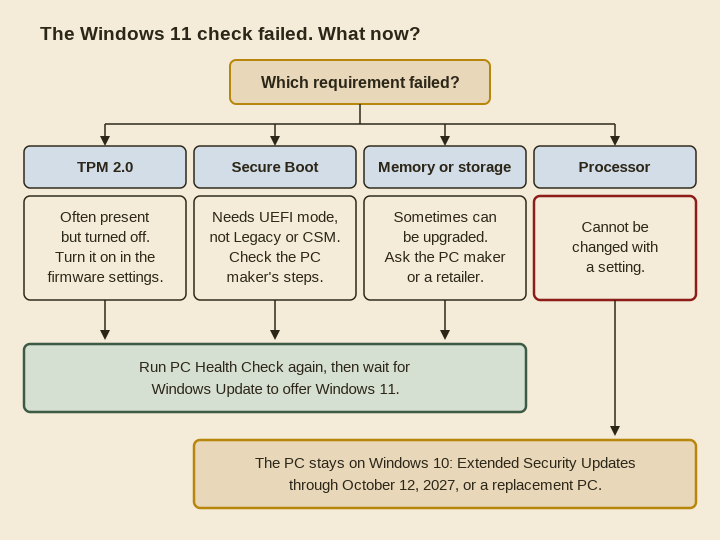 Three of the four common failures can sometimes be fixed. The processor cannot.
What to try, in order
The menu paths below are the ones Microsoft gives for Windows 10.
- Find out which requirement failed. Microsoft's PC Health Check app tells you why a PC is or is not eligible. Search for PC Health Check from the taskbar. If it is not installed, Microsoft's page gives the address
https://aka.ms/GetPCHealthCheckApp. Open the app and select Check now. The result says which requirement failed. - See whether the TPM is on. Go to Settings > Update & Security > Windows Security > Device Security. If there is a Security processor section, select Security processor details and read the Specification version. It needs to say 2.0. A lower number means the PC does not meet the requirement. No Security processor section may mean the PC has a TPM that is disabled. Looking changes nothing.
- Get ready before you touch the firmware. Steps 4 and 5 change settings that sit underneath Windows, so do two things first. Back up your files: "Backups That Work: The 3-2-1 Rule" explains how. Then make sure you can find your BitLocker recovery key, because Microsoft lists several firmware and TPM changes, such as turning off or clearing the TPM, among the events that can make an encrypted PC ask for it. The article "Enter the recovery key for this drive: Where to Find Your BitLocker Key" shows where to look.
- Turn on the TPM. Go to Settings > Update & Security > Recovery and select Restart now. On the next screen choose Troubleshoot > Advanced options > UEFI Firmware Settings > Restart. Firmware menus differ by maker. Microsoft says the setting is sometimes in a sub-menu labeled Advanced, Security or Trusted Computing, and may be called Security Device, Security Device Support, TPM State, AMD fTPM switch, AMD PSP fTPM, Intel PTT or Intel Platform Trust Technology. Turn it on, save the change the way the firmware screen describes, and change nothing else.
- Check the boot mode for Secure Boot. The same firmware screen holds this. Microsoft says the PC has to start in UEFI mode, with UEFI as the first or only option where a Legacy or CSM choice is offered. Microsoft suggests also turning Secure Boot on for better security. If the PC is set to Legacy or CSM, stop and read the next section before you change it.
- Check again, then wait. Run PC Health Check once more. Microsoft says Windows Update can take up to 24 hours to refresh its view of the PC, and advises that after making changes you wait to upgrade until Windows Update notifies you that Windows 11 is ready. The upgrade is free for a PC on Windows 10, version 22H2 that meets the hardware minimums.
If the failure is memory or storage, Microsoft says an upgrade is sometimes possible and suggests asking the PC's manufacturer or a retailer.
When to stop and get help
Stop at the boot mode. Microsoft's advice for anyone unsure about switching from Legacy to UEFI is to check the PC manufacturer's support information, and I think that is the right call, because it is the setting the PC uses to find Windows at startup. The same goes if you cannot find the TPM option under any of the names above.
You will find instructions online for installing Windows 11 on a PC that fails the check. Microsoft's position is that this is not recommended. It says such a device will not receive support from Microsoft, is not guaranteed to receive updates, security updates included, and may malfunction, and that damage from lack of compatibility is not covered under the manufacturer warranty.
What does the end of Windows 10 support leave you?
Microsoft's support page says Windows 10 "has reached the end of support on October 14, 2025." A Windows 10 PC still works, but Microsoft no longer provides technical support, software updates, or security updates and fixes for it. Microsoft says that leaves the PC at greater risk from viruses and malware. "Running End-of-Life Software Is Driving Without Insurance" explains why that risk grows with time.
For a PC that cannot run Windows 11, Microsoft offers two paths.
- Extended Security Updates (ESU). The consumer program delivers critical and important security updates, with no new features and no technical support, until the program ends on October 12, 2027. The PC must run Windows 10, version 22H2, and you enroll with a Microsoft account at Settings > Update & Security > Windows Update. Microsoft lists three ways to enroll: at no additional cost if you are syncing your PC settings, by redeeming 1,000 Microsoft Rewards points, or with a one-time purchase of $30. One enrollment covers up to 10 devices.
- A replacement PC. When that day comes, "Wiping Old Phones, Laptops and Drives Before You Let Them Go" covers the old one.
What to remember
- The message is a hardware check. It does not mean anything is wrong with your files or with Windows 10.
- TPM 2.0 and Secure Boot are often present and turned off in the firmware.
- A processor that is not on Microsoft's list cannot be fixed with a setting.
- Back up and find your BitLocker recovery key before changing firmware settings.
- Windows 10 reached the end of support on October 14, 2025. Consumer ESU runs until October 12, 2027.
- Microsoft does not recommend installing Windows 11 on hardware that fails the check.
Firmware menus are easy to get wrong when you are guessing. If the PC holds work or irreplaceable files and the steps have not helped, stop and take it to a repair professional.
Sources (12)
- Microsoft Support, "Windows 11 System Requirements", read 15 November 2026
- Microsoft Support, "Enable TPM 2.0 on your PC", read 15 November 2026
- Microsoft Support, "Windows 11 and Secure Boot", read 15 November 2026
- Microsoft Support, "What's a Trusted Platform Module (TPM)?", read 15 November 2026
- Microsoft Support, "How to use the PC Health Check app", read 15 November 2026
- Microsoft Support, "Check if a device meets Windows 11 system requirements after changing device hardware", read 15 November 2026
- Microsoft Support, "Ways to install Windows 11", read 15 November 2026
- Microsoft Support, "Windows 11 on devices that don't meet minimum system requirements", read 15 November 2026
- Microsoft Support, "Windows 10 support has ended on October 14, 2025", read 15 November 2026
- Microsoft Learn, "Windows 10 Home and Pro" lifecycle page, read 15 November 2026
- Microsoft, "Windows 10 Consumer Extended Security Updates (ESU)", read 15 November 2026
- Microsoft Learn, "BitLocker recovery overview", read 15 November 2026