Articles & BlogBy Trapper W. Brown7 min read
"The disk is write protected" means the drive or memory card is in a read-only state. Windows can open the files on it. It cannot save a new file there, change one, delete one or erase the drive. The files already on it are not harmed by the message, and you can usually still copy them somewhere else. Most of the time the cause is a small switch or a rule set on the PC. Sometimes it is the drive itself, and then no setting will fix it.
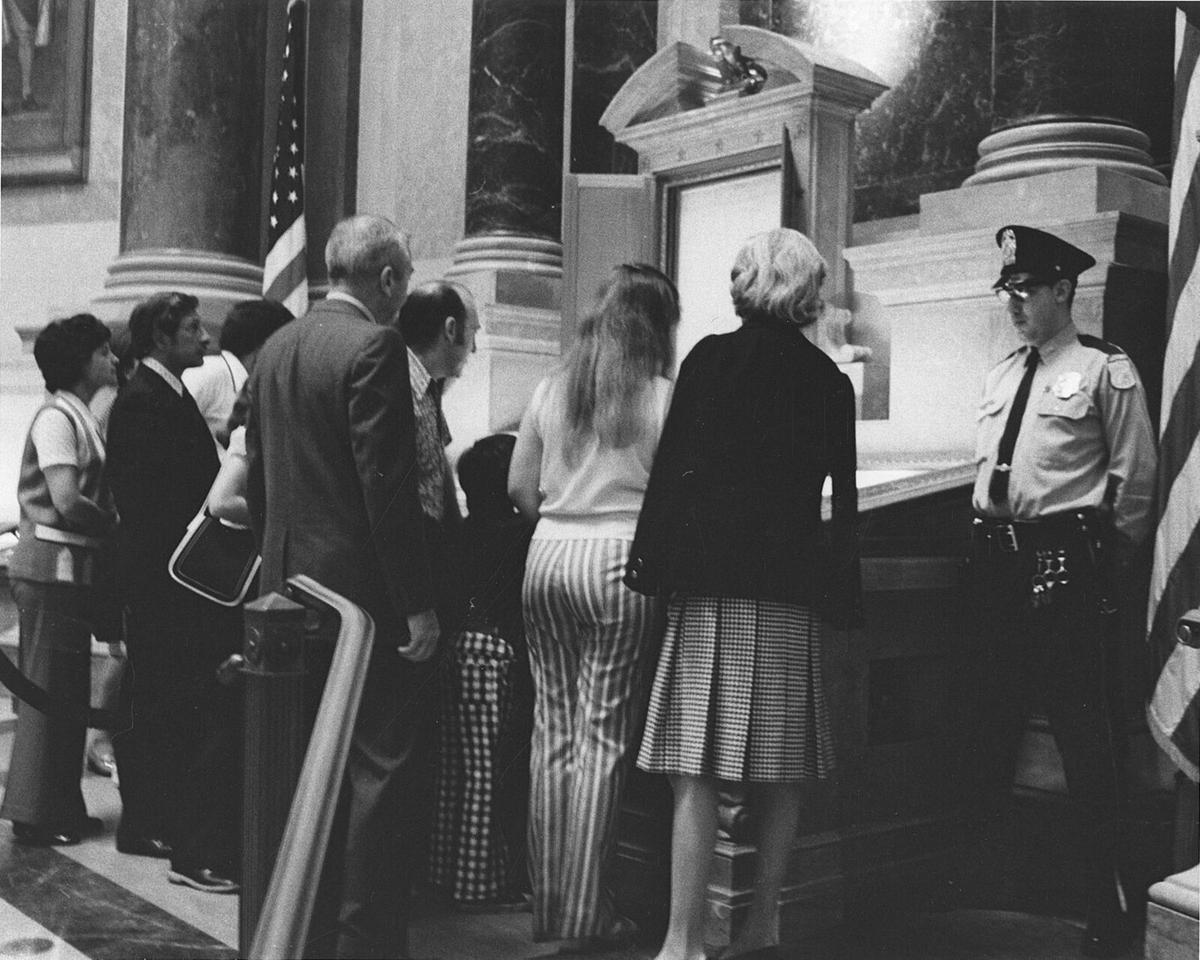 Anyone may read the Declaration of Independence at the National Archives, and a guard stands by to see that reading is all they do. A write-protected drive offers the same deal. Photo by the National Archives and Records Service, public domain, via Wikimedia Commons.
What does this message mean?
To write is to change what is stored: saving, renaming, deleting and formatting are all writes. Write protection blocks every one of them and leaves reading alone. Windows' own list of error codes has an entry for it, number 19: "The media is write protected."
The protection can be set in four different places, and the fix depends on which one it is.
- On the device. A physical switch on the card or drive.
- On the PC. A rule, called a policy, that an organization sets for all removable drives.
- In the disk's settings. A read-only attribute, which is a flag stored for the disk or for one volume on it. A volume is a section of a disk that Windows shows as one drive letter.
- In the drive's own electronics. The drive refuses writes by itself.
Microsoft has no home-user support page that quotes this message word for word. The explanation here comes from its error code list, one troubleshooting article written for IT staff, and its policy and command references.
What usually causes it?
| Cause | The sign |
|---|---|
| The switch is in the locked position | A full-size SD card, or a USB drive with a slider on its side |
| A policy blocks writing to removable drives | A work or school PC; the same drive saves fine on a home PC |
| A policy allows writing only to encrypted drives | A work or school PC that uses BitLocker |
| A read-only attribute is set on the disk or volume | No switch; a technician finds the flag with the disk tool |
| The drive itself refuses writes | No switch, and read-only on every PC you try |
On the first row: the SD Association, the body that sets the SD card standard, lists a write-protect switch as part of the full-size SD card and not of the smaller microSD card. Microsoft's troubleshooting article says some USB drives have a physical write-protect switch on the side, and tells the reader to check it before anything else.
On the second and third rows: Microsoft documents a policy named "Removable Disks: Deny write access", and a BitLocker policy under which removable drives that are not BitLocker-protected are mounted as read-only. BitLocker is the drive encryption built into Windows. Both are settings an administrator turns on. Microsoft's article says that on a PC joined to an organization's network, this kind of policy is the most common cause, and that any local change you make reverts when the PC next refreshes its policies.
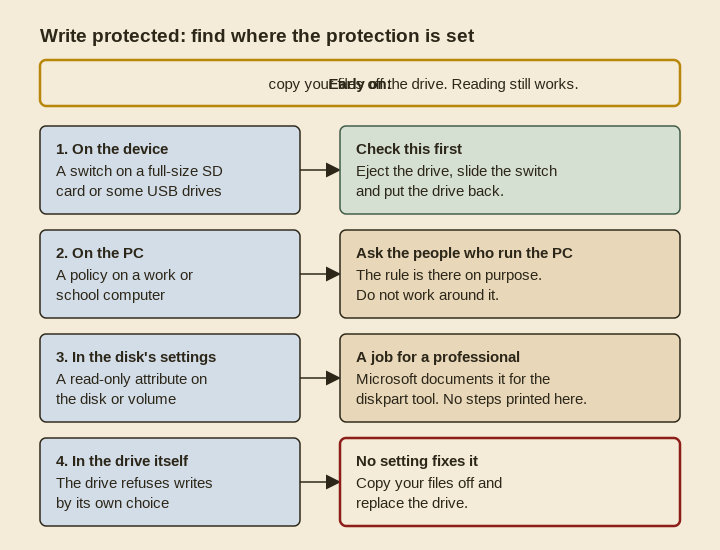 Find out where the protection is set before you try to remove it.
What to try, in order
- Look for a switch. Eject the drive first. Microsoft's steps for Windows 11 and Windows 10: right-click the Safely Remove Hardware and Eject Media icon in the system tray, then select Eject for the device. Take the card or drive out and look along its edges for a small slider. Move it to the other position, put the drive back and try again.
- Copy your files off the drive. Reading still works, so copy everything you care about to the PC now. This changes nothing on the drive, and it means no later step can cost you a file.
- Try the drive in another computer. A home PC is the best test. If the drive saves normally there, the drive is fine and the first PC has a rule against it. If it is read-only everywhere, the cause travels with the drive.
- On a work or school PC, ask the people who run it. The rule is there on purpose. Microsoft's article gives one command that shows which policies apply to a PC:
gpresult /h gp-report.html, typed in a Command Prompt window. It writes a report file and changes no settings. The article is written for Windows Server networks, and the report is something to hand to your IT staff. Do not try to get around the policy. - Know that a read-only attribute exists. Microsoft's command reference for Windows 11 and Windows 10 documents two commands in the disk tool named diskpart,
attributes diskandattributes volume, that show, set or clear a read-only flag. This article does not print the steps. Diskpart acts on whichever disk is selected, so a mistake lands on the wrong disk. If you are not sure which disk is which, this is a job for a professional. The pages are in the sources. - Format the drive only as a last step. Read the warning first. Microsoft's steps for Windows 11 and Windows 10: right-click the Start button and select Disk Management, right-click the volume, select Format, then select OK, and OK again. Formatting is itself a write, so I think it will fail for as long as the protection is still in place. It belongs after the cause is found.
Watch out
Formatting erases the drive. Microsoft's page tells you to back up any data you want to save before you begin. Do step 2 first, open one or two of the copied files to be sure they work, and check twice that you have picked the right drive. "Backups That Work: The 3-2-1 Rule" explains why the copy matters.
Many guides online give a registry value to change for this message. The registry is the database where Windows keeps its settings, and this site does not print registry edits. Microsoft's article notes that on a managed PC a registry change is undone at the next policy refresh anyway. I also left out every third-party "write protection remover" and formatting tool.
When to stop and get help
Stop when the drive has no switch, is read-only on every PC you try, and is not under any organization's policy. What is left is the disk attribute in step 5 or the drive itself. Microsoft's pages offer no home-user step for a drive that refuses writes by its own choice, and I think the honest reading is that such a drive is at the end of its life. No software step fixes a failing part. Copy the files off while reading still works and replace the drive.
If the drive holds work or irreplaceable files and the steps have not helped, stop and take it to a repair professional. If you plan to throw the drive away, "Wiping Old Phones, Laptops and Drives Before You Let Them Go" covers how to dispose of a drive, including one you cannot erase.
What to remember
- Write protection blocks saving, changing, deleting and formatting. Reading still works.
- Check for a physical switch first. Full-size SD cards have one, and so do some USB drives.
- Copy your files off the drive before you try anything else.
- On a work or school PC, the cause is usually a policy. Ask IT, and do not work around it.
- Diskpart and registry fixes exist and can do real damage. This article prints neither.
- A drive that is read-only everywhere, with no switch, should be replaced.
I think the most useful habit with this message is to treat it as a warning to get your files to a second place while you still can. The drive has just told you it will not take new work, and it may not explain why.
Sources (9)
- Microsoft Learn, "System Error Codes (0-499)", updated 14 July 2025
- Microsoft Learn, "Windows marks as locked a USB device that has no lock software", updated 10 March 2026
- SD Association, "SD Standard Overview"
- Microsoft Learn, "Storage Policy CSP", updated 14 October 2026
- Microsoft Learn, "Configure BitLocker", updated 29 July 2025
- Microsoft Support, "Safely remove hardware in Windows"
- Microsoft Learn, "attributes disk", updated 3 February 2023
- Microsoft Learn, "attributes volume", updated 1 November 2024
- Microsoft Support, "Disk Management in Windows"