Articles & BlogBy Trapper W. Brown8 min read
For anyone who can open a terminal and has a second machine to reach: a home server, a Raspberry Pi, a rented game server. By the end you will log in with a key and know how to lock the door behind you.
Sooner or later you need to type commands into a computer that is in another room, or another country. The tool for that is SSH, the Secure Shell. It opens a terminal on the far machine and encrypts everything that passes between the two of you.
It replaced older tools named telnet, rlogin and rsh, which sent every keystroke across the network in plain text, passwords included. Anyone on the path could read them. The version of SSH on nearly every system today is OpenSSH, which developers at the OpenBSD project started in 1999 from the last freely licensed release of Tatu Ylönen's original program.
 Most server work is done from a keyboard somewhere else, and SSH is how that keyboard reaches the server. U.S. Navy photo by Mass Communication Specialist 3rd Class Christopher K. Hwang, public domain, via Wikimedia Commons.
Watch out
Use SSH only to reach machines you own or have written permission to use. Logging in to someone else's system without permission, or guessing at its passwords, is a crime in most places, including under the US Computer Fraud and Abuse Act.
The first connection: what is that question asking?
Linux and macOS ship with the OpenSSH client. On Windows 10 and later it is an optional feature that Microsoft documents how to turn on. To connect, give a user name and an address:
ssh sam@192.0.2.10
This asks the machine at 192.0.2.10 to log you in as the user sam, on port 22 unless you say otherwise.
The first time, you get a question instead of a prompt:
The authenticity of host '192.0.2.10 (192.0.2.10)' can't be established.
ED25519 key fingerprint is SHA256:Xq3vT0mJ8eBn1ZcUy7KpLr2Wd5HsGf9AoQe4NiVb6Mk.
Are you sure you want to continue connecting (yes/no/[fingerprint])?
Every SSH server has its own key pair, called the host key. The fingerprint is a short summary of the public half. The question is: "I have never met this server. Is this really the one you meant, or is someone sitting in the middle pretending to be it?"
Most people type yes without looking. The careful way is to check the fingerprint from a place you already trust, such as the server's own keyboard or your hosting provider's control panel:
ssh-keygen -l -f /etc/ssh/ssh_host_ed25519_key.pub
Run on the server, this prints the fingerprint of its host key so you can compare the two.
Once you answer yes, the key is saved in ~/.ssh/known_hosts on your computer and you are not asked again. If the key ever changes, SSH refuses to connect and prints a loud warning that the remote host identification has changed. That is either a reinstalled server or an attack. Find out which before you clear the old entry with ssh-keygen -R 192.0.2.10.
Passwords or keys?
SSH can check who you are in two common ways.
| Password | Key pair | |
|---|---|---|
| What proves it is you | Something you type | A file only you hold |
| What the server stores | A scrambled copy of the password | Your public key, which is safe to share |
| Can it be guessed over the network? | Yes, and bots try all day | Not in any practical sense |
| What crosses the wire at login | The password, inside the encrypted tunnel | A signature, never the key |
A key pair is two matching files. The private key stays on your computer. The public key can go anywhere: you place a copy on each server you want to reach. Anything signed with the private key can be checked with the public one, but the public key cannot be turned back into the private key.
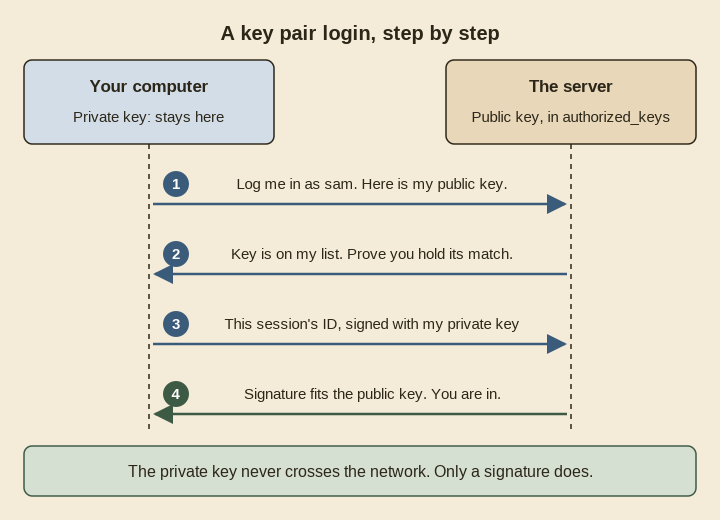 A key login in four steps: the server never sees the private key, only proof that you hold it.
The thing you sign is tied to that one session, so a recorded signature is useless to anyone who replays it later.
Make a key and install it
Create the pair on your own computer, not on the server:
ssh-keygen -t ed25519 -C "sam@laptop"
This makes a new key of the Ed25519 type and labels it with a comment so you can tell your keys apart later.
Generating public/private ed25519 key pair.
Enter file in which to save the key (/home/sam/.ssh/id_ed25519):
Press Enter to accept the file name, then choose a passphrase. The passphrase encrypts the private key on your disk, so a stolen laptop does not hand over your servers. There is no way to recover a lost passphrase. You would make a new key.
| File | What it is | Share it? |
|---|---|---|
~/.ssh/id_ed25519 | Your private key | Never |
~/.ssh/id_ed25519.pub | Your public key | Yes, freely |
~/.ssh/known_hosts | Host keys of servers you have accepted | No need |
~/.ssh/config | Your shortcuts and per-server settings | No need |
~/.ssh/authorized_keys (on the server) | Public keys allowed to log in as that user | It lives there |
Now copy the public key to the server:
ssh-copy-id sam@192.0.2.10
This logs in with your password one last time and adds your public key to ~/.ssh/authorized_keys on the server.
If your system has no ssh-copy-id (Windows does not include it), open the .pub file, copy its single line, and paste it as a new line in that same file on the server. Then run ssh sam@192.0.2.10 again. You should be asked for the key's passphrase, not the account's password.
Tip
Typing the passphrase every time gets old. The ssh-agent program holds your unlocked key in memory for the session, and ssh-add hands the key to it. You type the passphrase once and the agent answers for you after that.
Save your typing with a config file
Create ~/.ssh/config on your computer and describe each server once:
Host homeserver
    HostName 192.0.2.10
    User sam
    Port 22
    IdentityFile ~/.ssh/id_ed25519
This gives the server a nickname and records the address, user, port and key that go with it. Now ssh homeserver is the whole command. The file must be writable only by you, or SSH will refuse to read it.
The nickname works for moving files too:
scp notes.txt homeserver:/home/sam/
This copies notes.txt from your computer into sam's home folder on the server. Add -r to copy a whole folder.
sftp homeserver
This opens an interactive file session over the same encrypted connection: ls lists the remote folder, get downloads, put uploads and bye quits. One trap: ssh takes a different port as a small -p, while scp and sftp want a capital -P.
Harden a server you own
The server's settings live in /etc/ssh/sshd_config. Once your key login works, change these:
| Option | Set it to | Why |
|---|---|---|
PubkeyAuthentication | yes | Key logins stay on. This is already the default. |
PasswordAuthentication | no | Nobody can guess a password that is not accepted |
KbdInteractiveAuthentication | no | Closes the other route to a typed password |
PermitRootLogin | no | Log in as yourself, then use sudo. Every action has a name on it. |
sudo sshd -t
This checks the file for mistakes and prints nothing if it is valid. Then restart the service: sudo systemctl restart ssh on Debian and Ubuntu, sshd on most other distributions.
The mistake that hurts here is locking yourself out. Keep your current session open, open a second terminal, and prove you can log in with the key before you close anything. Some systems also load extra files that can override yours, so ask the server what it will really do:
sudo sshd -T | grep -i passwordauthentication
This prints the setting actually in effect. You want passwordauthentication no.
Two more habits matter as much as the settings. Install updates, because a flaw in the SSH server itself is the one thing none of these options fix. And think twice before believing that a different port makes you safe. Moving SSH from 22 to, say, 2222 does cut the noise: the bots that knock on port 22 all day mostly stop filling your logs. But anyone who scans your address finds the new port in seconds. Do it for quieter logs if you like. Keys are what keep people out.
What to remember
- SSH gives you an encrypted terminal on another machine. It replaced tools that sent passwords in the clear.
- The first-connection question asks whether this server is the real one. The fingerprint is how you check.
- A changed host key is a stop sign until you know why.
- The private key stays on your computer. The public key goes on the server, in
authorized_keys. ssh-keygen -t ed25519, thenssh-copy-id, then test.- On your own server: keys only, no root login, keep it patched, and test from a second terminal before you log out.
- A different port means less noise, and nothing more.
Once key login is working, the natural next read is "Firewalls, NAT and Port Forwarding", which covers how to decide who can reach port 22 at all. If the commands above felt unfamiliar, start with "The Linux Command Line: The Commands That Do Most of the Work" and come back.