Articles & BlogBy Trapper W. Brown7 min read
For anyone with a doorbell camera, a smart speaker or a baby monitor, or about to buy one. By the end you will know where its recordings go and which five settings to change.
A doorbell camera feels like a private thing: your door, your phone, your video. In between sits a company you have never met. Most of these devices send what they see and hear to the maker's computers first, and your phone fetches it from there.
That is not a reason to throw them out. It is a reason to spend twenty minutes on settings, and to read one part of the box before buying the next one.
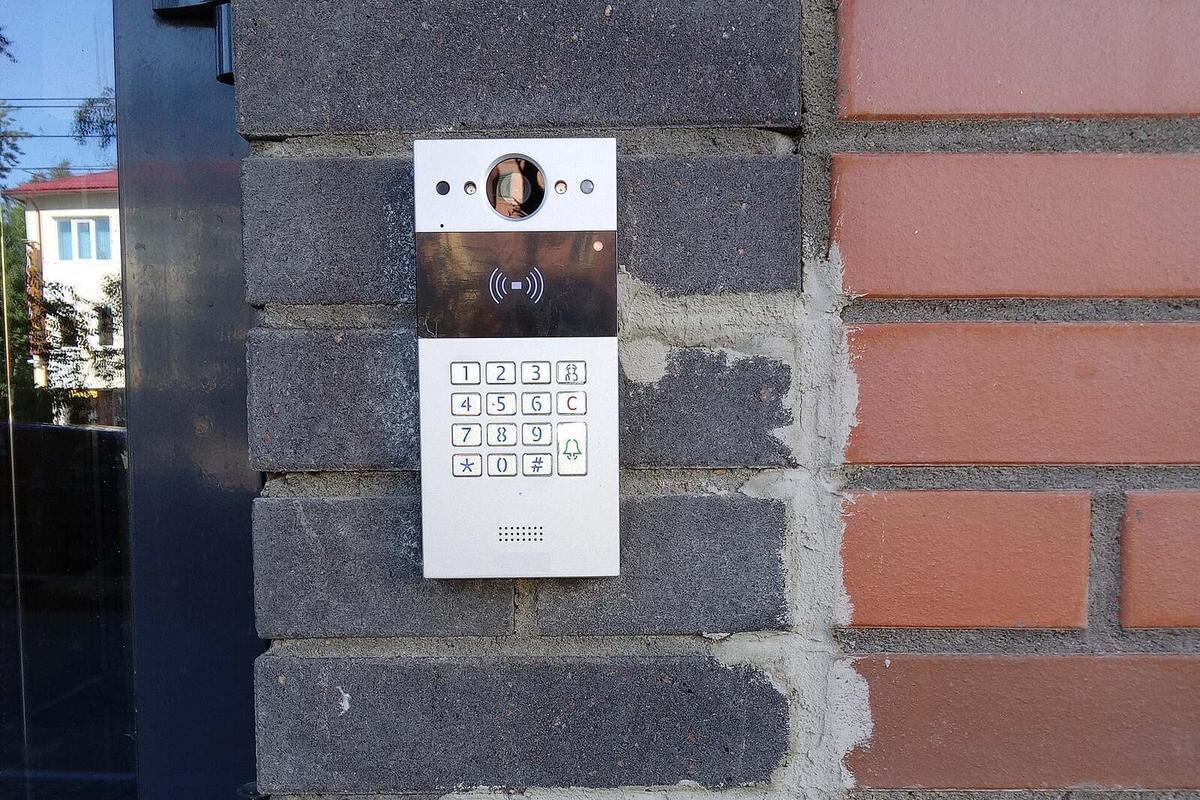 A camera at the door sees everyone who comes and goes, and so does whoever stores its video. Photo by Georg Pik, CC0, via Wikimedia Commons.
What do these devices send, and to whom?
Follow the video from a doorbell camera and you pass four stops.
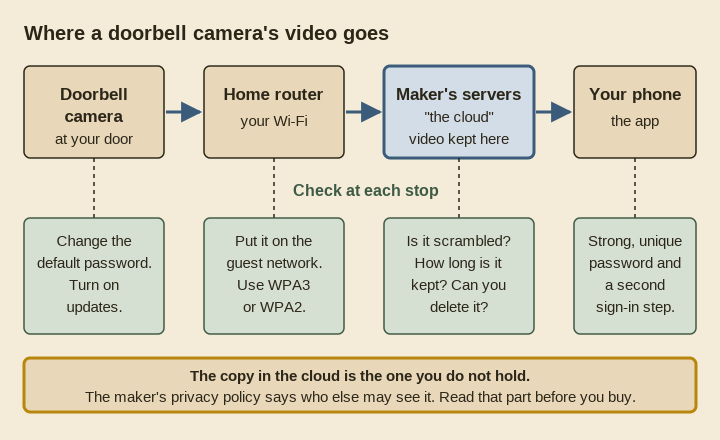 From the door to the cloud to your phone. The stop in the middle belongs to someone else.
The third stop is the one to think about. "The cloud" means computers owned by the maker. Your recordings sit there under the maker's rules, written in its privacy policy: how long clips are kept, who at the company can look, and who else they may be passed to.
Video is only part of it. The FTC's guide to connected devices (August 2022) says of voice assistants that "they can also listen all the time and even send recordings to the manufacturer." Quieter devices leak in a different way. A smart plug records nothing you would call private, but its log shows when the house wakes, when it empties and when everyone is away for a week.
| Device | What it gathers | What that can reveal |
|---|---|---|
| Doorbell or outdoor camera | Video, often sound, times of motion | Who visits, when you leave and return |
| Indoor camera or baby monitor | Video and sound inside the home | Family life, conversations |
| Smart speaker | Voice recordings and requests | What you ask, who is home |
| Smart TV | What is watched and when | Habits and interests |
| Smart plug, bulb, thermostat | On and off times, temperature settings | Whether anyone is home |
The password it came with
Many devices leave the factory with the same username and password as every other unit of that model, and those are easy to look up. The FTC's camera guide (February 2023) says it plainly: "Don't use the camera's default username and password," because default choices and reused passwords "can be easy for hackers to find online."
So the first job on day one is to change it, both on the device and on the account in the app. Make it one you use nowhere else. If the app offers a second sign-in step, a code or a prompt on top of the password, turn it on. Our article Password Managers: Picking One and Moving In covers how to keep track of them.
Updates, and the day support ends
A smart device is a small computer, and small computers have flaws that get found after they are sold. The fix arrives as an update. CISA's Secure Our World page (as it reads in 2026) notes that many updates exist to fix security risks and says to turn on automatic updates in the device's settings. Do that in the app, usually under the device's settings or a section named for firmware (the software built into the device).
Every device also reaches a day when its maker stops sending updates. After that, newly found flaws stay open for good. The FTC's connected devices guide says to disconnect older devices you no longer use, because their outdated security can weaken the whole network. A camera in a drawer is harmless. An unsupported one still on your Wi-Fi is a way in.
Watch out
The common mistake is treating a camera like a doorbell: fit it once and forget it. A camera with its factory password and no updates can be watched by strangers. Change the password before you mount it.
Give them their own network
The FTC's Wi-Fi guide (December 2022) points out that many routers let you set up a guest network with a different name and password. It was meant for visitors. It is also a good home for smart devices.
Why bother? If a cheap bulb or camera is ever taken over, the intruder is on the same network as whatever else is there. Put the gadgets on the guest network, and your laptop with the tax returns sits on the other one. Look in your router's settings for "guest network" or "guest Wi-Fi." Some routers also have a setting that stops guest devices from seeing each other. Leave that on unless a device stops working.
While you are in the router, the same FTC guide lists three more things: use WPA3 Personal or WPA2 Personal encryption, change the router's own default administrator password, and turn off remote management, WPS and UPnP if you do not use them. Our article IP Addresses, Ports and Your Home Router explains what those settings are.
Tip
Some devices need your phone on the same network during setup. Join the guest network on your phone for those ten minutes, finish the setup, then switch back.
Where the camera points
A camera protects your home. It should not record someone else's.
- Neighbors. Aim outdoor cameras at your own door, drive and yard. If the view takes in a neighbor's window or garden, tilt it down, or look in the app for a privacy zone or masking setting, which blacks out part of the picture.
- Guests. Tell visitors, babysitters and tradespeople that there are cameras, and where. Nobody likes to find out later.
- Indoors. Keep cameras out of bedrooms and bathrooms. Turn indoor cameras off, or face them to the wall, when you are home.
- Sound. Rules on recording conversations differ from place to place and are often stricter than for video. If you do not need audio, switch it off.
What to check before you buy
The FTC's camera guide says to look for a camera that encrypts, or scrambles, your account information, livestreams and stored videos. If the box does not say, the maker's website should. If neither does, pick another camera.
| Check | Where to find it |
|---|---|
| Is video scrambled on the way and in storage? | The box or the maker's website |
| How long will it get security updates? | The maker's support page |
| Can you set your own password and a second sign-in step? | The setup guide |
| Does it still work without a paid plan, or with remote viewing off? | The product page |
| Who can the maker share recordings with? | The privacy policy |
Help is on the way for the second row. The FCC is building a voluntary label for wireless smart products called the U.S. Cyber Trust Mark, and its page compares the idea to the ENERGY STAR label on appliances. A product that meets the program's standards will carry the mark and a QR code. According to the FCC's page (updated 28 October 2026), scanning the code will show how to change the default password, how to set the device up securely, whether updates are automatic, and the date support ends. Cameras, baby monitors, garage door openers and smart appliances are among its examples. Routers, phones and computers are not covered.
One caution. As of that update the FCC says it is still standing the program up and will announce when makers can apply. You will not find the mark in stores yet, so the table above is your label for now.
Five things to do this week:
- Change the password on every camera and smart device account, and turn on a second sign-in step
- Turn on automatic updates in each device's app
- Move smart devices to the router's guest network
- Check what each camera can see, and switch off audio you do not need
- Unplug anything the maker no longer updates
What to remember
- The video goes to the maker's computers before it reaches your phone. Their privacy policy governs that copy.
- Change the default password before anything else.
- Updates fix flaws. A device past its support date should come off the network.
- A guest network keeps gadgets away from your computers.
- Point cameras at your own property and tell people they are there.
- The Cyber Trust Mark is coming but is not on shelves yet. Check encryption and the support period yourself.
None of this takes special skill, only the twenty minutes most people skip. Do the list once, and look again when you add the next device.