Articles & BlogBy Trapper W. Brown7 min read
IRQL_NOT_LESS_OR_EQUAL means that Windows, or a driver running inside it, reached for memory at an address it was not allowed to use at that moment, and Windows stopped on purpose to prevent damage. Microsoft says the usual cause is a faulty driver, and a driver can be updated, rolled back or removed. If it happens once and never again, you can leave it alone.
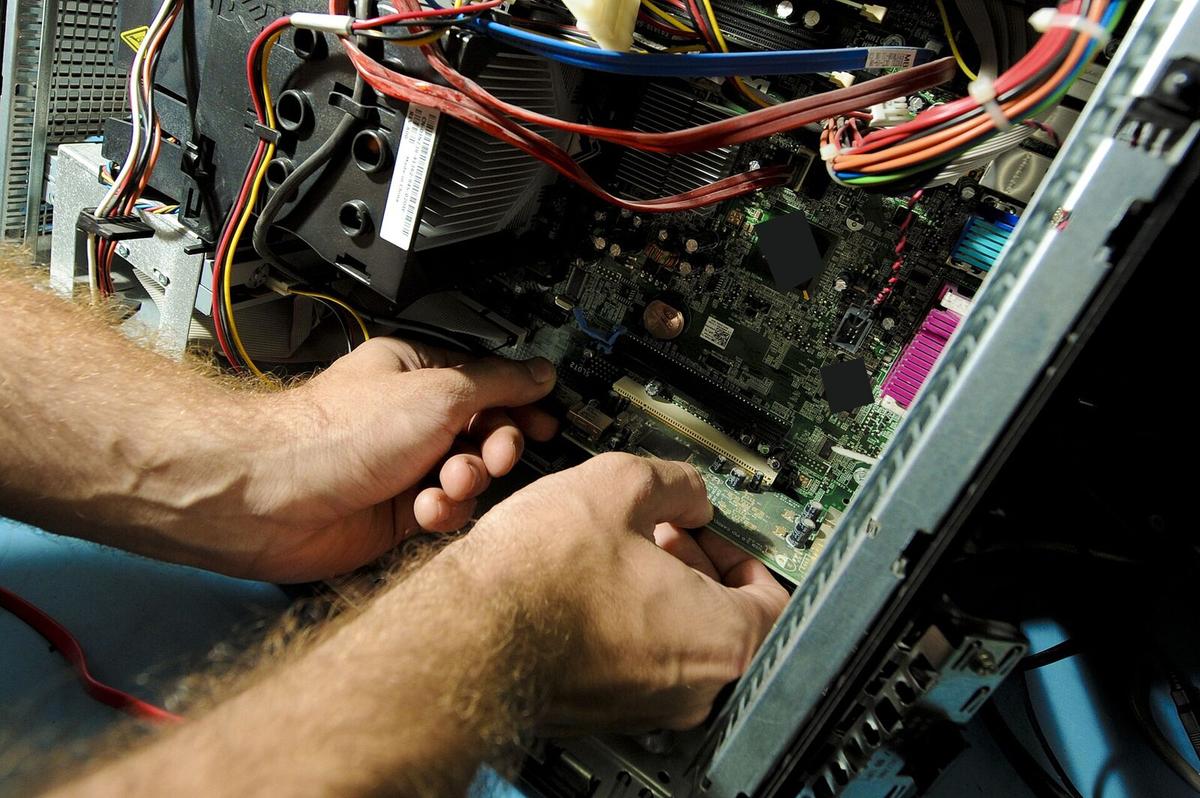 Each card and device inside a PC needs a driver, and a faulty driver is the usual cause of this stop code. Photo by Staff Sgt. Joshua Garcia, U.S. Air Force, public domain, via Wikimedia Commons.
What does this message mean?
A driver is the software that lets Windows talk to a piece of hardware, such as a graphics card, a network adapter or a printer. Drivers run in the most trusted part of Windows, called kernel mode, where a mistake cannot be contained the way a mistake in an ordinary app can.
Microsoft's reference page for this stop code, number 0x0000000A, says it indicates that Windows or a kernel-mode driver accessed paged memory at an invalid address while at a raised interrupt request level, or IRQL. In plainer words: Windows ranks the work it is doing by urgency, and the IRQL is that rank. While the rank is raised, code is allowed to touch only certain memory. This crash means some code reached outside that limit, or reached for an address that was simply wrong. Microsoft says the cause is typically a bad pointer (a stored memory address that is wrong) or a problem with how a driver's own code was built.
You do not need to decode the name. What matters is the sentence on Microsoft's page under "Cause": this bug check is caused by kernel-mode device drivers that use improper addresses.
A close relative, DRIVER_IRQL_NOT_LESS_OR_EQUAL (number 0x000000D1), is a separate code that Microsoft describes in similar terms, with a driver named as the culprit. The steps below suit both.
What usually causes it?
Microsoft's page says the error usually occurs after the installation of a faulty device driver, system service or BIOS. A system service is a program that runs in the background. The BIOS is the firmware, the software built into the PC's main board. So the first question is what was installed or changed shortly before the crashes began.
| What changed | What Microsoft's page points to |
|---|---|
| A new device, or a driver update | A faulty device driver |
| A new program that runs in the background | A faulty system service |
| A firmware update | A faulty BIOS |
| An upgrade to a newer version of Windows | A driver, service, virus scanner or backup tool that is incompatible with the new version |
| A part added recently, or an existing part that has failed | Faulty hardware |
The last row matters. Microsoft treats failed hardware as a possible cause here, though its page puts drivers first.
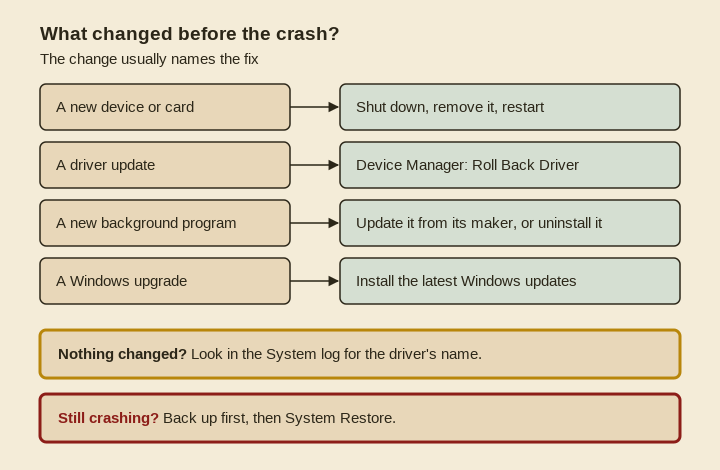 The fix for this code usually follows from what changed shortly before it appeared.
What to try, in order
For reading the screen, finding the code after a restart and starting in safe mode, see "How to Read Any Blue Screen and Find the Stop Code". The steps here are the ones that fit this code, from Microsoft's page for it and its general stop code page for Windows 11 and Windows 10. Several of Microsoft's support pages now carry a notice that support for Windows 10 ended on October 14, 2025.
- Restart, and look for a driver's name. Microsoft says to examine the name of the driver if one was listed on the blue screen. It is a file name, shown with the stop code. Write both down.
- Remove hardware you added recently. Shut down, remove it and restart to see whether the error returns.
- Roll back or update the driver. Right-click the Start button and select Device Manager. If the crashes began after a driver update, right-click the device, select Properties, then the Driver tab, then Roll Back Driver. You need an administrator account. If a device shows an exclamation point, right-click it and select Update driver. Microsoft says the best way to get driver updates is through Windows Update, and that drivers should otherwise come only from the device manufacturer's official site.
- Install Windows updates. On Windows 11: Start > Settings > Windows Update, then Check for updates. On Windows 10: Start > Settings > Update & Security > Windows Update, then Check for Windows updates.
- Deal with the new program. If a recently installed program runs in the background, check its maker's site for an update, or uninstall it and see whether the crashes stop. Microsoft's own instruction for a suspect service is to disable it and confirm whether the error goes away. Its support page "How to perform a clean boot in Windows" gives the procedure, which starts Windows with only essential drivers and startup programs so you can find the one at fault. That page warns that the tool it uses might make the computer unusable, so read it through first.
- Check the System log. Microsoft suggests looking in the System log, in the built-in Event Viewer tool, for critical errors recorded in the same time frame as the blue screen. They can name the device or driver.
- Run the maker's hardware diagnostics. Microsoft's page says to run the diagnostics supplied by the system manufacturer, and points you to the owner's manual for the PC.
One step on Microsoft's page is left out here on purpose. For a suspected antivirus conflict, it says to disable the program as a test. Turning off security software, even briefly, leaves the PC unprotected. The same page's other advice is safe: contact the program's maker about an update.
Watch out
Back up your files before the next step. "Backups That Work: The 3-2-1 Rule" covers how. Microsoft's advice before any recovery process is to back up important files, because some recovery options remove apps, settings or everything on the drive.
Last: restore Windows. If nothing above helps, Microsoft's general page points to a system restore point or another choice from its "Recovery options in Windows" page. System Restore returns system files, settings and installed programs, drivers included, to an earlier date and leaves personal files alone. Press the Windows key and R, type rstrui.exe and press Enter. If the crash happens during startup, Microsoft's page for this code says to investigate the Windows repair options, which are on that same recovery page.
When to stop and get help
Stop if the crashes continue after you have removed new hardware, rolled back the driver and restored Windows. At that point what remains on Microsoft's list is existing hardware that has failed, and its instruction is to remove or replace the faulty component. No software step fixes a failing part. Stop as well if the PC cannot start and you have no backup. A work computer goes to your IT department.
What to remember
- IRQL_NOT_LESS_OR_EQUAL means Windows or a driver used a memory address it should not have.
- Microsoft says the usual cause is a faulty driver, system service or BIOS installed shortly before.
- Write down any file name shown on the blue screen.
- Roll Back Driver in Device Manager undoes a recent driver update.
- Get drivers from Windows Update or the device maker's own site, nowhere else.
- Back up before System Restore, a reset or a reinstall.
Microsoft's page also describes Driver Verifier, a built-in tool that puts drivers under stress to catch the faulty one. It is written for programmers, and Microsoft's troubleshooting guide warns that it can cause more crashes while it runs, so I think it is a job for a professional. If the PC holds work or irreplaceable files and the steps here have not helped, stop and take it to a repair professional.
Sources (8)
- Microsoft Learn, "Bug check 0xA: IRQL_NOT_LESS_OR_EQUAL", read 15 November 2026
- Microsoft Learn, "Bug check 0xD1: DRIVER_IRQL_NOT_LESS_OR_EQUAL", read 15 November 2026
- Microsoft Support, "Troubleshooting Windows unexpected restarts and stop code errors", read 15 November 2026
- Microsoft Support, "Update drivers through Device Manager in Windows", read 15 November 2026
- Microsoft Support, "How to perform a clean boot in Windows", read 15 November 2026
- Microsoft Learn, "Advanced troubleshooting for stop code errors", read 15 November 2026
- Microsoft Support, "System Restore", read 15 November 2026
- Microsoft Support, "Recovery options in Windows", read 15 November 2026