Articles & BlogBy Trapper W. Brown7 min read
"VCRUNTIME140.dll was not found" means a program you tried to open cannot find a shared Microsoft file that it needs in order to start. It is usually not serious. One program is stopped, the missing piece comes from Microsoft, and the repair is short.
The risk is in how people go looking for the file. Some websites offer the DLL as a single download. Do not use them. The safe steps are below, in order, and every one comes from the program's own maker or from Microsoft.
 A shared runtime file works like a tool crib: many programs borrow the same equipment, and a program stops when the piece it needs is not on the shelf. Photo by Airman 1st Class Kyle Gese, U.S. Air Force, public domain, via Wikimedia Commons.
What does this message mean?
A DLL is a dynamic link library: a file of ready-made code that programs load when they run. Microsoft explains that much of what Windows and Windows programs do is provided by DLLs, and that sharing them lets code be reused and saves memory and disk space.
VCRUNTIME140.dll belongs to a set called the Microsoft C and C++ Runtime libraries. Microsoft's documentation lists the vcruntime file as the runtime library for native code, used by applications that rely on the normal C and C++ startup and shutdown services. In plain terms, it holds basic routines that a program written in C or C++ needs from its first moment.
Those libraries reach your PC in a package called the Microsoft Visual C++ Redistributable. Microsoft says many applications built with its Visual C++ tools require these libraries, and that the package must be installed on the computer along with the app. When the package is absent, or the wrong one is present, the program stops with this message.
Microsoft also warns about the weak point of any shared file. When a program uses a DLL, it depends on that file, and if the dependency is broken the program may not run.
What usually causes it?
- The package was never installed. Microsoft tells developers that they must provide these files to their users, normally inside the app's installer. When an installer skips that, the file is not there.
- The package is the wrong architecture. Architecture means the kind of processor a program is built for: x86 is 32-bit, x64 is 64-bit, and ARM64 is for Arm processors. Microsoft says the Redistributable's architecture must match the app's target architecture. A 32-bit program on a 64-bit PC still needs the 32-bit package.
- The package is too old. Microsoft says the installed Redistributable must be the same version as, or later than, the tools used to build the app.
What to try, in order
Microsoft's download page says plainly who it is written for. It is for developers, and it adds that if you are trying to fix an app by updating the Visual C++ Runtime libraries, you should contact the app vendor for instructions. So the first two steps go to the program itself.
- Repair the program. On Windows 11, select Start, Settings, Apps, Installed apps. Select the More icon next to the app, then Advanced options, then Repair if it is offered. On Windows 10 the page is Apps & features. Microsoft notes that not every app has these options. The other route, on both versions, is Control Panel: Programs, Programs and Features, right-click the program and choose Repair, or Change if Repair is not there.
- Reinstall the program from its maker. Download the installer again from the maker's own site or the store you bought it from, and check the maker's support page for this error. Microsoft tells developers to ship the package with their app, so the maker's installer is the first place it should come from. Your saved files for that program may live in its folder, so copy anything you cannot replace before you uninstall.
- Install the Redistributable from Microsoft. Go to the Microsoft Learn page titled "Microsoft Visual C++ Redistributable latest supported downloads" and find the table headed "Latest supported redistributable version". Pick the row that matches the program, using the table below.
- If the installer fails, try Microsoft's two simple fixes. Microsoft's troubleshooting page says to right-click the installer and select Run as Administrator, and to install all pending updates in Windows Update, restart the PC and try again.
- Open the program again.
| Row on Microsoft's page | Who needs it |
|---|---|
| X86 | 32-bit programs. Microsoft says this package installs the 32-bit libraries on both 32-bit and 64-bit computers. |
| X64 | 64-bit programs on a 64-bit PC. Microsoft notes this package also contains the ARM64 files. |
| ARM64 | Programs built for a Windows PC with an Arm processor. |
To see what kind of PC you have, on Windows 11 or Windows 10 select Start, Settings, System, About and read System type. Windows 11 is 64-bit only. That tells you about the PC and not about the program. If the maker does not say whether its program is 32-bit or 64-bit, I think installing both the X86 and X64 packages on a 64-bit PC is a reasonable way to cover both cases. Microsoft's page does not say to do that. It says only that the package must match the app.
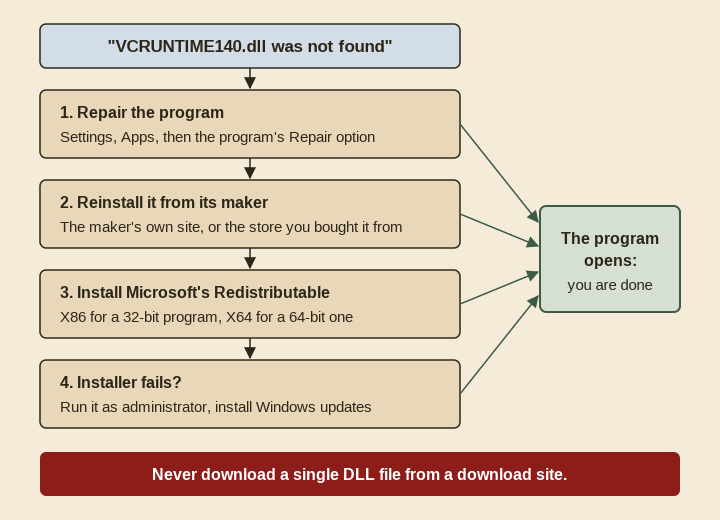 Start with the program, then go to Microsoft, and stop as soon as the program opens.
Two more facts from Microsoft's page help. The latest package covers programs built with Visual Studio 2017, 2019, 2022 and 2026, and Microsoft's lifecycle page says programs built with the 2015 tools can use it too. And the latest version supports only Windows 10, Windows 11 and recent versions of Windows Server. Microsoft's support page on the subject says Windows 10 reached the end of support on October 14, 2025.
Why not just download the DLL?
Because you cannot know what is inside it. Microsoft's advice on avoiding malware (software built to do harm) is to download software only from official vendor websites or the Microsoft Store, and to be wary of third-party sites, where files may have been modified to carry threats.
There is a practical reason as well. Microsoft recommends installing these libraries with the Redistributable package because Windows Update can then keep them updated. A single file copied in by hand gets no updates, and it may be the wrong version or the wrong architecture, which puts you back where you started.
When to stop and get help
Stop if the Redistributable installs cleanly and the program still will not open. The fault is then more likely in the program, and its maker's support team is the right place to ask. Microsoft's page "Troubleshoot Visual C++ Redistributable installation problems" lists further causes when the installer itself fails. Some of its steps go further than a home user should, and I would not follow the ones that switch off security software.
Stop as well if many unrelated programs report missing files at once. That may point to a wider problem with Windows than one missing package.
If the PC holds work or irreplaceable files and the steps have not helped, stop and take it to a repair professional.
What to remember
- The error means one shared Microsoft file is missing. It says nothing else about the health of your PC.
- Repair or reinstall the program first. Microsoft itself points you to the app's maker.
- The Redistributable comes from one place: the Microsoft Learn page "Microsoft Visual C++ Redistributable latest supported downloads".
- Match the package to the program: X86 for 32-bit, X64 for 64-bit.
- Never download a lone DLL file from a download site.
The same habit, going to the maker or to Microsoft and nowhere else, applies to the warning Windows shows when you run an unfamiliar installer, which "Windows protected your PC: What the SmartScreen Warning Means" explains.
Sources (10)
- Microsoft Learn, "Microsoft Visual C++ Redistributable latest supported downloads", updated 9 March 2026
- Microsoft Learn, "Determine which DLLs to redistribute", updated 26 October 2023
- Microsoft Learn, "Troubleshoot Visual C++ Redistributable installation problems", updated 9 March 2026
- Microsoft Learn, "Lifecycle FAQ - Microsoft C++ Build Tools, Redistributable, and runtime libraries", updated 24 November 2025
- Microsoft Learn, "What is a DLL", updated 12 February 2026
- Microsoft Support, "Repair apps and programs in Windows", read 15 November 2026
- Microsoft Support, "32-bit and 64-bit Windows: Frequently asked questions", read 15 November 2026
- Microsoft Support, "Install Windows Updates", read 15 November 2026
- Microsoft Support, "Windows 10 support has ended on October 14, 2025", read 15 November 2026
- Microsoft Learn, "Tech support scams", updated 24 April 2024