Articles & BlogBy Trapper W. Brown7 min read
Antimalware Service Executable is Microsoft Defender Antivirus, the virus protection built into Windows. When it uses a lot of the CPU (the processor, the part of the PC that does the computing), it is almost always scanning files, and that is the job you want it doing. High use that comes and goes is normal. High use that never ends is worth a look.
The goal is to have the scanning happen when it does not get in your way, not to stop it. No step below turns protection off, and I explain near the end which common tips I left out for that reason.
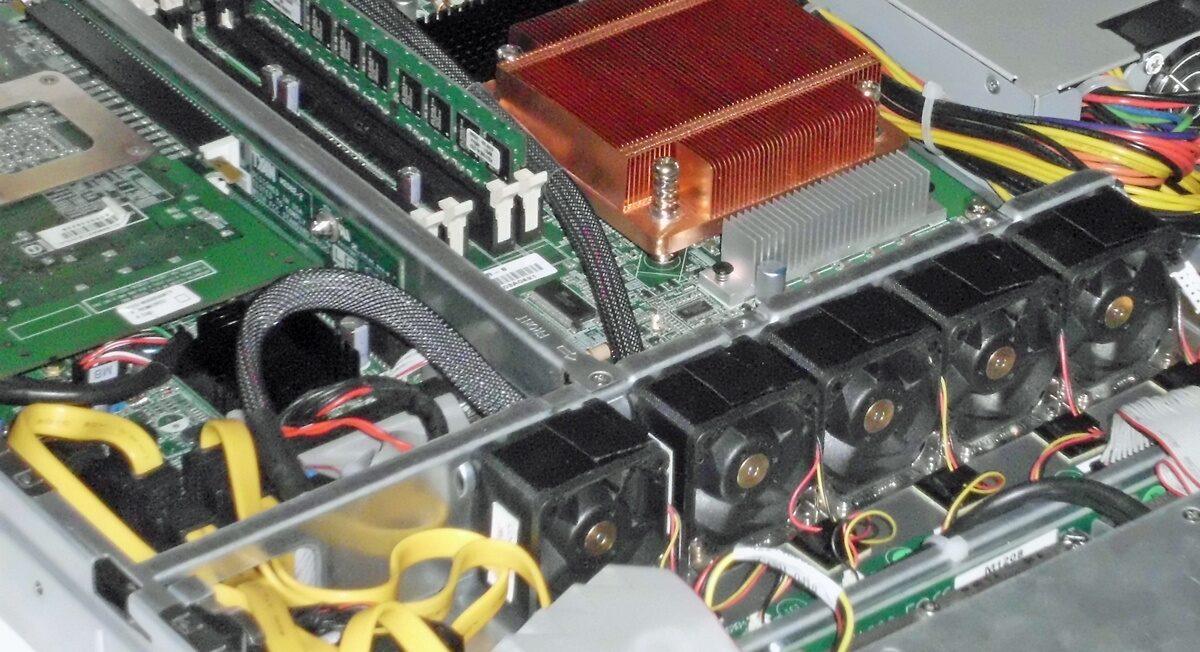 A processor that is working hard makes heat, and a heat sink and fans carry it away. A long scan is one of the things that keeps them busy. Photo by Tobias Maier, CC0, via Wikimedia Commons.
What does this message mean?
It is a name in a list, not an error. Microsoft's overview of Defender Antivirus has a table of its processes and where each shows up in Task Manager, the Windows tool that lists what is running. For the main antivirus service, the Processes tab shows "Antimalware Service Executable," the Details tab shows "MsMpEng.exe," and the Services tab shows "Microsoft Defender Antivirus."
What does it do all day? Microsoft Support puts it this way: Defender "runs in the background, scanning files and processes that you open or download looking for malware." That always-on part is called real-time protection. On top of it, Defender runs scheduled scans, and Microsoft says "we try to do this while you're not using your device so it doesn't interfere with your work."
What usually causes it?
High use that rises and then falls is the design working. These are the times Microsoft's pages say to expect it:
| When | What Microsoft says |
|---|---|
| A scheduled scan is running | Defender "regularly scans your device to help keep it safe" |
| A full scan is running | It "can take a few hours or days to complete" |
| Right after a protection update | By default Defender "scans after a security intelligence update" |
| You are installing, opening or copying many files | Real-time protection scans files "as they are accessed or executed" |
| The PC has been off for a long time | "A full scan can take longer to complete" |
| A threat was just found | Defender may start a full scan "as part of the remediation process" |
Microsoft's troubleshooting page for administrators adds causes that keep it high. Programs that are not digitally signed get scanned each time they start. Other security software can conflict with it. And very large files, such as disc images ending in .iso or .vhdx, take longer when they sit in a folder that syncs to a network or cloud location.
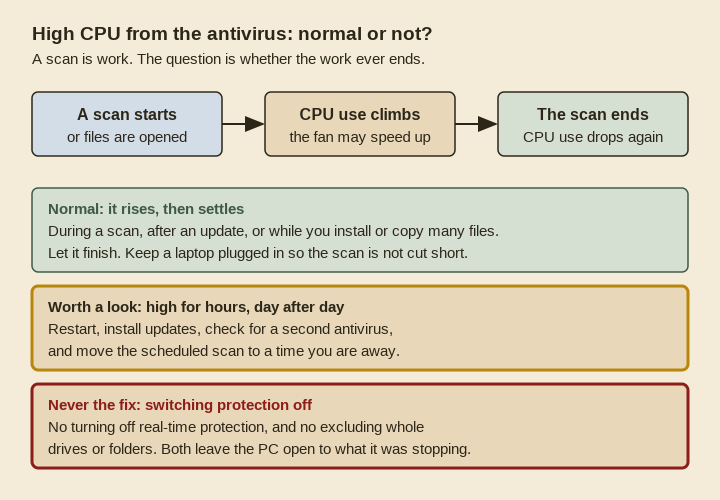 A scan has a beginning and an end. The trouble cases are the ones where the end never seems to come.
What to try, in order
These paths are from Microsoft's pages for Windows 11 and Windows 10.
- Check whether a scan just ran. Select Start, type
Windows Security, and open the app. Select Virus & threat protection. Under Current threats, Microsoft says you can see "the last time a scan was run on your device, how long it took, and how many files were scanned." A scan from a few minutes ago explains what you saw. - Let it finish, plugged in. Leave the PC on and idle for a while. On a laptop, connect the charger: Microsoft notes that if a device is "running on battery during a scheduled full scan, the scheduled scan stops" and runs again at the next scheduled time. A scan that keeps getting cut short keeps coming back.
- Restart and update. Save your work and select Start, then Power, then Restart. Then select Start, then Settings, then Windows Update, then Check for updates. In Windows Security, select Virus & threat protection, then Protection updates, then Check for updates. Microsoft says Windows updates "often include fixes and performance improvements," and Defender's own updates arrive the same way.
- Use Quick scan for your own scans. If you have been starting Full scans by hand, that alone can explain hours of high use. Microsoft's guidance is that "in most cases, a quick scan is sufficient," because real-time protection is already checking every file as it is opened.
- Look for a second antivirus. Microsoft says that when you install a compatible antivirus from another company, Defender "will automatically turn itself off." If you have other security software and Defender is still busy, Microsoft's advice is to check that vendor's support site for known issues.
- Move the scheduled scan. This changes when the scan runs and leaves protection on. Microsoft Support's steps: in the search box on the taskbar, type
Task Schedulerand open it. In the left pane, expand Task Scheduler Library, then Microsoft, then Windows, and select the Windows Defender folder. Double-click Windows Defender Scheduled Scan. On the Triggers tab, select New, and choose a day and time when the PC is on and you are away from it. Microsoft labels that page for Windows 10. - Move very large files out of synced folders. If a disc image or virtual machine file sits on your Desktop or in Documents and those folders sync to the cloud, Microsoft's troubleshooting page suggests moving it to a folder that does not sync.
- Rule out malware. If use stays high for hours every day, run a Quick scan from Virus & threat protection. If you are still worried, open Scan options and choose Microsoft Defender Antivirus (offline scan). Save your work first: Microsoft says it "will restart your device" and scan before Windows loads.
What I left out, and why
Turning real-time protection off. Microsoft's pages describe the switch and say it turns back on by itself after a short while. While it is off, in Microsoft's words, "files you open or download won't be scanned for threats." It is the most repeated tip for this problem and it is the wrong trade.
Exclusions. Windows lets you tell Defender to skip a file, a folder, a file type or a process. Microsoft's caution is direct: an exclusion means Defender "will no longer check those types of files for threats, which could leave your device and data vulnerable." It adds that excluding one file is safer than switching the antivirus off. I am not walking through the steps, and I would never exclude a whole drive, a Downloads folder or a user folder.
Administrator settings. Microsoft documents a CPU limit for scans, a policy that stops the scan after each update, and a performance analyzer that shows which files take longest. These are written for IT staff who manage many PCs, and some lower protection. They are on the Microsoft Learn page linked below.
When to stop and get help
Get help if the process stays near the top of the list for hours every day after the steps above, if scans never report finishing, or if Windows Security shows threats that return after removal. On a work PC, call your IT department before you change anything, because they set these policies centrally.
If the PC holds work or irreplaceable files and the steps have not helped, stop and take it to a repair professional.
What to remember
- Antimalware Service Executable, MsMpEng.exe and Microsoft Defender Antivirus are one thing.
- High CPU during a scan is normal. It should rise, then settle.
- Keep a laptop plugged in so a scheduled scan can finish.
- You can move the scan to a better time without weakening it.
- Do not turn real-time protection off, and do not exclude whole drives or folders.
I think a busy processor for the length of a scan is a fair price for a guard that checks every file you open. For the rest of the settings that keep a PC safe, read "Locking Down a Windows or Mac Computer".
Sources (7)
- Microsoft Learn, "Microsoft Defender Antivirus in Windows Overview", read 15 November 2026
- Microsoft Support, "Virus and Threat Protection in the Windows Security App", applies to Windows 11 and Windows 10, read 15 November 2026
- Microsoft Support, "Schedule a scan in Microsoft Defender Antivirus", applies to Windows 10, read 15 November 2026
- Microsoft Learn, "About regular quick and full scans with Microsoft Defender Antivirus", read 15 November 2026
- Microsoft Learn, "Troubleshoot performance issues related to real-time protection", written for administrators, read 15 November 2026
- Microsoft Support, "Stay protected with the Windows Security app", applies to Windows 11 and Windows 10, read 15 November 2026
- Microsoft Support, "Tips to improve PC performance in Windows", applies to Windows 11 and Windows 10, read 15 November 2026