Articles & BlogBy Trapper W. Brown10 min read
For anyone who has been sent to GitHub to download something, report a problem or "just read the README" and felt lost. By the end you will be able to find your way around a project, make your own, and tell a healthy project from a risky one.
GitHub is a website where people store projects, mostly software, along with the full history of every change. Much of the software you use every day is built there in public view. Anyone can read it, copy it and suggest improvements.
You do not have to be a programmer to need it. A game mod, a printer fix, a home server tool or a free replacement for a paid app will often send you to a GitHub page with no install button in sight. Knowing where to look turns a confusing page into a useful one. Knowing what to check keeps you from running something you should not.
 The main reading room of the Library of Congress. GitHub works more like a public library of projects than like an app store: anyone may walk in and read. Photo by Carol M. Highsmith, public domain, via Wikimedia Commons.
Git or GitHub: which is which?
They are two things with nearly the same name.
Git is a program that runs on a computer and records every change made to a set of files. GitHub's documentation calls it "a version control system that tracks changes to files." GitHub is a website that hosts projects kept with Git and adds tools for people to work on them together.
Think of Git as the notebook and GitHub as the library that shelves the notebooks. You can use Git with no GitHub account, and you can use most of GitHub from a browser without installing Git. This article stays in the browser. The article Git and GitHub for People Who Do Not Code covers how commits and branches work and the first commands to try on your own computer.
What is on a repository page?
A project on GitHub is called a repository, or "repo." Its address has two halves: the owner's name, a slash, then the project's name. The page looks busy, but six parts do most of the work.
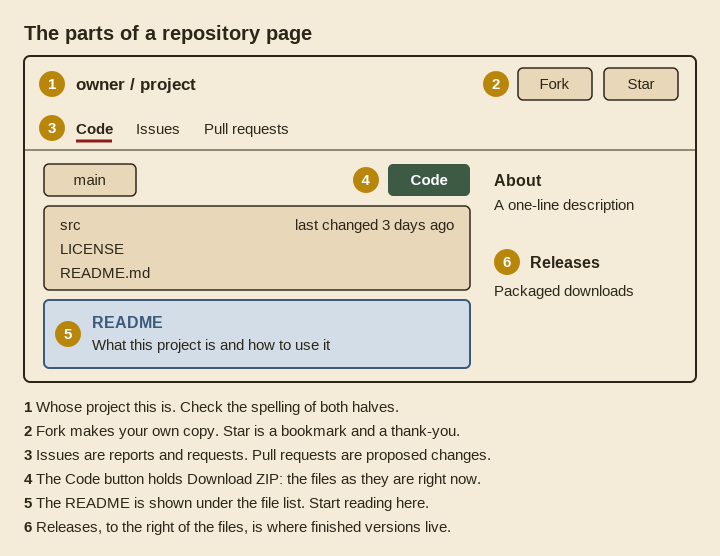 A sketch of a repository page. Buttons move from time to time, so learn the parts, not the positions.
The README deserves the most attention. It is a text file the owner writes, and GitHub shows it on the front page under the list of files. GitHub's documentation says a good one covers what the project does, why it is useful, how to get started, where to get help, and who maintains it. If a project has no README, or one that explains nothing, that tells you something too.
The dozen words a newcomer meets
| Word | Plain meaning |
|---|---|
| Repository | One project: its files and their whole history |
| Commit | One saved change, with a note, an author and a date |
| Branch | A separate line of work that leaves the main copy alone |
| Pull request | A proposal to bring a change into the project, open for review first |
| Merge | Accepting that proposal, so the change joins the main copy |
| Issue | A bug report, question or request, posted where everyone can see it |
| Fork | Your own copy of someone else's repository, on your account |
| Star | A bookmark that also shows the owner you like the work |
| README | The front-page file that explains the project |
| Release | A packaged version meant for people to download and use |
| Clone | Copying a repository, history and all, to your own computer |
| Markdown | The simple formatting used in READMEs, where # makes a heading |
How does a non-programmer use it?
Mostly in three ways, and none of them needs an account except the last.
Downloading a release. A release is the finished, packaged version. GitHub's documentation says to look to the right of the list of files and click Releases. Each release has a version number, notes on what changed, and a list of files called assets. Pick the asset that matches your system. A file ending in .exe or .msi is for Windows, .dmg is for a Mac, and the notes usually say which is which. Two entries appear on every release automatically, Source code (zip) and Source code (tar.gz). Those are the raw ingredients, not the finished program, and most people do not want them.
If a project has no releases, the green Code button offers Download ZIP. That gives you the files as they stand today, which may be mid-repair.
Reading a project. Click any file to read it. Click the commit count near the file list to see the history. You can learn a lot without understanding a line of code. When was the last change: this week or four years ago? Do the issues get answers?
Reporting a bug. This is the most useful thing a non-programmer can do for a free project. You need an account. Then, per GitHub's documentation: open the Issues tab, click New issue, pick a template if the project offers one, give it a title, describe the problem, and click Submit new issue.
Search the existing issues first, since someone may have reported it already. Then write the report you would want to receive. For example:
- Weak: "It crashes. Please fix."
- Useful: "Version 2.4.1 on Windows 11. Open the app, click Import, choose a file larger than 2 GB. The app closes with no message. Smaller files work. Happens every time."
The second report gives the version, the system, the exact steps and what happened. A volunteer can act on that in minutes.
A first walk-through: account, repository, one change
This takes about 15 minutes and costs nothing. GitHub's Free plan for personal accounts includes unlimited public and private repositories.
Make an account. Go to github.com/signup and follow the prompts. You will be asked to verify your email address. Choose a username you will not mind strangers seeing, because it becomes part of every address you own there.
Make a repository. GitHub's own "Hello World" tutorial gives these steps.
- In the upper-right corner, click the plus sign, then New repository.
- Type a name, such as
hello-world, and a short description. - Choose Public or Private. Public means anyone on the internet can read it.
- Select Add a README file.
- Click Create repository.
You now own a project with one file in it.
Make a change. Click README.md, then the pencil icon to edit. Type a sentence about what this repository is for. Click Commit changes, write a short note describing the change, such as "Describe the project," and click Commit changes again. That note is the commit message. Your edit is now a permanent, dated entry in the history.
Try the polite way. On a shared project, people do not edit the main copy directly. The same tutorial shows the full loop: create a branch from the branch menu above the file list, edit the file there, open the Pull requests tab, click New pull request, then Create pull request. When you are satisfied, click Merge pull request and Confirm merge. On your own practice repository you are both the author and the reviewer, which is the least stressful review you will ever get.
What are forks and stars for?
A fork is how you change a project you do not own. GitHub's documentation defines forks as "repositories that start as copies of another repository." You fork the project, edit your copy freely, and if the change is good you send it back as a pull request. The original is called the upstream. The owner decides whether to accept. Unless the owner has given you access, that is the only way in.
A star is smaller. It saves the repository to a list you can find later under your profile picture, in Your stars. The documentation says it also shows appreciation to the maintainer, and that star counts feed GitHub's rankings of popular projects.
Remember what a star is not. It is a count of people who clicked a button. It says a project is popular. It does not say anyone has inspected the code.
How do you stay safe?
Three habits cover most of the risk.
Lock the account. Turn on two-factor sign-in (2FA) on day one. GitHub's documentation says that since March 2023 it has required 2FA for everyone who contributes code on GitHub.com, and it strongly recommends it for everyone else. You set it up with an authenticator app or text messages, and can then add a security key or a passkey. The documentation says a passkey satisfies both the password and the 2FA requirement in one step and is bound to the real site, so a lookalike page cannot use it. Save the recovery codes somewhere safe. GitHub warns that its support team cannot restore an account if you lose both your 2FA method and your recovery options. Passwords, Passkeys and MFA: Identity Done Right explains the ideas, and Password Managers: Picking One and Moving In covers where to keep the codes.
Never commit a password or key. A public repository is public the instant you save. So is its history, which means deleting the secret in a later commit does not remove it. GitHub turns on a feature called push protection for personal accounts by default, which blocks many known kinds of secret from being pushed to a public repository. Treat that as a net under you, not as permission to be careless. The article APIs and API Keys: Why Leaked Keys Hurt explains what happens when one gets out.
Check a project before you run its code. GitHub hosts projects. It does not vouch for them. Anyone can create an account and upload anything. Before you run a download, look at five things.
- The name. Is this the real owner, spelled exactly right? Copies with one changed letter exist to catch people in a hurry.
- The age and activity. A long history with many commits is hard to fake. An account made last week with one upload is not proof of anything bad, and not proof of anything good.
- The issues. Are people reporting problems and getting answers?
- The release. Download from the Releases page of the project itself, not from a link in a comment or a video description.
- The instructions. If the README tells you to turn off your antivirus or paste a long command you do not understand, stop and ask someone who can read it.
Take two examples. A gamer wants a mod manager. The project has six years of history, hundreds of closed issues and a release last month. That is a healthy pattern. A small office wants a free invoicing tool and finds one with a slick README, an account created this month and a single file to download. The second one may be fine. As a rule of thumb, though, the less history a project shows, the more proof it owes you.
Watch out
A high star count and a professional-looking page are not a safety check. Run unfamiliar programs only from projects whose history and issues you have looked at, and never because a stranger's link told you to hurry.
What to remember
- Git is the tool that records changes. GitHub is the website that hosts projects and adds issues, pull requests and releases.
- On any repository page, find six things: the name, Fork and Star, the tabs, the Code button, the README and Releases.
- Without writing code you can download a release, read a project's history and report a bug well.
- An account is free. A first repository and a first edit take a few minutes in the browser.
- Turn on two-factor sign-in or a passkey, save the recovery codes, and never put a password or key in a repository.
- GitHub does not vet what it hosts. Check the name, the history, the issues and the release before running anything.
Make the practice repository tonight and edit its README once. After that, the next GitHub link someone sends you will look like a page you already know how to read.