Articles & BlogBy Trapper W. Brown10 min read
A laptop is a whole computer folded into something you can carry: a processor, memory, storage, a screen, a keyboard and a battery, all chosen by somebody else and mostly sealed in. That last part is the catch. With a desktop you can swap a weak part later. With most laptops, what you buy is what you live with.
So the buying decision carries more weight, and the spec sheet is written to impress more than to inform. This guide does not name a single model. Models change every few months. The way to judge one does not.
 Start with a list of what the laptop has to do. A pen and paper is enough for that part. Photo by Pixel.la Free Stock Photos, CC0, via Wikimedia Commons.
What is it for?
Start here, before any number. Write down the three things the laptop will do most, and where it will do them. "Essays, video calls and streaming, carried to class every day" describes a very different machine from "editing video at a desk."
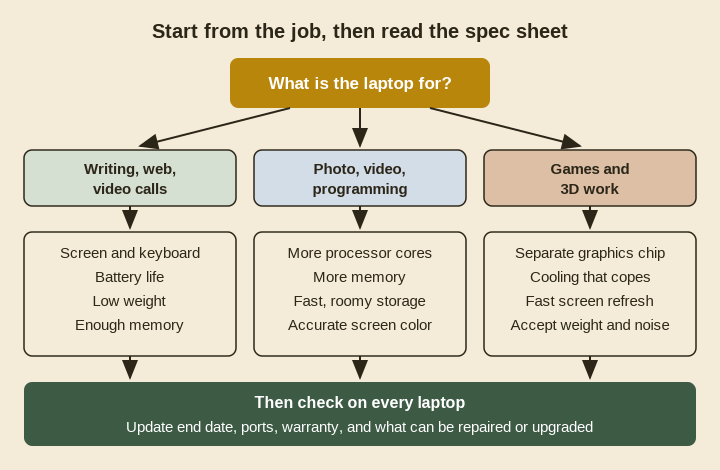 Decide the job first. The job tells you which lines of the spec sheet to read closely.
Most regret comes from paying for the wrong strength. A gaming laptop on a commuter's shoulder is heavy and loud for no benefit.
| Reader | Spend on | Safe to save on |
|---|---|---|
| Student | Weight, battery, keyboard, a long update life | Top processor, graphics |
| Office or remote worker | Screen, keyboard, webcam and microphone, memory, ports | Graphics |
| Photo or video maker | Processor cores, memory, storage, screen color | Thinness |
| Gamer | Graphics chip, cooling, screen refresh rate | Battery life, low weight |
A paired example shows how the same method scales. A student buys one laptop and cares most that it survives four years in a backpack. A ten-person company buys ten and cares about different things: that all ten are the same model so one spare charger fits them all, that the warranty sends a technician, and that security updates run for years. Same checklist, different weights.
Processor and memory: how much is enough?
The processor, or CPU, does the computing. Laptop processors fall into three rough classes, whoever makes them.
- Low-power chips sip electricity and need little or no fan. They suit writing, browsing and calls.
- Mainstream chips balance speed and battery. Most people should be here.
- High-performance chips have more cores, which are separate workers inside the chip. They help with video, 3D and compiling code, and they cost battery, heat and fan noise.
Two things confuse buyers. The first is the name. A chip's family name tells you less than its generation, so check the year the processor was released. A top-tier chip from five years ago can lose to a midrange one from last year. The second is the letters after the number, which mark the power class. Look them up on the chip maker's own page before trusting a salesperson.
Some new laptops also advertise an NPU, a part of the chip built for AI tasks. Microsoft's own bar for the class it calls Copilot+ PCs is an NPU rated at 40 or more TOPS (trillions of operations a second), with 16 GB of memory and 256 GB of storage. It is not a measure of general speed.
Memory, or RAM, is the working space for everything open right now. Too little, and the laptop slows down as soon as you open many browser tabs. Microsoft lists 4 GB as the minimum for Windows 11, and a minimum is exactly that. My rule of thumb in 2026: 8 GB is the floor for light use, 16 GB is the comfortable choice for most people, and 32 GB is for video, large photos and heavy multitasking.
Ask one more question about memory: is it soldered? Soldered means attached to the main board for good. If it is, you can never add more, so buy what you will need in year four, not what you need today.
Storage and the screen
Storage holds your files and programs when the power is off. Every laptop worth buying now uses a solid-state drive, or SSD, which has no moving parts.
Size it with arithmetic, not hope. Here is a worked example. Say the operating system and programs take 60 GB, a year of phone photos takes 40 GB, and school or work files take 20 GB. That is 120 GB on day one. A 256 GB drive leaves room. A 128 GB drive is full before the first year ends. Microsoft's Windows 11 minimum is 64 GB, which is enough to install the system and little else.
The screen is the part you look at for every minute of use, and it is where cheap laptops cut corners first. Four numbers describe it.
| Term | Plain meaning | What to look for |
|---|---|---|
| Size | The diagonal, in inches | 13 to 14 for carrying, 15 to 16 for a desk |
| Resolution | How many dots, across by down | 1920 by 1080 is the practical minimum |
| Brightness | Light output, measured in nits | About 300 for indoors, 400 or more near windows or outside |
| Panel type | The technology behind the glass | IPS for honest color at an angle, OLED for deep blacks |
Those "what to look for" figures are my rules of thumb, not a standard. A nit is a unit of brightness. More nits means the picture stays readable in a bright room. Makers often leave this number off the cheapest models. If you cannot find it, treat that as an answer.
Screen refresh rate, in hertz, is how many times a second the picture redraws. Sixty is normal. Higher numbers make motion smoother and matter mainly for games.
Battery claims versus reality
Makers print a battery life in hours. The honest number hides in a different unit: watt-hours, written Wh, which is the size of the fuel tank.
The arithmetic is simple. Hours equal watt-hours divided by the watts the laptop is drawing. Take a 60 Wh battery. If light work draws 6 watts, that is 10 hours. If a video call with the screen at full brightness draws 15 watts, that is 4 hours.
That is how a "20 hour" claim and a 6 hour experience can both be true. The claim comes from a gentle test, usually video playback with the screen dimmed. Read the footnote under the claim, where makers generally describe the test. Then compare laptops by watt-hours and by independent reviews that run the same test on each machine.
There is a ceiling on the tank. The FAA limits lithium-ion batteries carried by airline passengers to 100 watt-hours each without special approval. I take that as the practical ceiling for a laptop you can fly with, so be wary of any claim that implies a far bigger tank.
Check the charger as well. Many laptops now charge through a USB-C port. The body that sets the standard, the USB Implementers Forum, says USB Power Delivery was limited to 100 watts until a 2021 update raised the ceiling to 240 watts. A laptop that charges by USB-C can share a charger with other devices.
Weight, ports and the keyboard
These three never appear in the headline and decide whether you like the machine.
Weight. Look for it in pounds or kilograms, and add the charger. As a rule of thumb, under 3 pounds disappears in a bag, 3 to 4 is fine, and over 5 is something you will leave at home.
Ports. Count what you plug in on a normal week: a monitor, a mouse, a memory card, wired headphones. If the laptop has only two USB-C ports and one is used for charging, you will be buying an adapter.
Keyboard. Specifications cannot describe it. If you can, type a paragraph on the display model in a shop.
Can it be repaired or upgraded, and what does the warranty cover?
Batteries wear out. It is chemistry, and every laptop battery holds less after a few years. Whether that ends the laptop's life depends on whether the battery can be replaced.
Before you buy, search for the model name plus "service manual." A maker that publishes one, and sells parts, is telling you the machine can be kept going. Then ask three questions. Is the memory soldered? Is the storage drive replaceable? Is the battery screwed in or glued?
Makers differ on how long they supply parts. Apple, for example, publishes its policy: it classes a product as "vintage" once it has been off sale for more than five years and "obsolete" after more than seven, when hardware service ends, with battery-only repairs for Mac laptops possible for up to ten years. Whatever brand you consider, look for the equivalent statement.
On the warranty, read three things: the length, whether accidental damage is covered (usually not), and whether repair means mailing the laptop away for two weeks. In the United States there is a rule worth knowing. The Federal Trade Commission said in a consumer alert dated 7 July 2022 that "companies can't void your warranty or deny warranty coverage solely because you use a part made by another company" or had someone else do a repair. They can refuse to cover damage that the outside part or repair caused.
How long will it get updates?
This is the question buyers skip, and it sets the true lifespan. A laptop that no longer receives security updates is not safe to use online, however well it still runs. Another article in this set, Running End-of-Life Software Is Driving Without Insurance, explains why.
Check the maker's own page for the operating system.
- Windows. Microsoft's support page states that "Windows 10 has reached the end of support on October 14, 2025." It offers an Extended Security Updates program that consumers can enroll in, which the same page says can protect a Windows 10 device until 12 October 2027. A laptop sold today should run Windows 11, which requires a security chip called TPM version 2.0, among other things. Some older laptops do not meet those requirements.
- ChromeOS. Google's policy page says ChromeOS devices "receive 10 years of updates," counted from when the hardware platform was released, not from the day you buy. Google lists the end date for each model on that page, and tells buyers to check it.
- macOS. Apple's support pages read for this article publish the hardware service policy described above, not a fixed end date for system updates. Check which macOS version a given model can run before buying an older one.
Watch out
The update clock starts when the hardware was designed, not when you open the box. A "new" laptop that has sat in a warehouse for three years has three fewer years of support. Find the end date for the exact model before you pay.
An old laptop that has lost its updates is not always scrap. What Is Linux?, elsewhere in this set, covers a free operating system that still supports much older hardware.
Should you buy refurbished or used?
Often, yes. I think a two-year-old business laptop, refurbished, can be a better buy than a new budget one at the same price. The checks are different, though.
- Update end date. The first check, for the reasons above. For Windows, confirm it runs Windows 11.
- Battery health. Ask for the cycle count or health percentage. Every system can report it.
- Locks. A laptop that once belonged to a school or company may still be enrolled in its management system, or carry a firmware password. Either can make it useless to you. Ask the seller to confirm in writing that it is released.
- Warranty and returns. "Refurbished" has no fixed meaning. A seller's own 12-month warranty and a 30-day return window mean more than the word.
- The charger. Confirm the original, or one of the same wattage, is included.
Wipe and reinstall the operating system before you put anything personal on a used machine. Then set up a backup. Backups That Work: The 3-2-1 Rule covers that step.
What to remember
- Start from the job. The job tells you which specifications deserve the money.
- Check the processor's release year, not only its family name. Buy memory for year four if it is soldered.
- Compare batteries by watt-hours and independent tests, not by the hours on the box.
- The screen's brightness in nits and its panel type matter more than extra resolution.
- Find the security update end date for the exact model before you pay. It is the laptop's real expiry date.
- For used and refurbished, check battery health, management locks, warranty and the return window.
Pick two or three candidates and fill in one line for each: job fit, memory, watt-hours, nits, weight, update end date. The right one is usually obvious once the numbers sit side by side. If games or 3D work are on your list, read How to Find a Good GPU next.