Articles & BlogBy Trapper W. Brown11 min read
A GPU, or graphics processing unit, is the chip that draws what you see on the screen. Sold on its own circuit board with fans attached, it is called a graphics card or video card. In a gaming or creative PC it is often the single most expensive part, and the one whose box tells you least about whether it suits you.
It is also easy to buy wrong in ways that have nothing to do with speed. The card can be too long for the case, too hungry for the power supply, or not what the listing said it was. This guide teaches you to judge any card, from any of the three companies that design them, without naming a model.
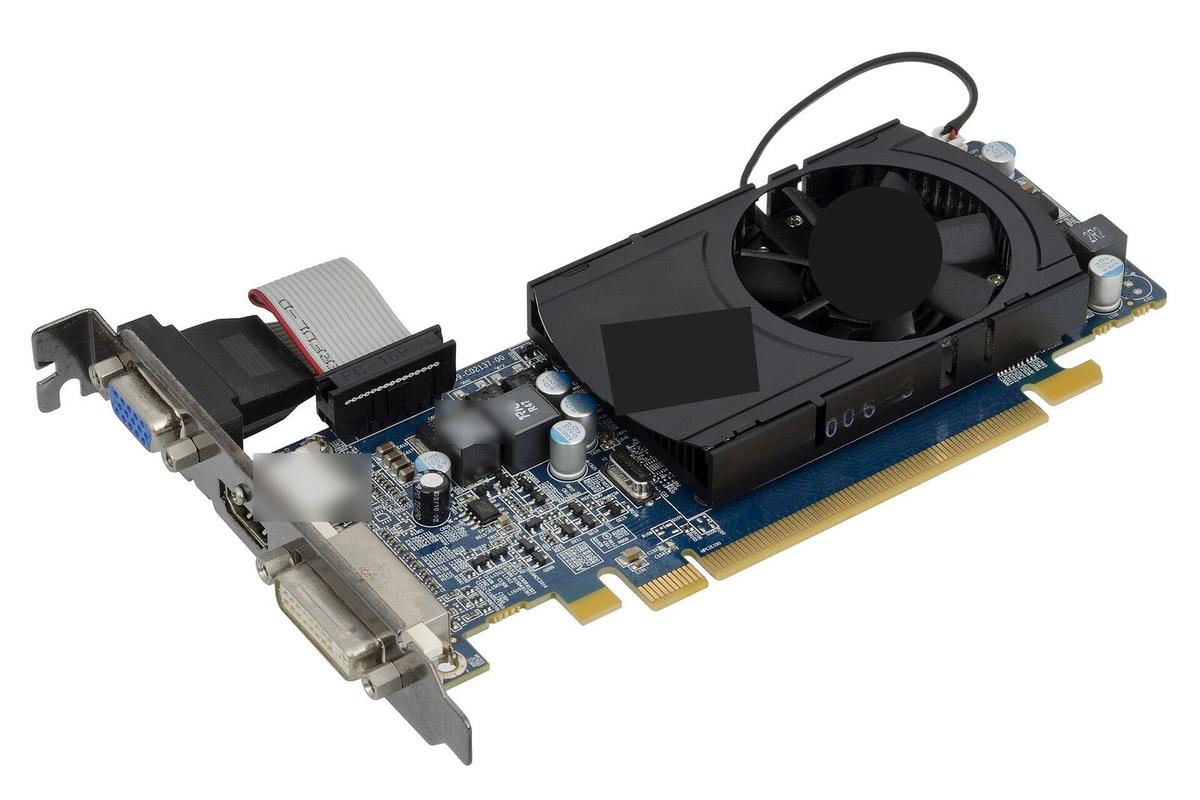 A small, older graphics card. The gold edge goes into the motherboard slot and the bracket end faces out of the back of the case. Maker's marks have been painted out. Photo by Evan-Amos, public domain, via Wikimedia Commons.
What does a graphics card do?
A picture on a screen is a grid of dots called pixels. A game has to work out the color of every one of them, again and again, fast enough that the result looks like motion.
That is a strange kind of work. Each sum is simple, but there are millions of them and they can all be done at once. A normal processor is built to do a few complicated things quickly. A GPU is built to do an enormous number of simple things side by side. The same talent turns out to suit video editing, 3D design and artificial intelligence, which is why these chips now matter far outside games.
Three companies design nearly all GPUs for PCs: AMD, Intel and Nvidia. Other firms build the finished cards around those chips, adding the cooler, the fans and the ports. So two cards with the same chip can differ in size, noise and price while performing almost the same.
Do you need a separate card at all?
Maybe not. There are two kinds of graphics.
Integrated graphics are built into the main processor. They handle office work, video and light games without complaint.
A discrete card is the separate board this guide is about. You need one for demanding 3D games, for serious video and 3D work, and for running AI models on your own machine.
As a rule of thumb, if you cannot name the program that is too slow today, you do not need a new card yet. Laptops are a separate case, because their graphics chip cannot be swapped later. A companion piece in this set, How to Find a Good Laptop, covers that choice.
Which numbers matter?
A product page lists dozens. Five decide almost everything.
| Number | Plain meaning | Where to check it |
|---|---|---|
| Video memory (VRAM), in GB | The card's own working space for textures, frames and AI models | The card's specification page |
| Power draw, in watts | How much electricity it pulls at full load | The card maker's page, plus its recommended power supply |
| Length, height and slot width, in mm | Whether it physically fits | Card page against your case's manual |
| Power connectors | Which plugs it needs from the power supply | Card page against your power supply's cables |
| Display outputs | Which ports, and which version of each | Card page against your monitor |
Video memory deserves a word. It is not a speed rating. It is a limit. With enough, the card runs at its natural speed. With too little, a game stutters or a creative program refuses the job. More memory on a slow chip does not make it fast, so be suspicious of a weak card advertised mainly by a large memory figure.
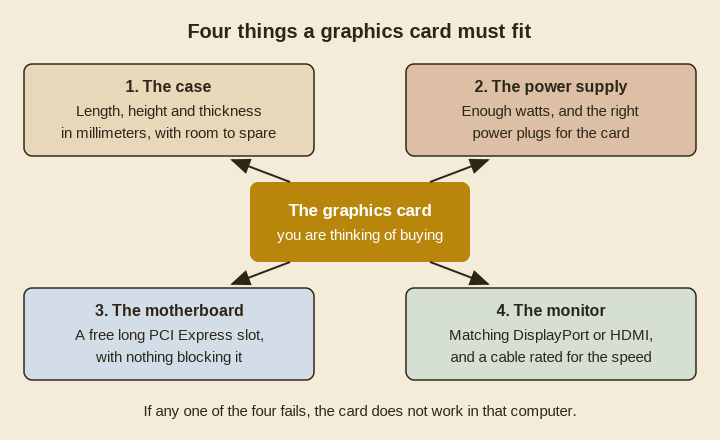 Speed is the last question. These four come first.
The other thing to settle early is your target: the resolution of your monitor and the frame rate you want. Resolution is the pixel count. Frame rate, in frames per second or fps, is how many pictures the card finishes each second. The arithmetic shows why the target matters so much.
| Common name | Pixels across by down | Total pixels |
|---|---|---|
| 1080p | 1920 by 1080 | 2,073,600 |
| 1440p | 2560 by 1440 | 3,686,400 |
| 4K | 3840 by 2160 | 8,294,400 |
A 4K screen has exactly four times the pixels of a 1080p screen, so the card does roughly four times the work for each frame. Frame rate multiplies it again. At 60 fps the card has about 16.7 thousandths of a second for each picture. At 144 fps it has about 6.9. A card that is plenty for 1080p at 60 can be hopeless for 4K at 144. Buy for the monitor you own or will buy, not for the biggest number on the box.
Will your power supply and case cope?
This is where most failed upgrades fail.
Start with the plugs. A graphics card sits in a long slot on the motherboard called PCI Express, and the hungrier ones need extra power cables as well. Intel's power supply design guide, which follows the PCI-SIG standard, lists three plug types for desktop cards.
- A 6-pin plug, rated for 75 watts.
- An 8-pin plug, rated for 150 watts.
- A newer 16-pin plug called 12V-2x6, rated for up to 600 watts through one cable.
PCI-SIG, the industry group that owns the PCI Express standard, defines the 12V-2x6 connector in a specification called CEM 5.1.
Then the total. The same guide includes a table that pairs a card's power with the size of power supply used for testing a whole system, assuming a processor that draws up to 300 watts.
| 150 W card | 550 watts |
|---|---|
| 225 W card | 650 watts |
| 300 W card | 750 watts |
| 450 W card | 1,000 watts |
| 600 W card | 1,200 watts |
A 300 watt card is paired with a 750 watt supply because the rest of the computer needs power too and a supply should not run at its limit. The card maker's own page states a recommended supply. Use that figure, and do not shave it.
Here is a worked example. Your PC has a 550 watt power supply with two 8-pin graphics cables. The card you want draws 320 watts and its maker recommends 750. The supply is too small, and the honest price of that card includes a new power supply.
Last, measure. Open the case and measure from the back plate to the first thing in the way, then compare with the card's length. Check thickness too. Many cards are two or three slots thick and will cover the slots beneath them.
Watch out
Push every power plug in until it is fully seated, with no gap, and do not bend the cable sharply right at the plug. Use only the cables that came with your own power supply. Cables from another brand's supply can look identical and be wired differently.
What do ray tracing and upscaling mean?
Two terms fill every product page.
Ray tracing is a way of drawing light. The older method fakes shadows and reflections with clever shortcuts. Ray tracing follows the path of light through the scene and works out what it would really do. The picture looks more natural, especially in reflections and shadows, and the cost is heavy: frame rates drop, sometimes sharply.
Upscaling is how cards win some of that speed back. The card draws the picture at a lower resolution, which is quick, and then software enlarges it to fit your screen and fills in detail. A related trick, frame generation, inserts extra made-up frames between the real ones so motion looks smoother.
Each of the three companies has its own version of these features, and each works best on its own cards. They help. They are also the easiest way to make a chart look better than the hardware is, which brings us to benchmarks.
How do you read a benchmark without being fooled?
A benchmark is a measured test: the same game or program run the same way on different cards. Reading one well takes five habits.
- Find your own target. A chart at 4K tells you little if you play at 1080p. Use results at your resolution.
- Check what was switched on. A bar labeled 120 fps with upscaling and frame generation is not comparable to a bar at 80 fps without them. Look for both cards tested with the same settings.
- Look past the average. Reviews often give "1% lows," the frame rate during the worst moments. A high average with poor lows feels worse than a modest, steady result.
- Prefer independent tests. A maker's launch charts are advertising. They pick the games and settings that flatter the product.
- Check the date. Driver software changes performance over time, and prices move. A year-old review may describe a different contest.
Then divide. Take a card's price and divide it by its frame rate in the games you play. Suppose one card costs $400 and gives 80 fps, and another costs $600 and gives 100. That is $5 per frame against $6. The dearer card is faster and worse value. Whether the extra 20 frames are worth $200 is your call.
Is a card for AI or creative work different from a gaming card?
Same hardware, different priorities.
For games, the chip's speed at your resolution matters most, and memory only has to be enough.
For video and 3D work, memory matters more, because large projects are held in it. Check the support page of the program you use. Editing and rendering programs publish lists of supported cards and the features each one speeds up.
For running AI models at home, memory is usually the hard limit. A model either fits in the card's memory or it does not. Software support also varies between the three companies' chips, so read the requirements of the tool you plan to use before choosing. Take a paired example. A hobbyist trying an image generator needs one card with enough memory to load the model. A small studio training its own models may be better served by renting time on someone else's hardware than by buying anything.
Check the outputs against your monitor too. The two standards are DisplayPort, run by the standards body VESA, and HDMI. VESA says the current DisplayPort version, 2.1b, carries up to 80 gigabits per second over certified cables. The HDMI organization says HDMI 2.1 cables carry up to 48 and the newer HDMI 2.2 up to 96. The practical point: a fast monitor needs a matching port on the card and a cable certified for that speed.
How do you buy used, and avoid fakes and scams?
Graphics cards hold their value, so the used market is large and scammers like it.
For a used card from a real seller, ask or check:
- Why it is being sold, and whether the original receipt exists. Warranties do not always transfer to a second owner, so ask the maker.
- Whether it ran around the clock, for example in cryptocurrency mining. Constant use can wear the fans and the thermal paste under the cooler. Both can be replaced, but it should lower the price.
- That the fans spin freely, the board is not bent, and no screws show tool marks from a rough repair.
- Above all, that you can see it run. Ten minutes of a demanding game or a free stress test, with no flickering blocks or lines on screen and no crash, is worth more than any description.
For scams and counterfeits, know the common patterns.
- The fake chip. An old, slow card is reprogrammed to report the name and memory of a newer one. It appears correct in the system until it is pushed. A price far below every other listing is the tell.
- The box. A sealed retail box that holds a brick, a broken card or nothing.
- The stock photo. A listing with only the maker's promotional pictures. Ask for a photo of the actual card next to a handwritten note with today's date.
- The off-platform payment. A seller who wants a bank transfer, a gift card or a payment app's "friends" option is removing your protection on purpose.
After any purchase, check the serial number with the card's maker, and test the card under load inside the return window.
What to remember
- A GPU does huge numbers of simple sums at once. That suits games, video, 3D and AI.
- Check fit before speed: case, power supply, slot and monitor.
- Video memory is a limit, not a speed rating. Buy for your resolution and frame rate target.
- Use the card maker's recommended power supply figure, and the right cables, fully seated.
- Read benchmarks at your own settings, from independent testers, with upscaling noted. Then work out price per frame.
- For used cards, see it run. A price far below the rest is a warning, not a bargain.
Write your target on one line, such as "1440p at 100 fps, 650 watt supply, 300 mm of space," and hold every candidate against it. Most of the confusing choices disappear at that point.